Usage of “SAP Analytics Cloud Add-In for Microsoft Excel” in a planning scenario

November 2024

Introduction

As a consultant for SAP planning my current customers still mostly use BPC and AO, however, more and more SAC is now being used as a frontend for planning. If you still want to use excel as an interface for pure SAC data, you need to use the SAC add-in for Microsoft Excel. This tool is now available for about 4 years. Time now to have a closer look at this tool. 

This blog will start with a short background about the SAP excel plugins and the history of the SAC add-in. Then we will check usage of this tool for planning in a simple case and a more complex scenario. We will end with a conclusion of what this tool can be used for.

Update 12/2025 

Since I wrote this blog a year ago, SAP has made several new features available for the SAC Excel plugin. I therefore checked to see whether the missing features for planning listed below are now included. It is now possible to use a user-defined planning area in Excel. In addition, the implementation logic has been expanded. An additional macro add in file allows functions to be controlled via VBA (see the following blog). Unfortunately, the web application is still not included. 

The other requirements, such as adding new rows, are still awaiting implementation. 


Background – different Excel plugins from SAP

Short reminder of the different tools available from SAP: 

  • Analysis for Office (AfO)Plugin to be used for BW, but as well possible for SAC, but only for accounting models (which are depreciated)
  • Analysis for Office (AfO) – SAC Editionsame as AfO, but license and login via SAC account checked.
  • SAP Analytics Cloud Plugin for Microsoft Excel 

More details of when SAP recommends using which tool can be found in the following blogs:

  • History and different technical backgrounds: Link
  • When to use which plugin Link

If you are looking for an Excel frontend for SAC, you can try the classic AfO tool. This works, but only for the deprecated account model. Thus, AfO cannot really be used as an Excel frontend for SAC in the long term. You must use the SAC add-in! 

One argument from SAP as to why they created a completely new add-in, as opposed to enhancing functions within the existing AfO tool, is that the new add-in supports additionally Excel execution in the browser. 

A good starting point for learning how to use this tool is the SAP learning hub: Link

Short History

The new add-in was Introduced 2020: Link

Since then, a lot of features have been added. One example:

Create a blended report to mix plan and actual data within one table from different sources: Link

A list of some important features added:

  • Version 2022.20:
    • Disable model for planning in the workbook
  • Version 2022.22:
    • Data language can be selected different than Excel language
  • Version 2023.01:
    • Add Planning Trigger to start a data action
  • Version 2023.19:
    • Update Filter dialog  
  • Version 2023.23:
    • Undo - Redo option
    • copy paste possible in filter dialog
  • Version 2023.25:
    • Live access to BW and S4 data

This tool already made great progress since the first version.


General look and feel of the SAC Excel plug-in

Installing the tool via the Microsoft app store, adding a table and entering plan values is straightforward. You just have to download it from the Microsoft App Store. Once installed, you will find a new Ribbon. Logon to your SAC tenant, select a data model, add the dimensions and your first report is ready. 

With the help of formulas, you can add some more functionality to your workbook. If you start to use formulas for this plug in Excel already helps you to write the formula in the correct syntax. Not very well described within the documentation is how to address the properties of the BW dimensions in the formula (e.g. case sensitive, only member or as attribute.dimension) 

The current behavior is described in the following SAP note: Link

For a better description of the usage, with an example, pls refer to this community discussion: Link

Simple planning scenario
Now let us have a closer look at the usage of this tool for planning. Assume the following scenario:

  • Make selection of attributes
  • Start a data action
  • Enter plan values
  • Publish the data

All these requirements can be easily implemented.

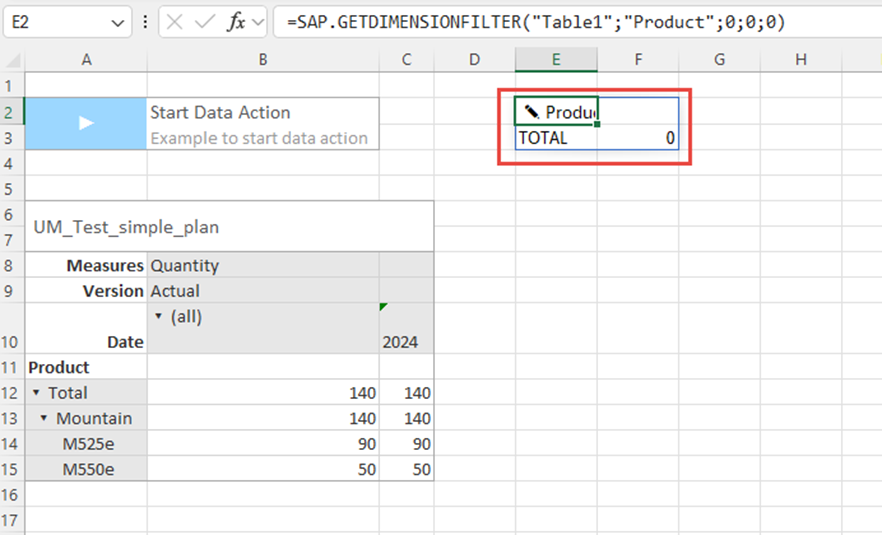
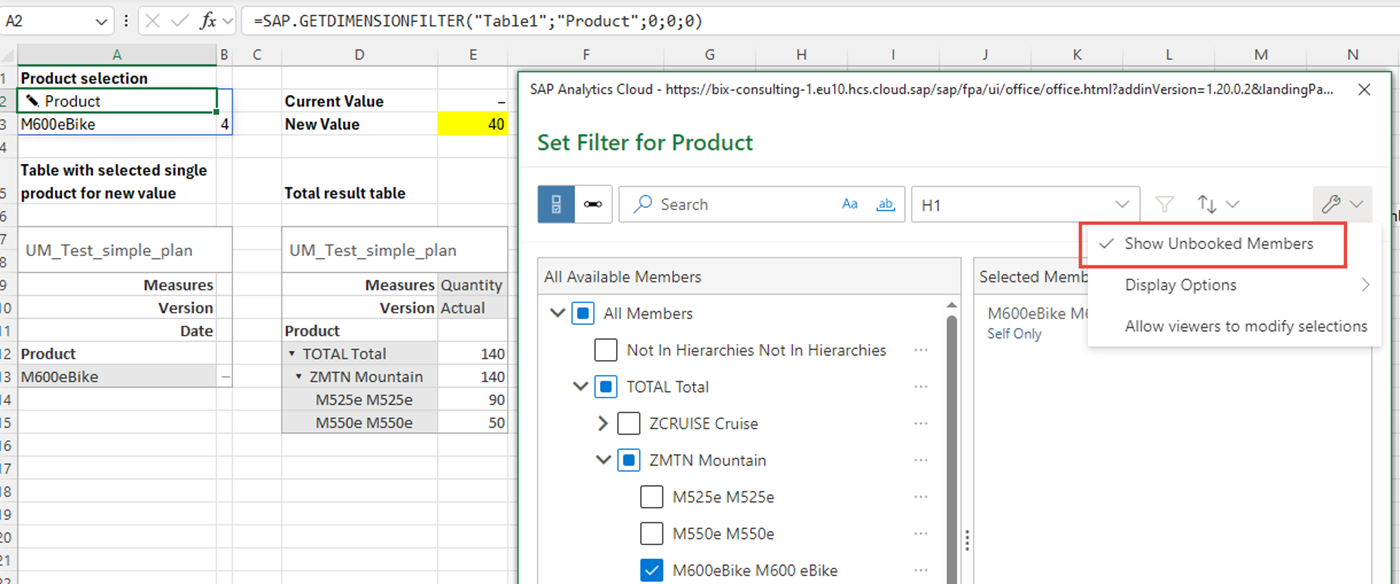
To add a dimension filter, you can use the function SAP.GETDIMENSIONFILTER.

Once added to a cell a pencil icon is shown. If you click on this icon a selection screen similar to the web interface will be shown. Below all selected values will be shown

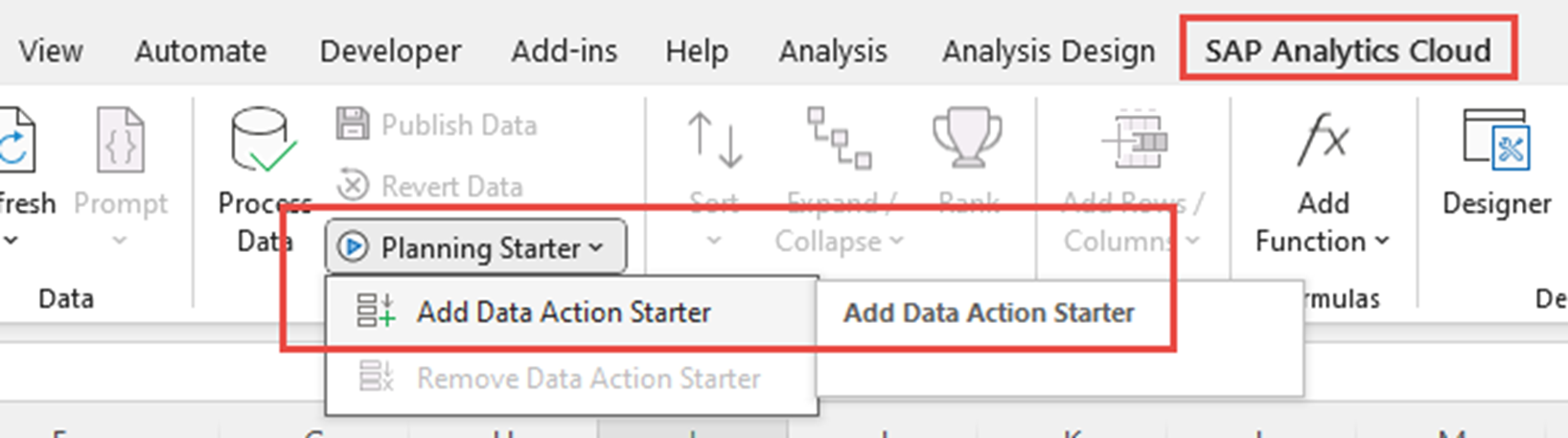
Data actions is also straightforward. Just select the function in the ribbon (Planning Starter). Then a button will be added in the design panel. You can select the data action and variables, if applicable. 
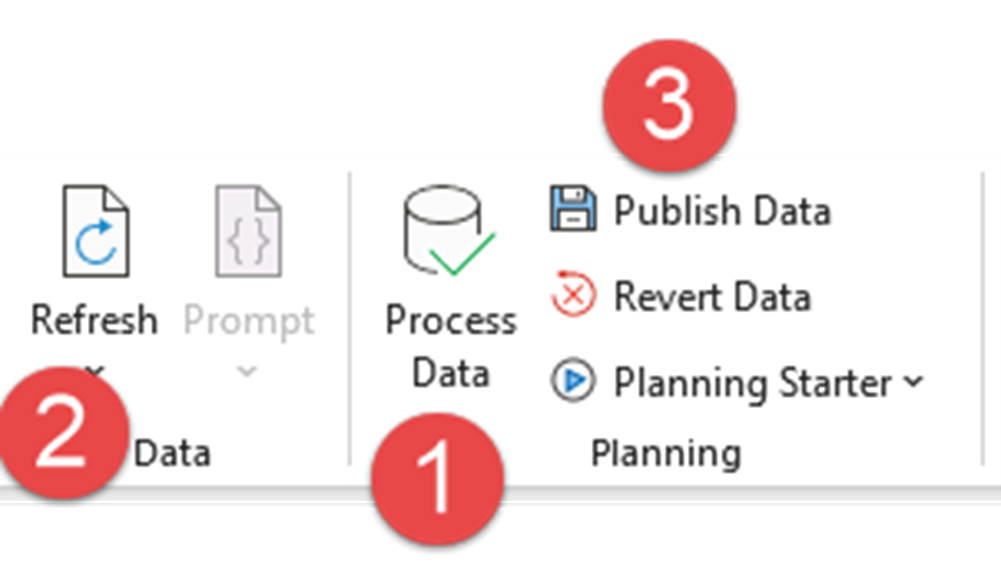
By default, all tables entered are planning enabled. Just type in the data. To process and save the data you must do the following steps, similar to AfO behavior: 

    1. Process data. After you have processed the data, changed cells are shown in a different color like the web frontend 
    2. If you have more than one table, you need to press one more button to trigger refresh of all tables 
    3. Afterwards you can decide to publish the data or revert the changes 
    Usage for a simple planning scenario

    Implementation of simple planning scenarios is easy. 

    Complex planning scenario

    Now let’s have a look at a more complex planning scenario. This is where you would prefer an excel interface instead of the browser interface. Let us see how far we get with this scenario with this add-on. 

    Assume the following requirements: 

    • You have a lot of combinations to plan, and the list is too long to be handled within the browser
    • You already have some pre-calculation within Excel and you like to link them to the planning layout

    To make handling simpler for the users, with this scenario you would like to create a workbook with the following features: 

    • Open Excel file, press a custom button to update data. For this we need a script language to link the functionality from the ribbon to custom button in the workbook
    • A table with reference columns and input ready columns, showing reference columns, clearly marked as NOT input ready 
    • Add new lines, e.g. for new customer – material combinations. Perhaps paste several lines from a different preparation Excel 
    • Press a custom button to process, refresh and publish data. Again, we would need a script language for this requirement.

    If you have an occasional user which should use an input layout, it is much simpler for them to have a custom button instead of explaining them where to find the functionality in the ribbon. 

    Status of required functionality

    A good source to check if required functionality is still missing is the SAP customer influence page: Link

    For my complex planning scenario all requirements are unfortunately in this list. Here are the most important influence requests related to SAC planning with the corresponding status to give you an idea when to expect them: 


    Title (with Link) Status Comment
    Support for Office script API's

    Planned (long-term)

    Submitted August 2021

    Update 2025: last update: Nov. 2025 – Status „Under Review“ 

    To group functionality of different buttons / formulas in a button the support of a script language is required. Microsoft pushes toward script language. But it seems SAP is waiting for Microsoft …, 


    Update 2025
    Since Q2/2025 certain functions can be called via VBA. This blog describes the details. Disadvantage is that this will not work within the web – plugin. 

    Since Q4/2025, VBA can also be used to trigger the processing of plan data (revert, process, execute). 

    Visualization of locked data cells in Excel O365 Add-in

    Planned (long-term)

    Submitted Apr. 2022

    Next update Q1/2026

    Perhaps you can find a workaround with some Excel functionality and text in the header 
    Plan on (copy-paste) multiple new lines in a table (directly in SAC)

    Planned (long-term)

    Submitted Aug. 2021

    next update Q1/2025

    Update 2025
    : Status changed now to„Accepted“ – Deliveryaccording to commentperhaps in H1/2026 

    Adding multiple new lines is not even possible directly in SAC. In SAC you now have the Workaround with the file upload (since Q3 2024)
    SAP Analytic Cloud Excel Add-in (SAC) - Add Member

    Planned (long-term)

    Submitted June 2022

    next update Q1/2025

    Update 2025: Status still „long-term“ –next update Q1/2026 

    New lines in the Excel plugin are only possible with display unbooked lines (hope you can filter) or working with the function SAP.SETDATA (see below) 
    Enable customized planning area in Excel Add In

    Planned (long-term)

    Submitted March 2023

    next update Q3/2024

    Update 2025: deliverd with version Q4/2025 

    This sounds like only technical relevant. But it is very important if your planning is on a big database. Without this feature SAC add-in may have performance problems or even will not be possible
    SAC Excel Add-in does not allow publishing of data by version as in SAC Story

    Submitted

    Submitted June 2024

    This may be relevant if you work with several versions in the Excel sheet

    Jump from SAC Data Analyzer to SAP Analytics Cloud add-in for MS office 365

    Acknowledged

    Submitted May 2024

    Update 2025: according to Road ap planned for Q2/2026

    Jump from the SAC data analyzer to the Excel plugin would help to increase acceptance of add-in and helps users with complex requests

    As most of these features are already accepted by SAP, voting for them will probably not have a big influence on their decisions, but may show SAP that they are really required, and are a good way to show customer needs. 

    Workaround for new lines

    Adding new lines in a planning scenario is a standard requirement.

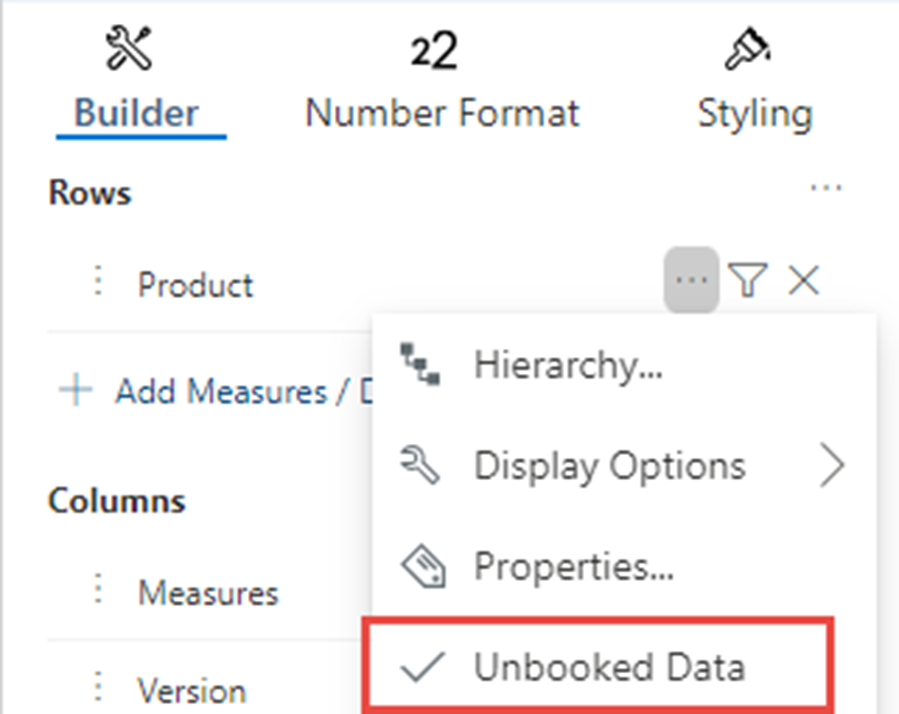
    First check if you can work with “Unbooked Data”. With this option in the table / for attributes, all master data combinations of the selected attributes are shown. If you restrict good filters to a reasonable number of lines, this is the way to go. 

    In case this is not possible, e.g. for an attribute with lots of master data which has no good hierarchy selection available, you must check for different options. 

    One way would be to use the (since Q3 2024) available file upload function in the browser. Of course, you would have to leave the Excel interface, but with a certain link this may be a solution. 

    One other solution would be to work with formulas. Could we use these formulas to create new lines? In principle this is possible, but the question of user friendliness is another, it’s up to you to decide. 

    Here is the way to go:

    • Use formular SAP.SETDATA to create new combinations
    • Formel SAP.GETDIMENSIONFILTER to allow the user to select the required IDs for the new combination

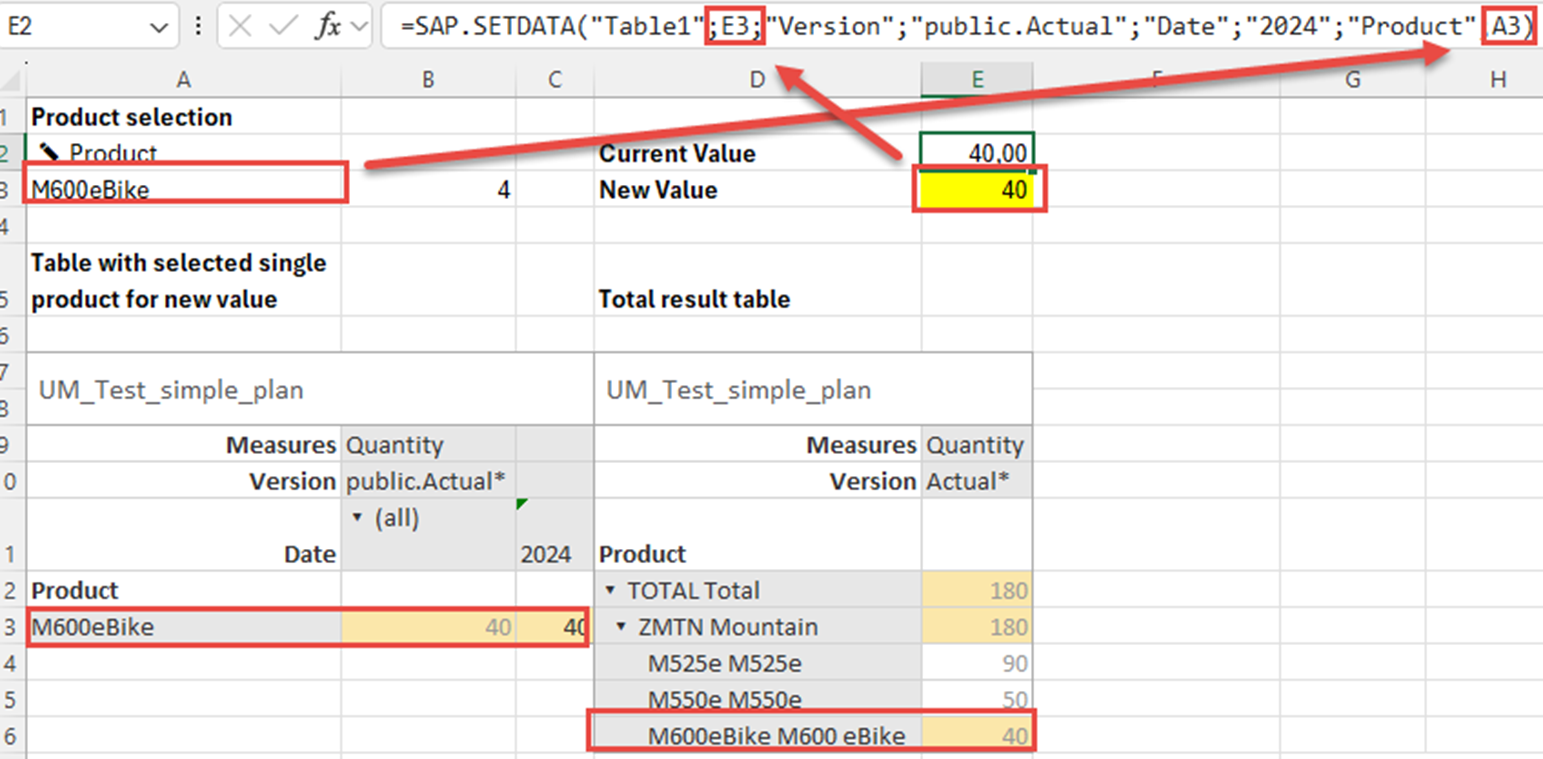
    With the formula SAP.SETDATA you can change values for any combination of attributes including creation of any new combination. But you need to specify all attributes. Normally the user does not know the IDs by heart and wants to type them in. You can use the dimension filter formula to let the user select the attribute. In the SETDATA formula you then link to this selected ID. Just make sure, the user selects only one item! 

    As you want the user not only to see the selected item for which to create a new line, we will use two tables. 

    The following screenshot will show this scenario while selecting a product. Pls ensure to tick “Show unbooked Members”! 
    Once you entered the new value and pressed process data AND refresh data in all tables, values will look as follows. In this screenshot you see as well the formula SETDATA and how the product selection is linked to the SETDATA formula: 
    Usage for a complex planning scenario

    None of our requirements for a complex planning scenario is supported right now, however, they’re on a wish list with SAP. In the event you cannot wait for SAP to implement these functionalities, you must check if you can go without, or indeed find workarounds. 

    Conclusion

    In general SAP has made big progress with the SAC functionality, and the SAC add-in for Excel.  

    SAC is designed as a cloud solution. Thus, the first choice of interface should be the browser. 

    If your requirements need an Excel interface, simple SAC planning scenarios can be nicely implemented within Excel, using the SAC Excel plugin. 

    For more complex scenarios, required functionality may still be on the “to be developed list” from SAP. For these you must find alternative solutions, as proposed in this blog post. 


    Data Products Setup

    I’ll start with Data Products setup. If you’re new to the concept, this recent video is a great starting point, but here’s a short summary. A data product is a well-described, easily discoverable, and consumable collection of data sets.

    Creating a Data Product in Datasphere

    Note that in this article I create Data Products in the Data Sharing Cockpit in Datasphere. This functionality is expected to move into the Data Product Studio, but that had not taken place at the time writing.

    Before creating a Data Product in Datasphere, I need to set up a Data Provider profile, collecting descriptive metadata like contact and address details, industry, regional coverage, and importantly define Data Product Visibility. Enabling Formations allows me to share the Data Product with systems across your BDC Formation – Databricks, in this case.

    With the Data Provider set up, I can go ahead and create a Data Product. As with the Data Provider, I’ll need to add metadata about the product and define its artifacts – the datasets it contains. Only datasets from a space of SAP HANA Data Lake Files type can be selected. Since this Data Product is visible across the Formation, it is available free of charge.

    For this demo, the artifact is a local table containing ten years of Ice Cream sales data. Since this is a File type space, importing a CSV file directly to create a local table isn’t an option (see documentation).

    I used a Replication Flow to perform an initial load from a BW aDSO table into a local table.

    Once Data Product is created and listed, it becomes available in the Catalog & Marketplace, from where it can be shared with Databricks by selecting the appropriate connection details.

    Jump into Databricks

    To use the shared object In Databricks, I need to mount it to the Catalog – either by creating a new Catalog or using an existing one.

    Databricks appends a version number to the end of the schema – ‘:v1’ – to maintain versioning in case of any future changes to the Data Product.

    Once the share is mounted, the schema is created automatically, and the Sales actual data table becomes available within it. From there, I can access the shared table directly in a Notebook.

    Creating a Data Product in Databricks

    To create a Data Product in Databricks, I first need to create a Share – which I can either do via the Delta Sharing settings in the Catalog:

    Or directly out of the table which is going to become a part of the Share:

    Since a single Share can contain multiple tables, I have the option to either add the table to an existing Share, or create a new one:

    To publish the Share as a Data Product, I run a Python script where I define the target table for the forecast and describe the Share in CSN notation, setting the Primary Keys. Primary Keys are required for installing Data Products in Datasphere.

    Jump back into Datasphere

    Once the Databricks Data Product is available in Datasphere, I install it into a Space configured as a HANA Database space – since my intention is to build a view on top of the table and use it for planning in SAC.

    There are two installation options: as a Remote table for live data access, or as a Replication Flow, in which case the data is physically copied into the object store in Datasphere.

    Since I want live access, I install it as a Remote Table:

    and build a Graphical view of type Fact on top:

    Forecast calculation

    With my Data Products set up and Sales actual data are available in Databricks, I create a Notebook to calculate the Sales Forecast.

    The approach combines Sales and Weather data to train a Linear Regression model. I import the Weather data *https://zenodo.org/records/4770937 from an external server directly into Databricks, select the relevant features from the weather dataset, and combine them with the Sales actual data:

    * Klein Tank, A.M.G. and Coauthors, 2002. Daily dataset of 20th-century surface
    air temperature and precipitation series for the European Climate Assessment.
    Int. J. of Climatol., 22, 1441-1453.
    Data and metadata available at http://www.ecad.eu

    Using the “sklearn” library, I build and train a Linear regression model:

    Once trained, the model predicts the Sales forecast for Rome in June 2026 based on the weather forecast, and I save the results to my Catalog table:

    Seamless planning data model

    Seamless planning concept is built around physically storing planning data and public dimensions directly in Datasphere, keeping them alongside the actual data.

    Since the QRC4 2025 SAC release, it has also been possible to use live versions and bring reference data into planning models without replication.

    In this scenario, I build a seamless planning model on top of the Graphical view I created over the Remote table. This lets me use the forecast generated in Databricks as a reference for the final SAC Forecast version.


    The model setup follows these steps:

    Create a new model:

    Start with data:

    Select Datasphere as the data storage:

    From there, I define the model structure and can review the data in the preview.

    For a deeper dive into Seamless Planning, I recommend this biX blog.

    Process Flow automation

    Multi-action triggers Datasphere task chain

    The final step is automating the entire forecast generation by using SAC Multi-actions and a Task-Chain in Datasphere – so that my user can trigger the calculation with a single button click from an SAC Story.

    The model setup follows these steps:

    Create a new model:

    Triggering Task Chains from Multi-actions is a recent release. This blog post walks through how to set it up.

    For details on how to trigger a Databricks Notebook from Datasphere, I recommend referring to this blog.

    With everything in place, I create a Story, add my Seamless planning Model, and attach the Multi-action:

    Running the Multi-action triggers the Task Chain, which in turn triggers the Databricks Notebook.

    I can monitor the execution details in Datasphere:

    and in Databricks:

    Once the calculation completes, the updated forecast appears in the Story:

    The end-to-end calculation took 2 minutes 45 seconds in total. The Task Chain in Datasphere is triggered almost instantly by the Multi-action, the Databricks Notebook execution itself took 1 minute 29 seconds, with the remaining time spent on Serverless Cluster startup.   


    From here, I can copy the calculated forecast into a new private version:

    adjust the numbers as needed, and publish it as a new public version to Datasphere:

    Conclusion

    With SAP Business Data Cloud, it is possible to build a forecasting workflow that feels seamless to the end user — even though it spans multiple systems under the hood.

    Companies using BW as the main Data Warehouse and Databricks for ML calculations or Data Science tasks can benefit from using the platform, as the data no longer needs to be physically copied out of BW.

    What this scenario demonstrates is that once wrapped as a Data Product, BW sales data can be shared with Databricks via the Delta Share protocol. Databricks, in turn, can then create its own Data Products on top of the calculation results and share them back with Datasphere as a Remote Table.

    A Seamless Planning model in SAC sits on top of that Remote Table, giving planners live access to the generated forecast. A single Multi-action in an SAC Story ties it all together, triggering a Datasphere Task Chain that kicks off the Databricks Notebook — completing the full cycle in under three minutes.

    As SAP Business Data Cloud continues to mature, scenarios like this one are becoming achievable – leaving the complexity in the architecture and not in the workflow.

    Contact

    Ilya Kirzner
    Consultant
    biX Consulting
    Privacy overview

    This website uses cookies so that we can provide you with the best possible user experience. Cookie information is stored in your browser and performs functions such as recognizing you when you return to our website and helps our team to understand which sections of the website are most interesting and useful to you.