Tableau Agent AI in Tableau Prep: A Practical Test  

Introduction

March 2026

There is a well-known assumption in data management: around 80% of resources usually flow into data preparation (Data Wrangling), while only 20% remain for the actual analysis of the data. Technical hurdles are particularly time-consuming—such as structuring messy text fields and the associated development work. 

With the introduction of the Tableau Agents (formerly Einstein Copilot), Salesforce is trying to address this challenge. This is an AI that can be used for data preparation in the Tableau Prep environment and acts as a translator: it translates business requirements into technical code. 

In this blog we demonstrate, using a practical example, how complex preparation steps can be accelerated by AI—and why the role of the analyst as a validating instance ("Human-in-the-Loop") is still important. 

Technical Prerequisites: Integration into the Einstein Trust Layer 

Before the AI can be used operationally, a look at the administration of the Tableau environment (Tableau Cloud or Tableau Server) is necessary to configure the settings required for using AI. 
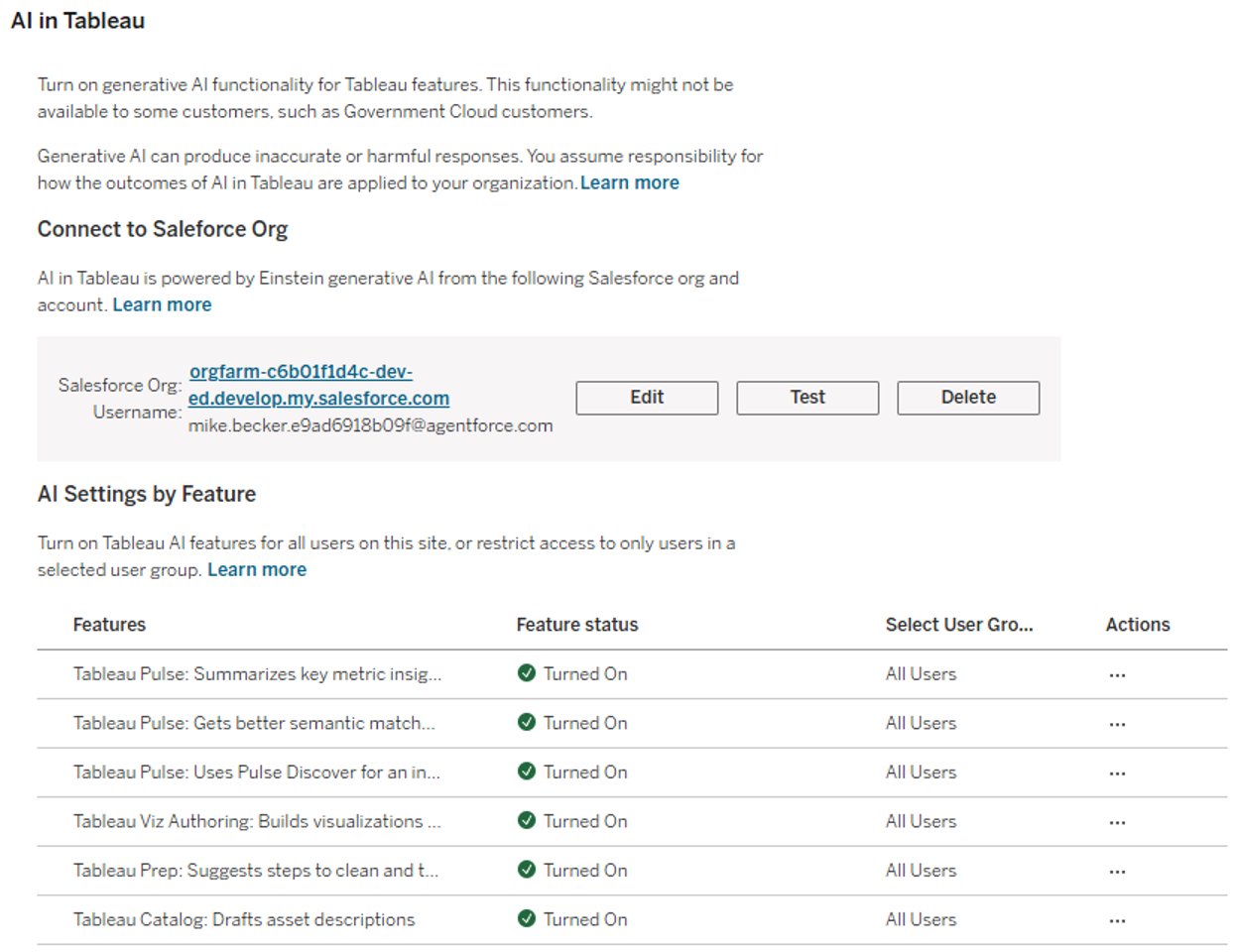
The various AI features of Tableau must be activated in this menu. For the Tableau Agent to be available in Prep , the Tableau Site must be explicitly connected to a Salesforce organization (e.g., Data Cloud). This ensures that all generative requests are processed via the Einstein Trust Layer , which guarantees data security and compliance. Only after this "handshake" are the AI features available for activation in the site settings. 

The Scenario: Gaining Structure from Unstructured Data 

Our first test focuses on a classic “dirty data” scenario. We are concentrating on marketing data that we have in unstructured form. The aim is to structure this data so that we can use it for later analysis. To do this, we create a new flow in the Tableau Cloud web environment and link data from a simple.csvfile. 
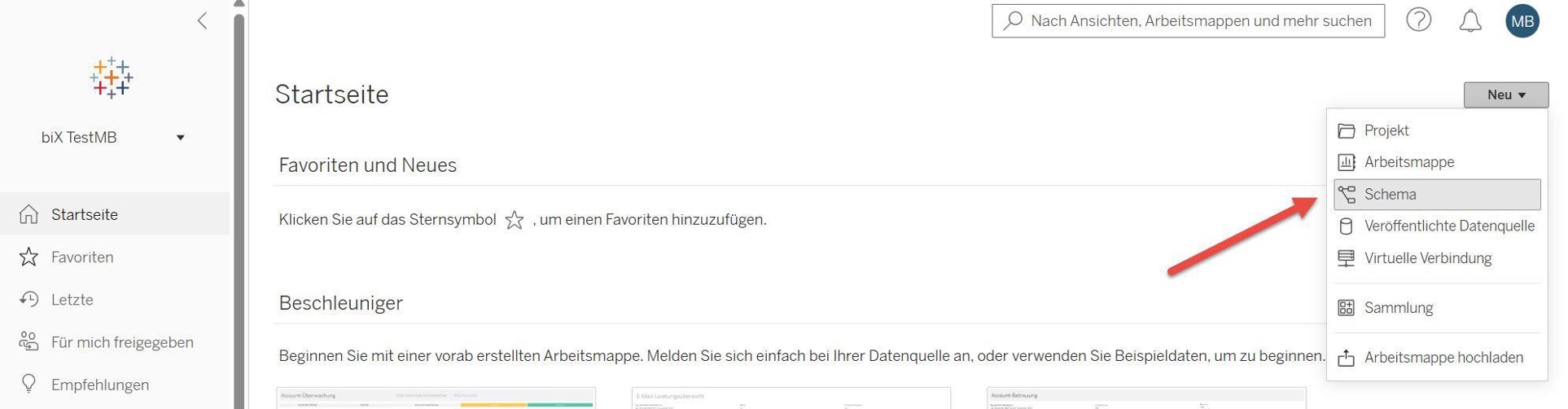
Our data set contains several columns that hold unstructured data. In the following, we will clean and structure this data with the help of the Tableau Agent. 

We first look at the field 

Contact_Info_Mix, 

in which address components (Street, Postcode, City, Country) are aggregated without a fixed separator, e.g.: 

  • Data record A: 
    Münchner Str. 12; 80331 München (DE) 
  • Data record B: 
    456 High St | London SW1A 1AA | UK 

The goal: The extraction of the postcode and the country code into dedicated columns so that they can be used specifically in a dashboard. We use the Tableau Agent to build the necessary "RegEx" logic for this. 

Iterative Development: The AI as a Coding Partner 

We first open the Tableau Agent via the following symbol in the upper right corner of the editing interface. 
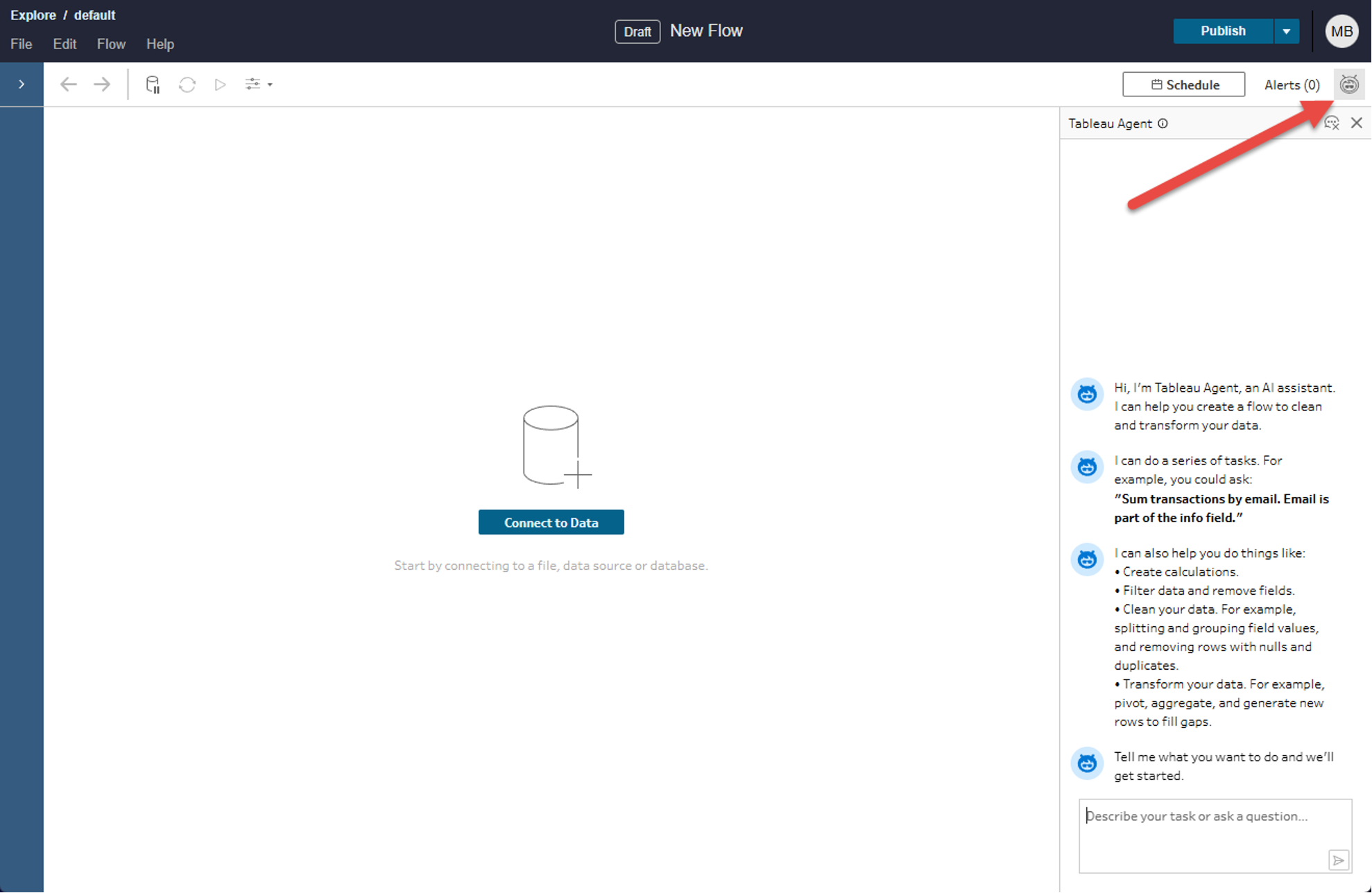
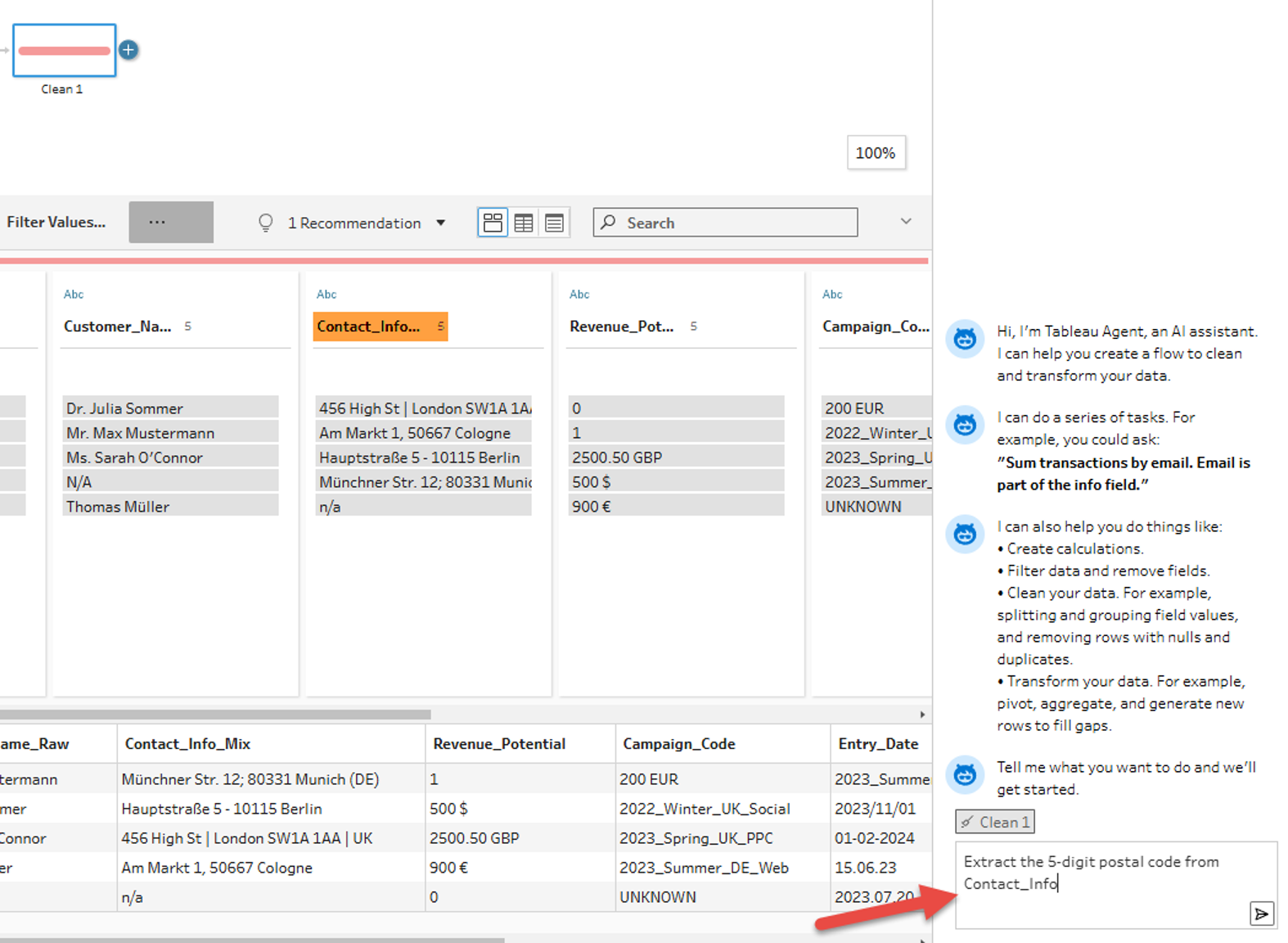
Since we want to use the Tableau Agent in the context of data preparation, after connecting our data, we create a new preparation step and select it. Then we send our first Prompt to the Tableau Agent. First, we want to try to extract the 5-digit postal code from the unstructured data—for example, to enable geographic analyses based on the postal code. 
After the calculation suggested by the Tableau Agent is adopted and a new field is created (1), an important lesson for Data Engineers is revealed. The Agent identifies the correct pattern, but the preview shows NULLvalues (2). To understand and solve this problem, we can first look at the explanation of the formula created (3) provided by the Tableau Agent. 
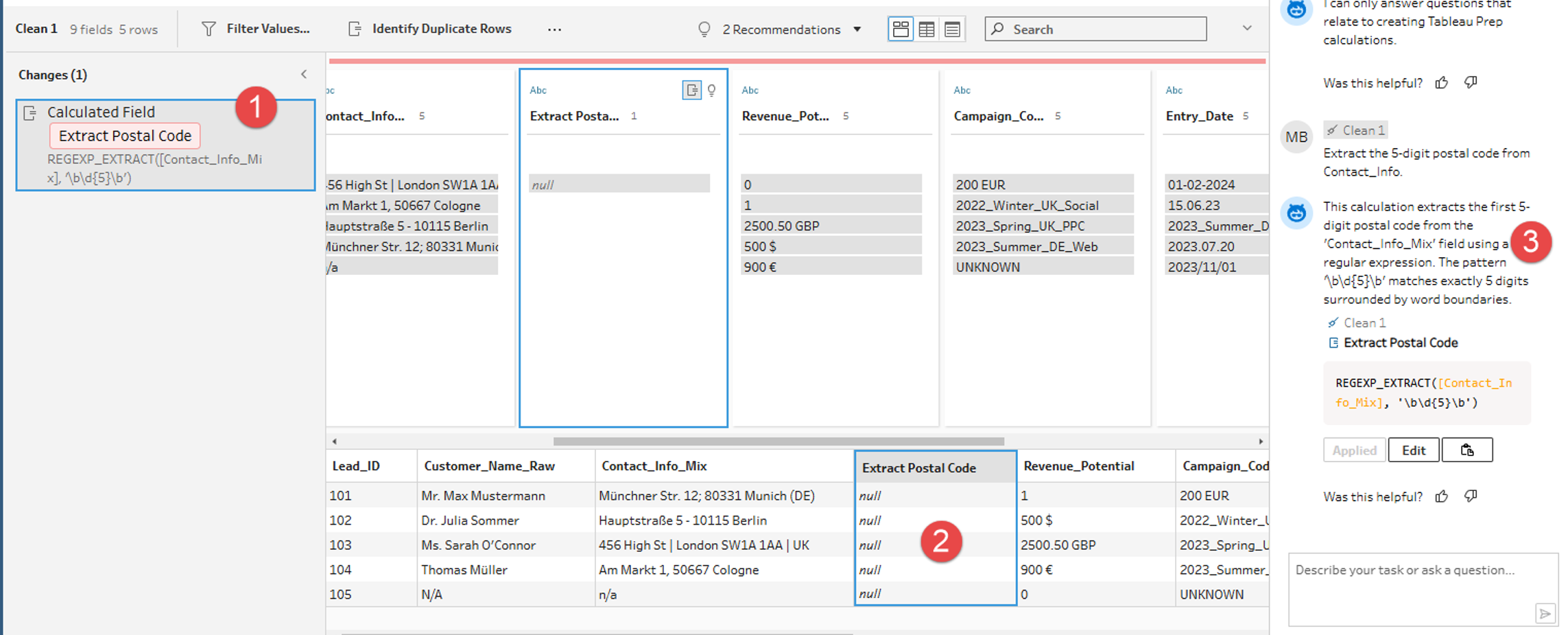
Experienced Tableau developers can note here that the REGEXP_EXTRACT function used by the Tableau Agent in Tableau absolutely requires a so-called "Capturing Group" (set by parentheses) to not just find a value, but also to return it. The AI delivered the correct syntax for the Matching, but not for the Extraktion 

In the first attempt, the Tableau Agent thus provides a good initial approach, but not yet a complete solution. This can be particularly challenging for Tableau users without in-depth technical knowledge. 

Refinement and Result: Precision through Context Prompting Context Prompting 

To correct the result, we refine our Prompt. We instruct the Agent not only "What" should be extracted (5 digits), but also "How" (concrete extraction of an example). The goal is to generate a correct formula, even if the user lacks in-depth technical knowledge. 
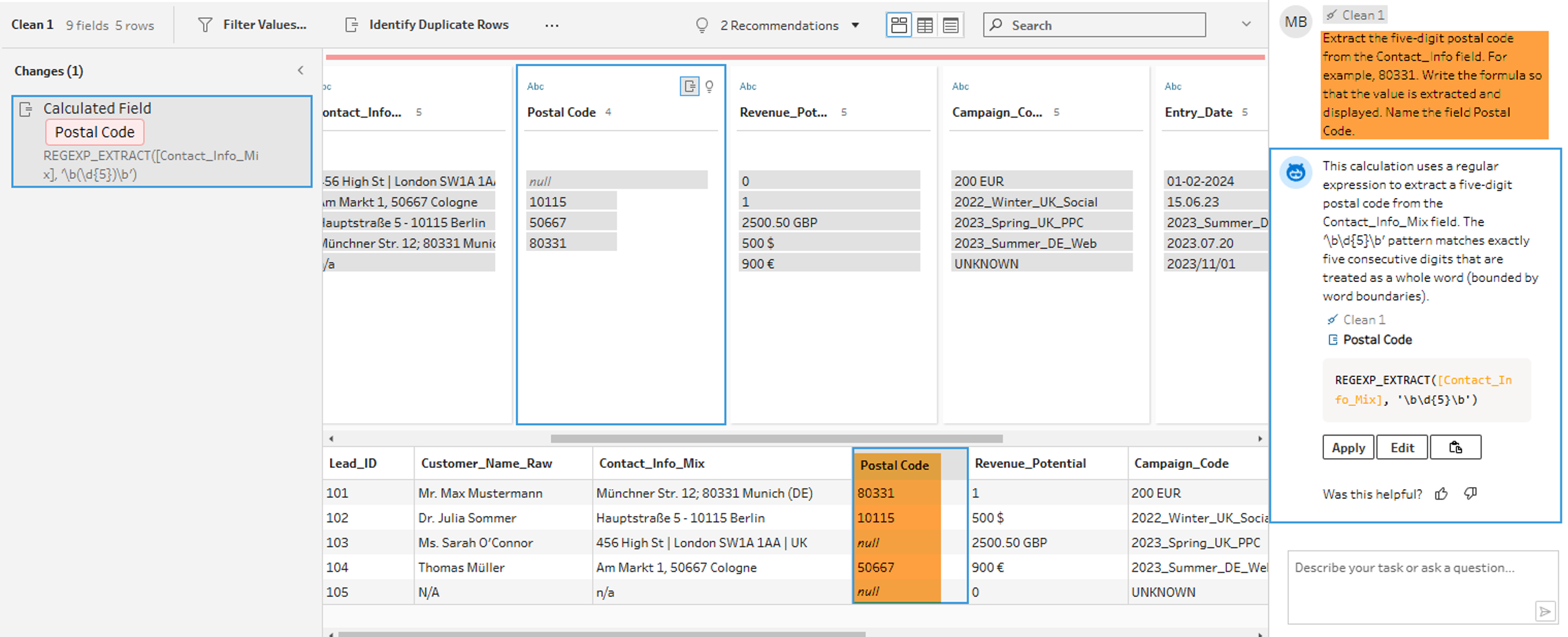
The result: The Agent corrects the formula independently. By setting the parentheses (Capturing Group), the values are now correctly extracted. Postcodes that do not match the pattern correctly remain empty (NULL), which confirms the robustness of the logic.

This example shows that a more precise formulation of Prompts increases the probability that the Tableau Agent will deliver correct results immediately. This is particularly advantageous as no deep technical knowledge is required.

Nesting and Error Handling

In the next step, we test the ability of the Tableau Agent to nest functions. We want to extract the country code and directly replace missing values with a placeholder. This enables us to subsequently carry out evaluations at the state level.

Based on our experience from the first example, we define the prompt as detailed as possible and provide suitable examples to help the Tableau Agent generate a correct result:
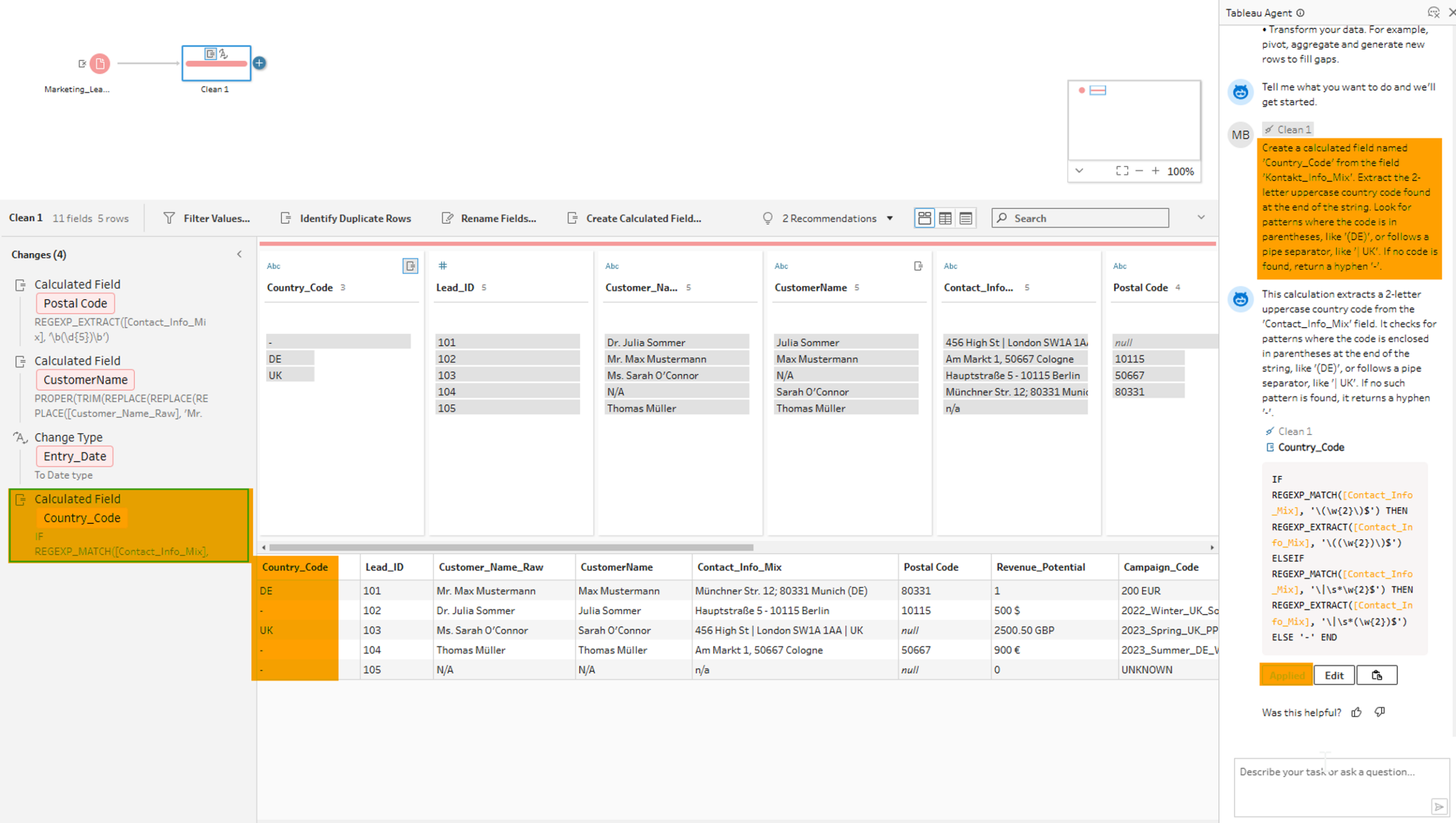
The Agent generates a performant and correct combination of IF, REGEX_MATCH and REGEXP_EXTRACT. As a result, country codes are extracted and a "-" is inserted when the information is missing. The AI takes over not only the pattern recognition but also the correct syntax of the parentheses for the nested functions, a common source of errors in manual entry.

Text Cleaning: Multiple Steps in One

Another good example can be seen in the cleaning of customer names which helps us with structured analysis of the customer data.

The requirement is multi-step:

  1. Remove salutations (Mr, Mrs, Dr).
  2. Correct capitalization (Proper Case).
  3. Remove unnecessary spaces.

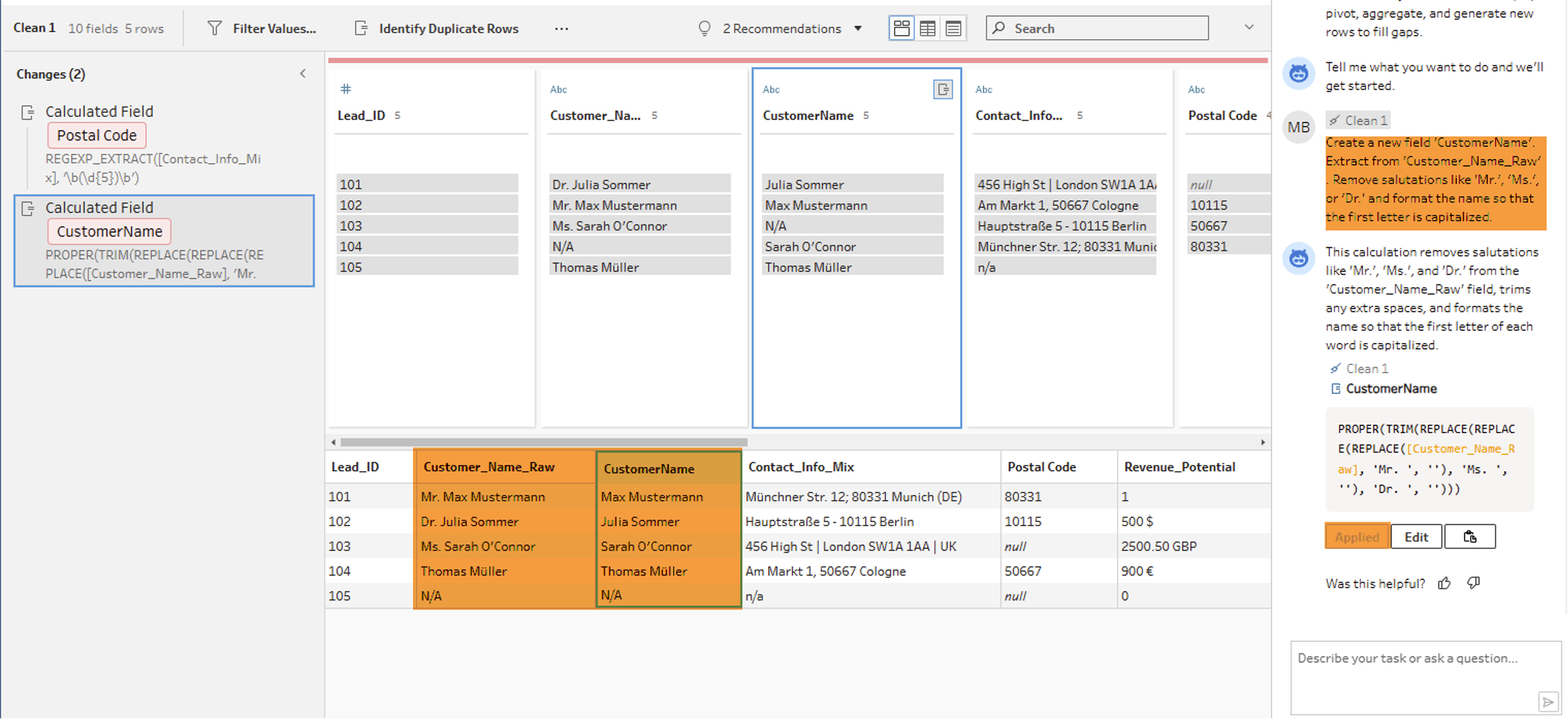
The Agent solves this with a single, multiply nested formula.

Writing this manually would require a deeper understanding of string functions. The Agent delivers the result in seconds.

Setting data types

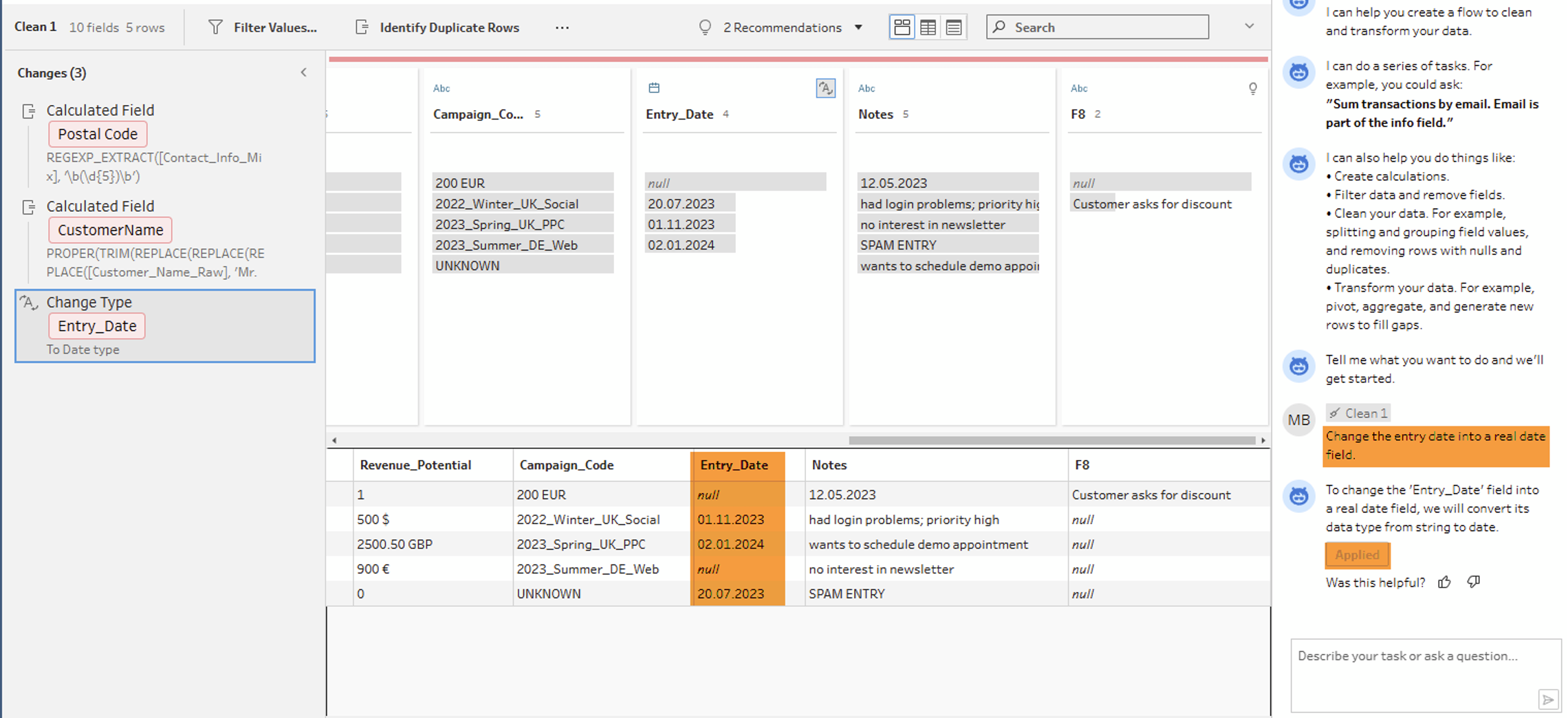
Finally, we ask the Agent to convert the text field "Entry Date" into a real date. This is often helpful in the later development of visualizations, as native date fields can be used more precisely in many cases.

Here too, the AI recognizes the context and performs the type conversion without manual menu clicking.

Conclusion: From "Writer" to "Reviewer"

The practical test clearly shows: The Tableau Agent is not an autopilot that justifies blind trust, but a powerful Co-Pilot for Data Engineers.

The Strategic Advantages:

  1. Time-to-Value: The creation of complex logic is massively accelerated.
  2. Quality Assurance: Since the Agent generates code as a transparent, editable calculation step in the flow, full control remains with the analyst.
  3. Skill-Transfer: The Agent's explanation functions help less experienced users to understand and apply complex syntax more quickly.

For modern BI teams, this means a change of role: The analyst spends less time writing syntax and more time validating logic and data quality.

Even if the AI generates good initial results, these must always be validated by the user (Human-in-the-Loop). The Tableau Agent delivers the first draft, but the analyst must check the generated code for technical and factual correctness. The goal is to accelerate the development process and reduce technical hurdles, not the sole completion of tasks by AI.

However, we note that AIs like the Tableau Agent are still under development, as currently not all functionalities are covered by the AI, and the results heavily depend on precise Prompts.

Current Limitation:

  • Precision Dependence: The AI functions as a Co-Pilot but requires iterative, precise Prompts for technically correct formulas (e.g., REGEXP syntax).
  • Limited Functionality: The Agent concentrates on calculation steps; more complex Prep Flow actions such as Pivoting, Aggregating or Joining must still be done manually.

Future Potential:

Future iterations could increase precision and reduce hurdles through improved Context-Awareness (automatic correction of syntax errors), extended Flow Control (implementation of complex instructions such as “Aggregate sales data”), and Multimodal Inputs (text, sketches, documents).


Data Products Setup

I’ll start with Data Products setup. If you’re new to the concept, this recent video is a great starting point, but here’s a short summary. A data product is a well-described, easily discoverable, and consumable collection of data sets.

Creating a Data Product in Datasphere

Note that in this article I create Data Products in the Data Sharing Cockpit in Datasphere. This functionality is expected to move into the Data Product Studio, but that had not taken place at the time writing.

Before creating a Data Product in Datasphere, I need to set up a Data Provider profile, collecting descriptive metadata like contact and address details, industry, regional coverage, and importantly define Data Product Visibility. Enabling Formations allows me to share the Data Product with systems across your BDC Formation – Databricks, in this case.

With the Data Provider set up, I can go ahead and create a Data Product. As with the Data Provider, I’ll need to add metadata about the product and define its artifacts – the datasets it contains. Only datasets from a space of SAP HANA Data Lake Files type can be selected. Since this Data Product is visible across the Formation, it is available free of charge.

For this demo, the artifact is a local table containing ten years of Ice Cream sales data. Since this is a File type space, importing a CSV file directly to create a local table isn’t an option (see documentation).

I used a Replication Flow to perform an initial load from a BW aDSO table into a local table.

Once Data Product is created and listed, it becomes available in the Catalog & Marketplace, from where it can be shared with Databricks by selecting the appropriate connection details.

Jump into Databricks

To use the shared object In Databricks, I need to mount it to the Catalog – either by creating a new Catalog or using an existing one.

Databricks appends a version number to the end of the schema – ‘:v1’ – to maintain versioning in case of any future changes to the Data Product.

Once the share is mounted, the schema is created automatically, and the Sales actual data table becomes available within it. From there, I can access the shared table directly in a Notebook.

Creating a Data Product in Databricks

To create a Data Product in Databricks, I first need to create a Share – which I can either do via the Delta Sharing settings in the Catalog:

Or directly out of the table which is going to become a part of the Share:

Since a single Share can contain multiple tables, I have the option to either add the table to an existing Share, or create a new one:

To publish the Share as a Data Product, I run a Python script where I define the target table for the forecast and describe the Share in CSN notation, setting the Primary Keys. Primary Keys are required for installing Data Products in Datasphere.

Jump back into Datasphere

Once the Databricks Data Product is available in Datasphere, I install it into a Space configured as a HANA Database space – since my intention is to build a view on top of the table and use it for planning in SAC.

There are two installation options: as a Remote table for live data access, or as a Replication Flow, in which case the data is physically copied into the object store in Datasphere.

Since I want live access, I install it as a Remote Table:

and build a Graphical view of type Fact on top:

Forecast calculation

With my Data Products set up and Sales actual data are available in Databricks, I create a Notebook to calculate the Sales Forecast.

The approach combines Sales and Weather data to train a Linear Regression model. I import the Weather data *https://zenodo.org/records/4770937 from an external server directly into Databricks, select the relevant features from the weather dataset, and combine them with the Sales actual data:

* Klein Tank, A.M.G. and Coauthors, 2002. Daily dataset of 20th-century surface
air temperature and precipitation series for the European Climate Assessment.
Int. J. of Climatol., 22, 1441-1453.
Data and metadata available at http://www.ecad.eu

Using the “sklearn” library, I build and train a Linear regression model:

Once trained, the model predicts the Sales forecast for Rome in June 2026 based on the weather forecast, and I save the results to my Catalog table:

Seamless planning data model

Seamless planning concept is built around physically storing planning data and public dimensions directly in Datasphere, keeping them alongside the actual data.

Since the QRC4 2025 SAC release, it has also been possible to use live versions and bring reference data into planning models without replication.

In this scenario, I build a seamless planning model on top of the Graphical view I created over the Remote table. This lets me use the forecast generated in Databricks as a reference for the final SAC Forecast version.


The model setup follows these steps:

Create a new model:

Start with data:

Select Datasphere as the data storage:

From there, I define the model structure and can review the data in the preview.

For a deeper dive into Seamless Planning, I recommend this biX blog.

Process Flow automation

Multi-action triggers Datasphere task chain

The final step is automating the entire forecast generation by using SAC Multi-actions and a Task-Chain in Datasphere – so that my user can trigger the calculation with a single button click from an SAC Story.

The model setup follows these steps:

Create a new model:

Triggering Task Chains from Multi-actions is a recent release. This blog post walks through how to set it up.

For details on how to trigger a Databricks Notebook from Datasphere, I recommend referring to this blog.

With everything in place, I create a Story, add my Seamless planning Model, and attach the Multi-action:

Running the Multi-action triggers the Task Chain, which in turn triggers the Databricks Notebook.

I can monitor the execution details in Datasphere:

and in Databricks:

Once the calculation completes, the updated forecast appears in the Story:

The end-to-end calculation took 2 minutes 45 seconds in total. The Task Chain in Datasphere is triggered almost instantly by the Multi-action, the Databricks Notebook execution itself took 1 minute 29 seconds, with the remaining time spent on Serverless Cluster startup.   


From here, I can copy the calculated forecast into a new private version:

adjust the numbers as needed, and publish it as a new public version to Datasphere:

Conclusion

With SAP Business Data Cloud, it is possible to build a forecasting workflow that feels seamless to the end user — even though it spans multiple systems under the hood.

Companies using BW as the main Data Warehouse and Databricks for ML calculations or Data Science tasks can benefit from using the platform, as the data no longer needs to be physically copied out of BW.

What this scenario demonstrates is that once wrapped as a Data Product, BW sales data can be shared with Databricks via the Delta Share protocol. Databricks, in turn, can then create its own Data Products on top of the calculation results and share them back with Datasphere as a Remote Table.

A Seamless Planning model in SAC sits on top of that Remote Table, giving planners live access to the generated forecast. A single Multi-action in an SAC Story ties it all together, triggering a Datasphere Task Chain that kicks off the Databricks Notebook — completing the full cycle in under three minutes.

As SAP Business Data Cloud continues to mature, scenarios like this one are becoming achievable – leaving the complexity in the architecture and not in the workflow.

Contact

Ilya Kirzner
Consultant
biX Consulting
Privacy overview

This website uses cookies so that we can provide you with the best possible user experience. Cookie information is stored in your browser and performs functions such as recognizing you when you return to our website and helps our team to understand which sections of the website are most interesting and useful to you.