Standardized Metrics with Tableau Pulse: An Approach to “Headless BI” Architecture with AI  

Introduction

March 2026

For almost twenty years, Business Intelligence (BI) has functioned according to the "Pull Principle": users must actively open dashboards, set filters, and interpret visualizations to find relevant information. However, this approach is now reaching its limits in today’s fast-paced work environment. The time that elapses between the data being available and the actual insight being gained is often too long. 

A new AI functionality from Tableau, Tableau Pulseaddresses this deficit by switching to "Push Analytics." Instead of creating complex, pixel-perfect reports, BI architects define standardized key figures (Metrics) that are proactively sent to users. Technically, we are talking about a "Headless BI" architecture: the business logic (the metric) is decoupled from its representation (the visualization). Instead of having to search for relevant information in various reports and dashboards, users are proactively provided with this information in a suitable form and in the right place. 

In this blog we show you, step-by-step, how such an approach can fundamentally work. We use the well-known "Sample - Superstore" data set from Tableau to demonstrate the configuration of a Metric Definition in Tableau Cloud. 

Prerequisites and Technical Environment 

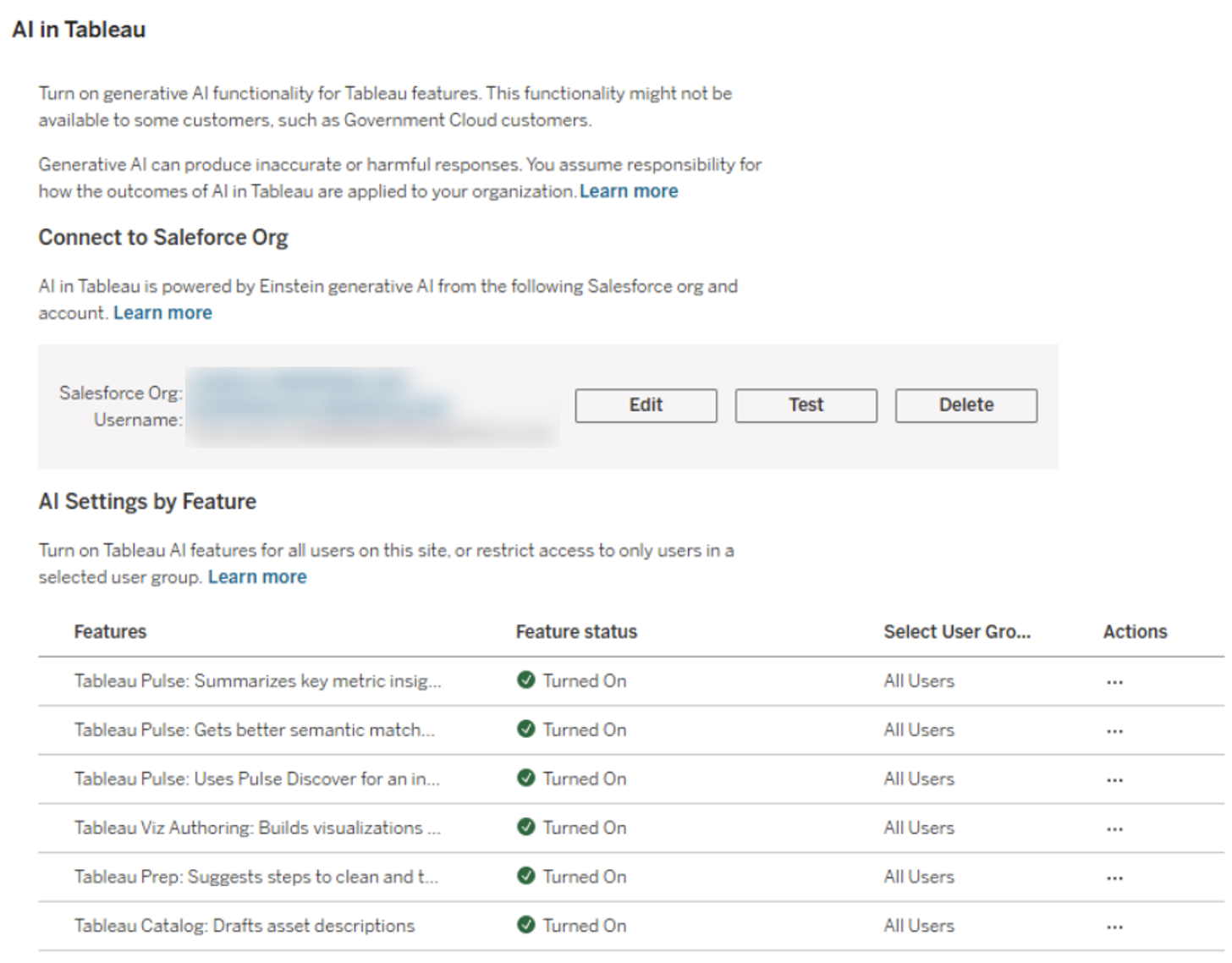
To be able to follow these steps yourself, you need a correctly set up Tableau Cloud environment. In the following, we will look at the infrastructure required to use the AI features discussed here and the settings required for this. 

System Checklist: 

1. Tableau Cloud Instance: Tableau Pulse is currently only available in Tableau Cloud. 

2. Activate AI Functions: The options "Turn on Tableau Pulse" and “Tableau Pulse: Summarizes key metric insights” must be activated. 
 

3. Data Basis: We use the example data source „Sample – Superstore“which is provided as standard by Tableau. 

Establishing the Metric Definition (Semantic Layer) 

In Tableau Pulse, the workflow begins not with a visualization, but with semantics. We open the Tableau Pulse homepage and create a "New Metric Definition." ." This allows us to determine which metric is relevant to us in a specific context. Tableau then uses AI to provide us with additional information about this metric and its associated characteristics. 

  1. Open Tableau Pulse, to access the relevant menu. 
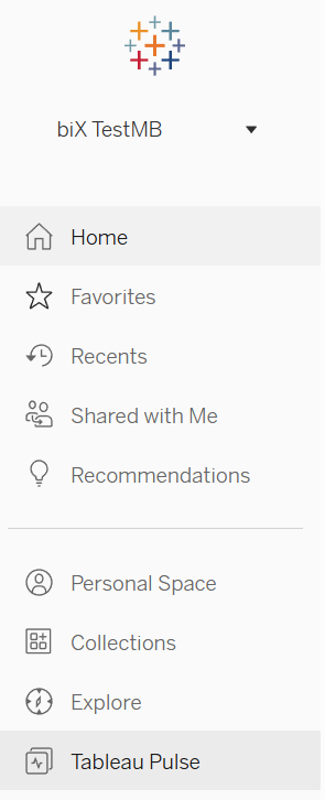
 

2. We click on New Metric Definition, to start the process of creating a new Metric Definition metric definition. 

 

3. We create the "Core Definition" of the new metric: 
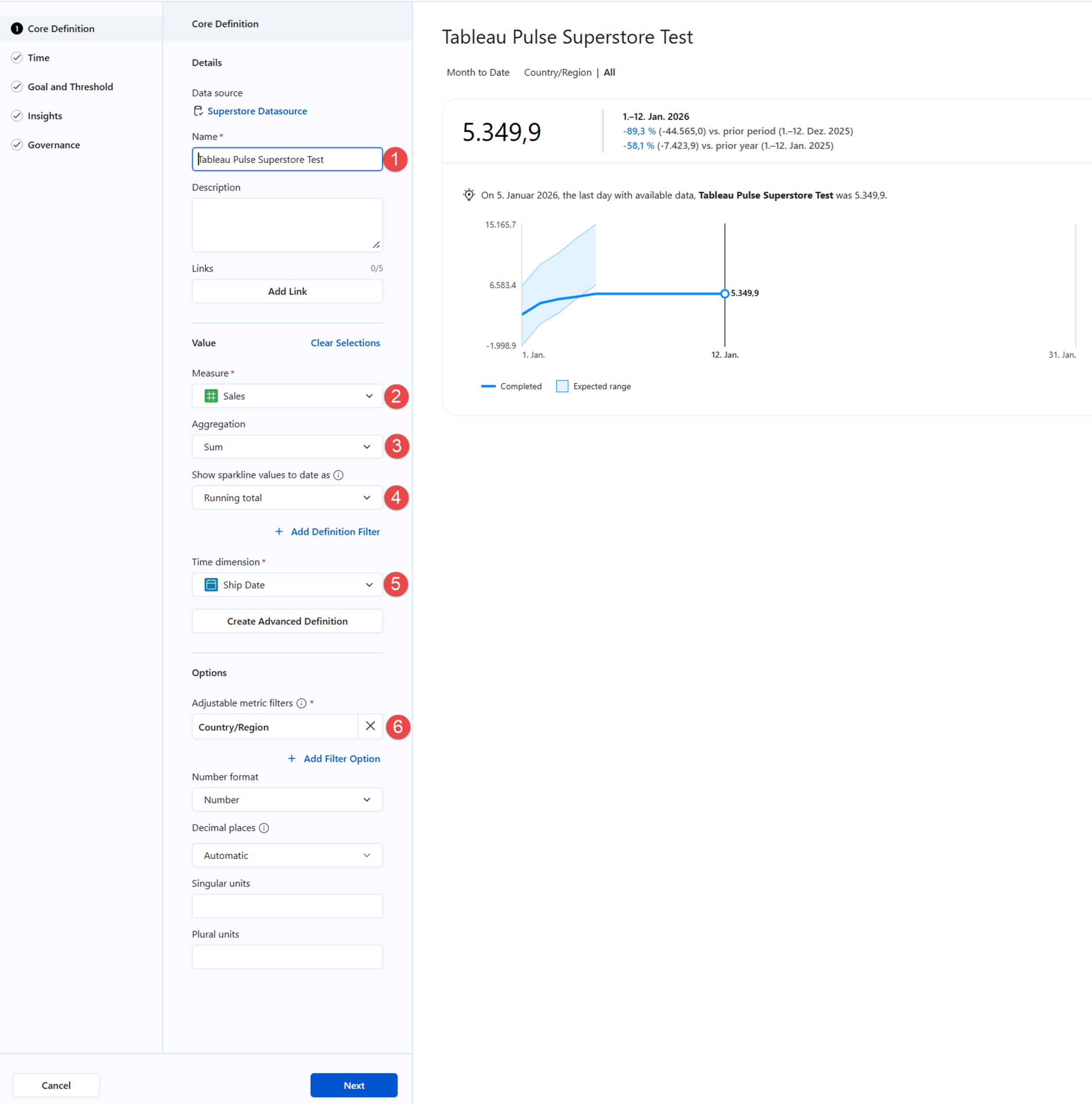
(1) To ensure that the new metric definition can be clearly identified, we assign it a unique name. 

Optional: We can use the "Description" field for technical documentation (e.g., "Gross Revenue before Returns"). This metadata is used by the AI to generate context for the end user. 

(2) We select the measure to be analyzed about which we want to receive or distribute information. 

(3) We select the aggregation type relevant for the chosen measure, i.e., whether values for the key figure should be summed, for example. 

(4) We define the logic for the displayed visualization (Sparkline), which e.g. provides comparative values for our key figure. 

(5) We define the time dimension (e.g., invoice date, delivery date) over which the metric should be analyzed. 

(6) We add one or more filters that can be adjusted by users according to their information needs. 

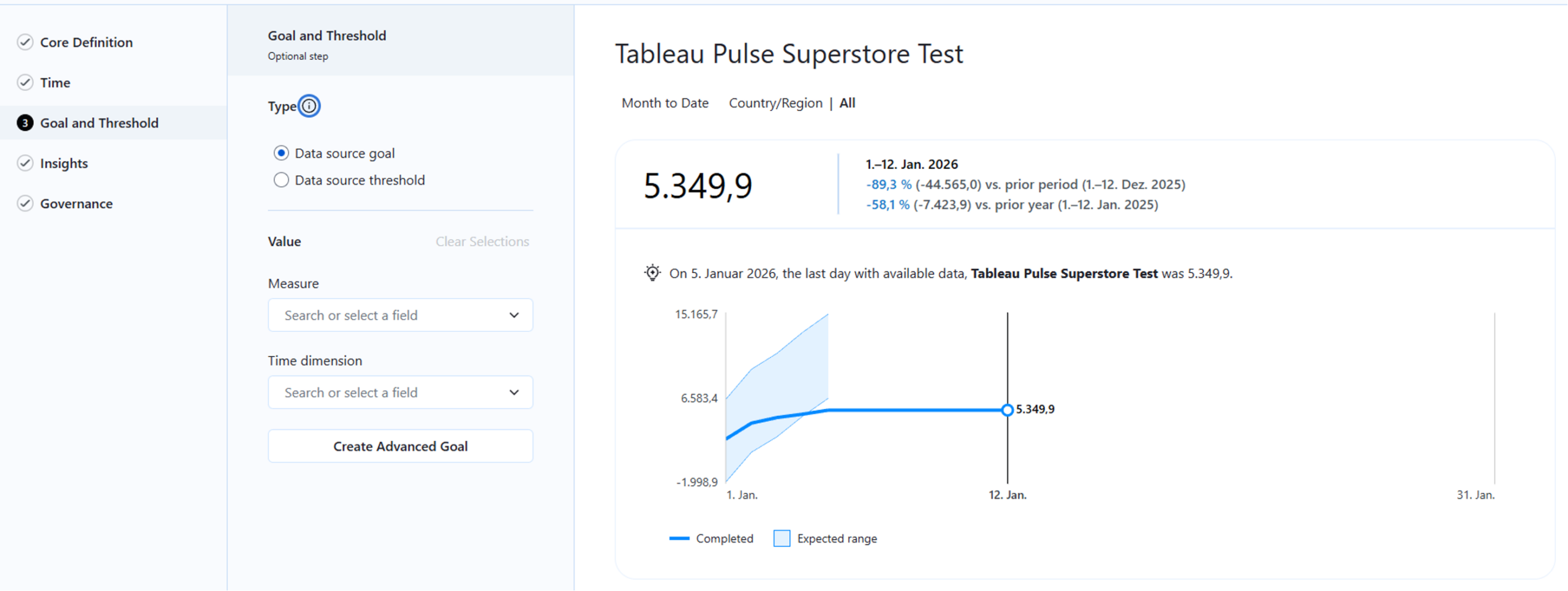
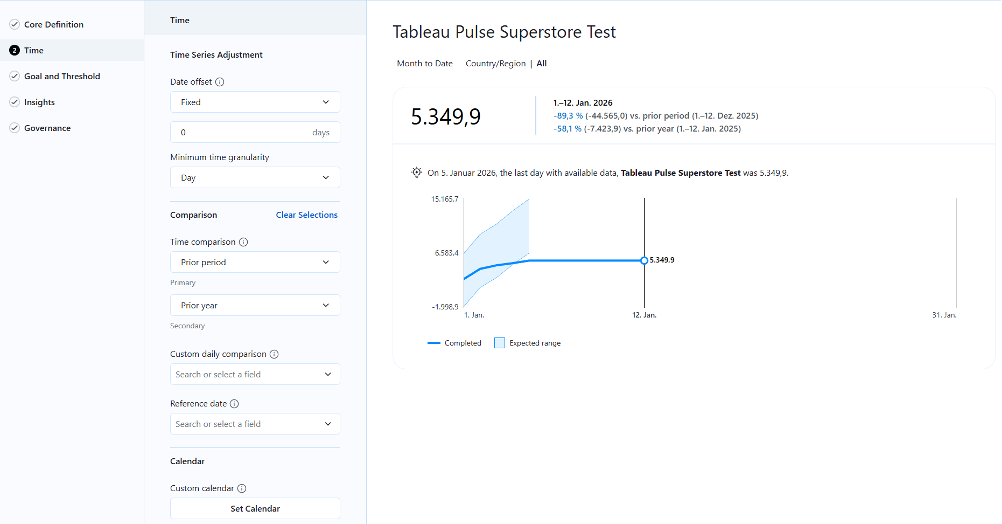
4. We refine the settings for time references, targets, and thresholds to further customize the metric: 
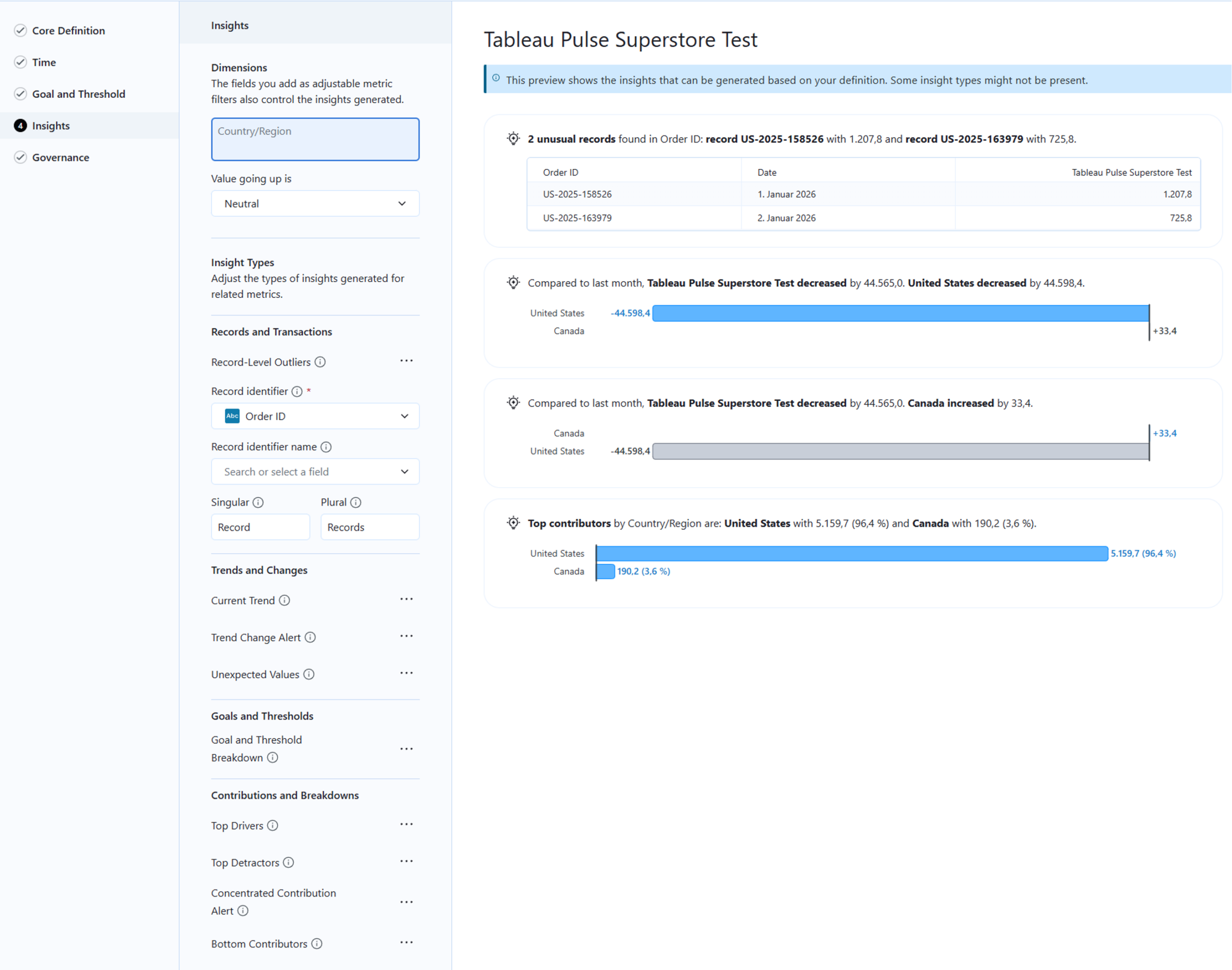
5. In the “Insights” menu, we define the characteristics by which data records can be uniquely identified. This is particularly relevant for identifying outliers - in this case, orders with unusually low or high sales figures. 
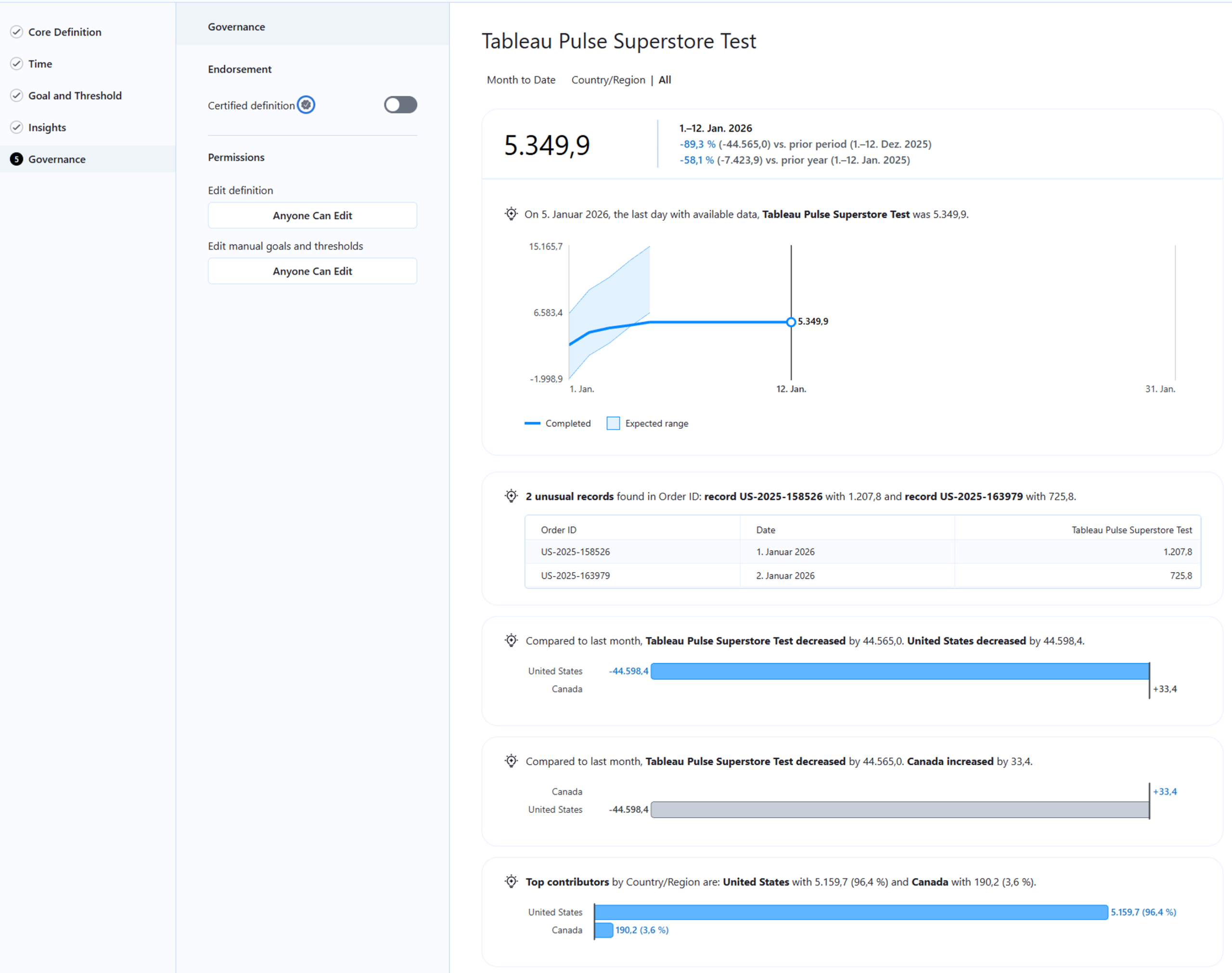
6. In the Governancemenu we can see a preview of the metric and define permissions if necessary to control which users have access to the metric: 
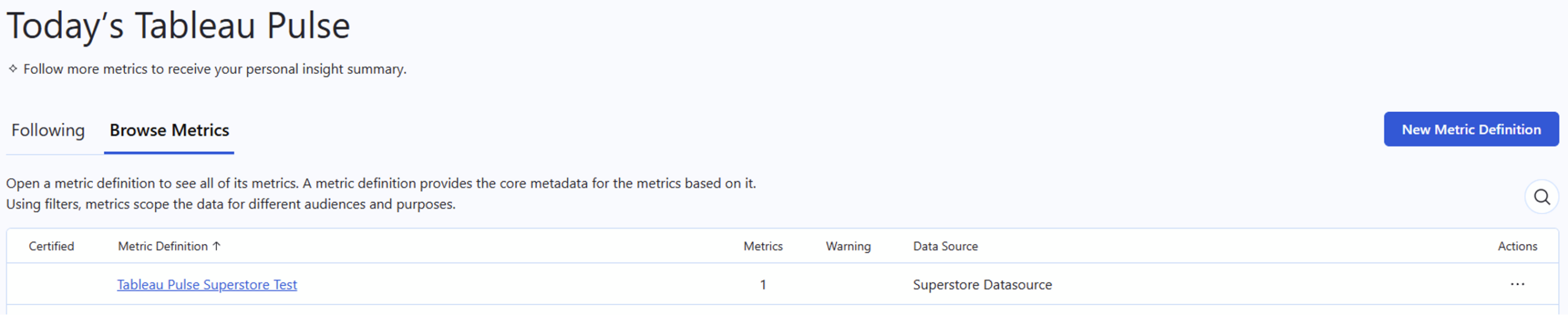
7. Finally, we look at the result in the metrics list in Tableau Pulse: 
Detailed View of the Generated Metric 

Tableau Pulse combines statistical models with generative AI. As soon as you save the definition, the engine begins analyzing anomalies, trends, and drivers. Through this configuration, the system automatically generates the entire calculation logic for comparisons (Prior Period) and trend analyses in the background. This significantly reduces the effort for BI teams, as they do not have to create these analyses, or similar ones, manually. This also enables the “consumers” of the analyzed key figure to potentially identify new dependencies or causalities that influence the key figure.  

The detail page of the metric—the result of this AI-supported analysis—provides a summary of the most important data points in natural language. 
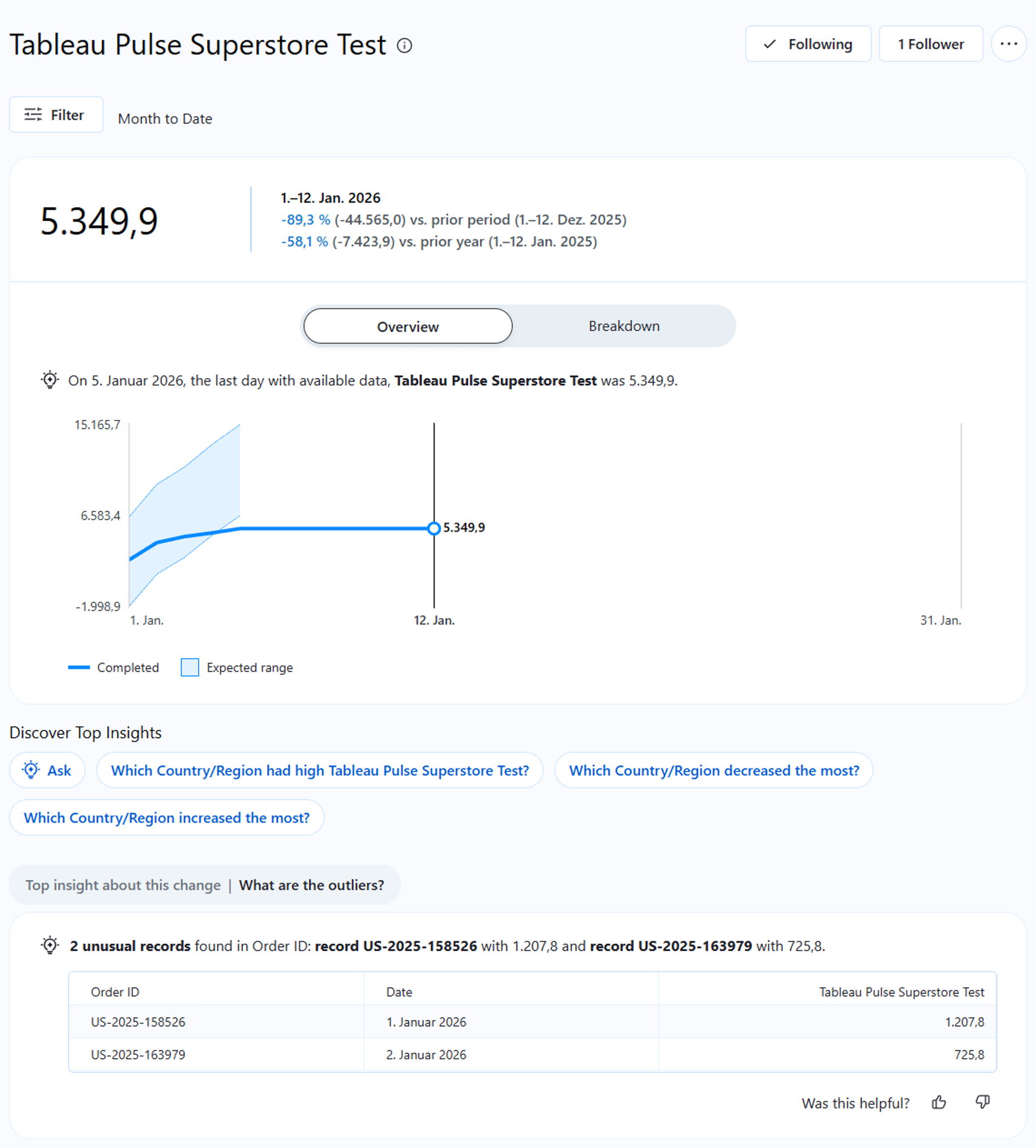
The system automatically generates statements such as: "Revenue has increased by 12%, primarily driven by the 'Technology' category in the 'East' region." 

Crucial for IT security and data protection: This analysis takes place within the so-called Einstein Trust Layers . Customer data is not used to train public models. The AI operates exclusively within the context of the defined metric and ensures data sovereignty. 

Contextualization through Dimensional Filters 

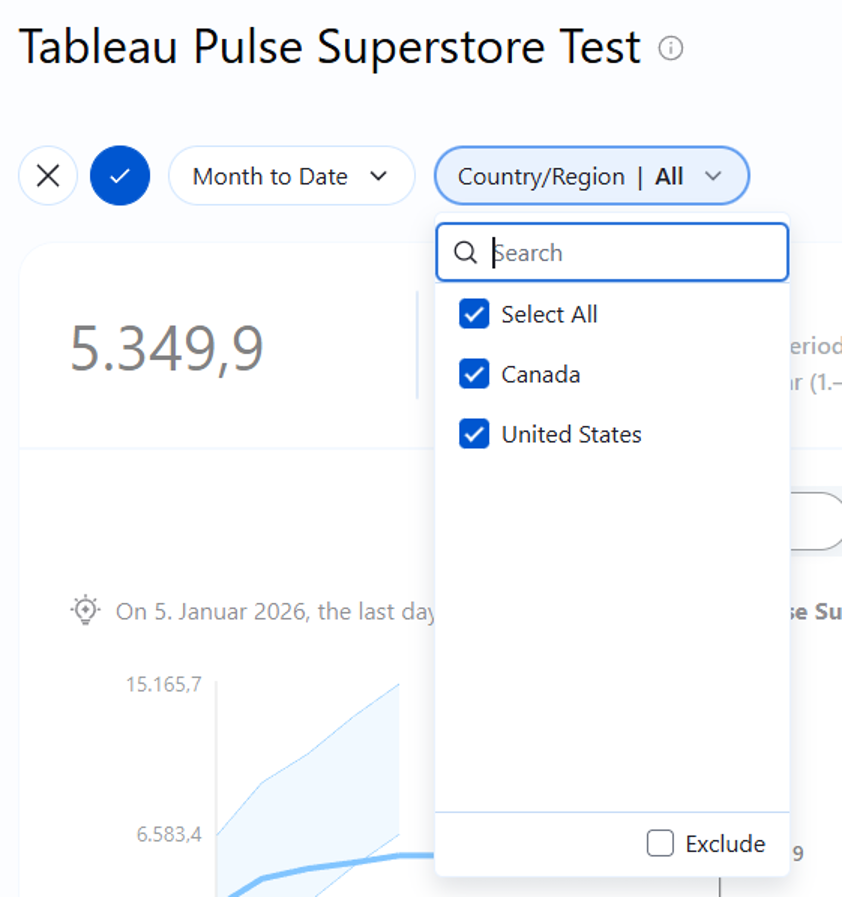
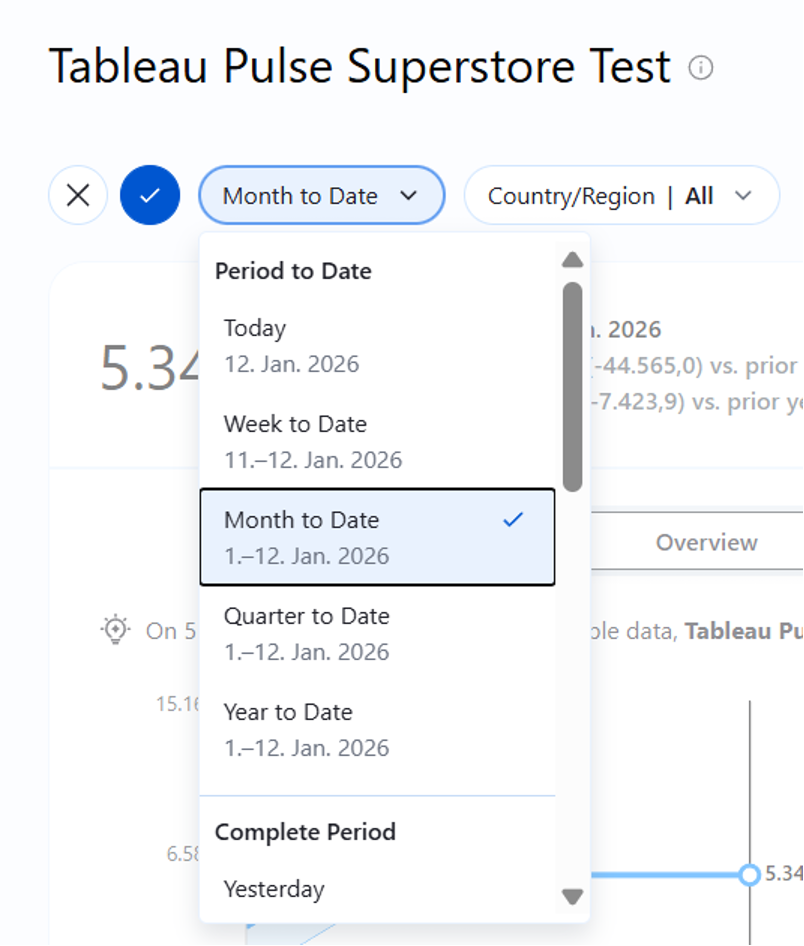
Modern BI architecture avoids redundancy. Instead of creating a separate report for every region or product group, we can set flexible filter contexts within a single metric definition in Pulse. 

Thus, the metric can be individualized for different user groups. A regional manager, for example, sees the same Metric Definition as the global sales manager, but filtered by default to their area of responsibility. The data remains consistent, but the view is individualized. 
Integration into the Workflow (Mobile & Digest) 

Another relevant topic is the distribution of the generated metrics. In the "Headless" scenario, the goal is to bring information exactly where the decision-makers work. This simplifies the evaluation of key figures and thus increases the likelihood that they will actually be considered and used. 

Tableau Pulse uses the "Follow" model (a subscription principle): 

  1. We click on“Follow” (Alternative: Followers are added via “Add Followers”) to receive information about this metric in the future. 

2. We optionally define personal filters (e.g., only "Country/Region") to customize the metric. 

3. Tableau generates periodic summaries which are provided to users who follow the metric. 

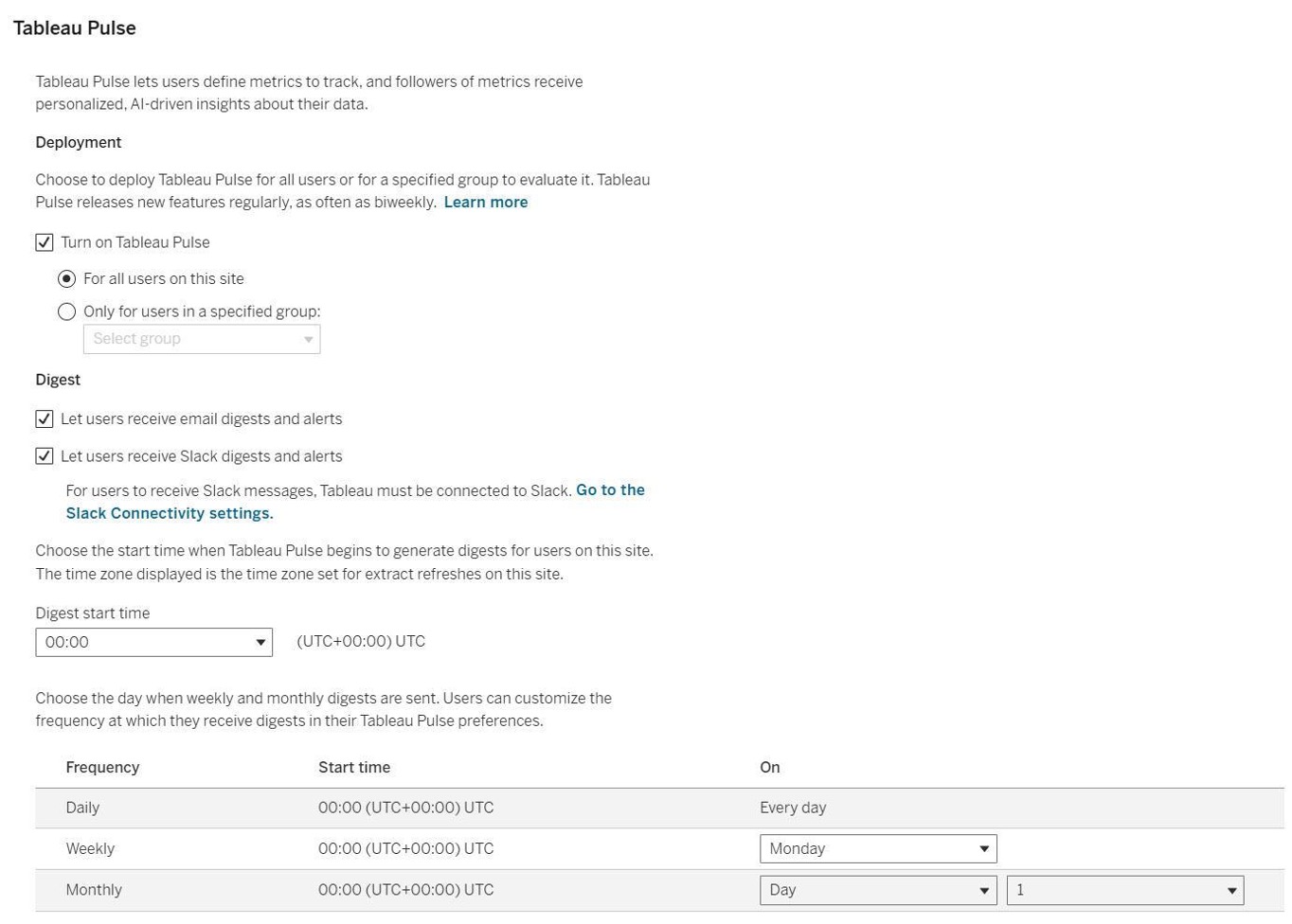
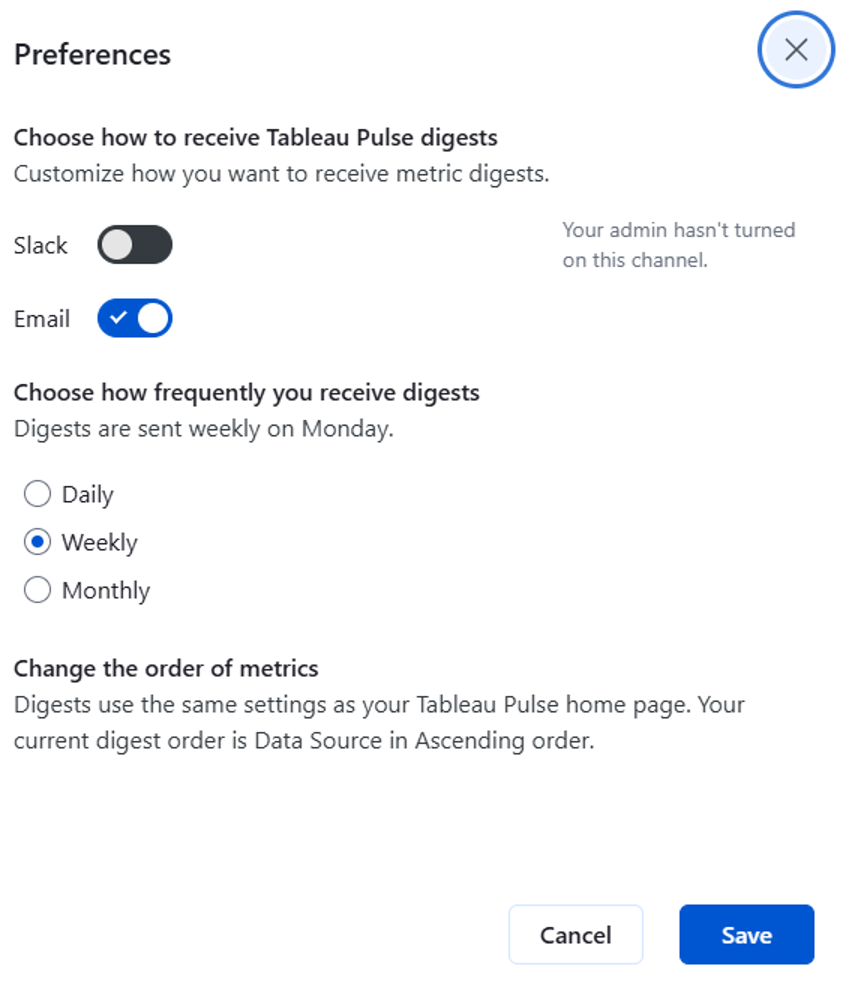
These "Digests" (Summaries) reach the user via email, Slack, or the Tableau Mobile App. They contain not only the current value but also the AI-generated trend assessment. The dashboard thus moves from being the primary monitoring tool to an optional diagnostic tool for drill-down. 

We can use a corresponding settings menu to define in detail how and via which channel "Digests" should be provided - depending on when the key figures are needed by their “consumers.” abhängig davon, wann die Kennzahlen von ihren „Konsumenten“ benötigt werden. 
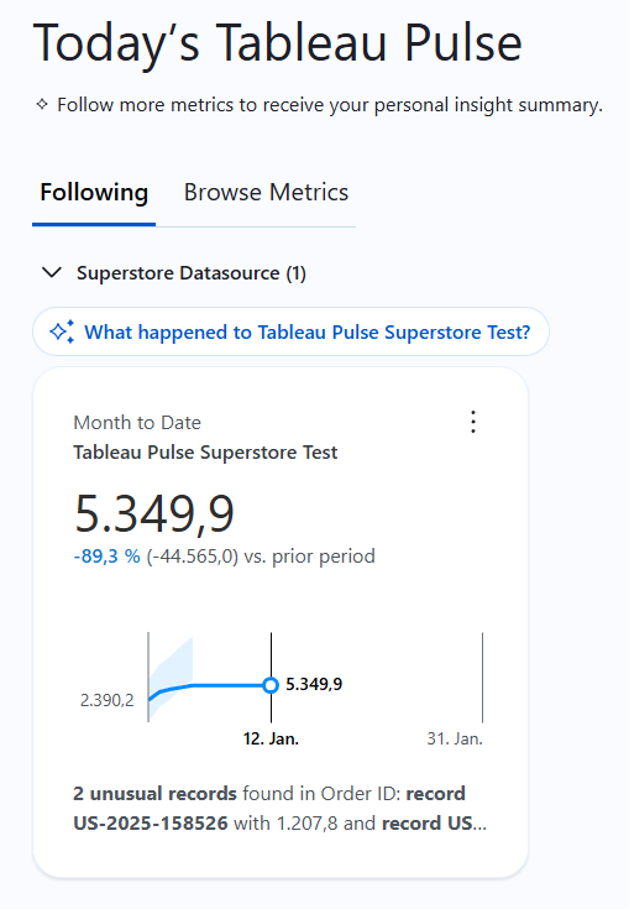
In the metric overview, we can also view a short summary of the metric: 
Conclusion: The New Role of the Data Analyst 

The introduction of Tableau Pulse and similar Metric Store technologies marks a change for BI teams. The focus shifts away from creating and maintaining visual interfaces toward architecting valid data models and Metric Definitions. Key figures are proactively provided to your “consumers” at the right time and in the appropriate form. 

With the configuration of Pulse, as shown in the "Superstore" example, companies can pursue three strategic goals: 

1. Faster Insights thanks to proactive notifications. 

2. Higher Data Consistency through centrally managed Metric Definitions. 

3. Scalable Personalization without a significant increase in effort. 

We recommend starting a pilot phase with the most important KPIs (Revenue, Margin, Inventory) to demonstrate "Push Analytics" to the executive level and highlight the advantages of this approach. 

AI-supported analysis tools, such as Tableau Pulse, can significantly relieve Data Analysts. They generate proactive insights and automate routine tasks. However, it is important: one should not blindly trust these results. The suggestions of artificial intelligence serve as starting points or assumptions. The final validation and assessment of business implications still require the expertise and judgment of the Data Analysts. The AI is a supporting tool; the final decision-making authority lies with the human expert. 

Data Products Setup

I’ll start with Data Products setup. If you’re new to the concept, this recent video is a great starting point, but here’s a short summary. A data product is a well-described, easily discoverable, and consumable collection of data sets.

Creating a Data Product in Datasphere

Note that in this article I create Data Products in the Data Sharing Cockpit in Datasphere. This functionality is expected to move into the Data Product Studio, but that had not taken place at the time writing.

Before creating a Data Product in Datasphere, I need to set up a Data Provider profile, collecting descriptive metadata like contact and address details, industry, regional coverage, and importantly define Data Product Visibility. Enabling Formations allows me to share the Data Product with systems across your BDC Formation – Databricks, in this case.

With the Data Provider set up, I can go ahead and create a Data Product. As with the Data Provider, I’ll need to add metadata about the product and define its artifacts – the datasets it contains. Only datasets from a space of SAP HANA Data Lake Files type can be selected. Since this Data Product is visible across the Formation, it is available free of charge.

For this demo, the artifact is a local table containing ten years of Ice Cream sales data. Since this is a File type space, importing a CSV file directly to create a local table isn’t an option (see documentation).

I used a Replication Flow to perform an initial load from a BW aDSO table into a local table.

Once Data Product is created and listed, it becomes available in the Catalog & Marketplace, from where it can be shared with Databricks by selecting the appropriate connection details.

Jump into Databricks

To use the shared object In Databricks, I need to mount it to the Catalog – either by creating a new Catalog or using an existing one.

Databricks appends a version number to the end of the schema – ‘:v1’ – to maintain versioning in case of any future changes to the Data Product.

Once the share is mounted, the schema is created automatically, and the Sales actual data table becomes available within it. From there, I can access the shared table directly in a Notebook.

Creating a Data Product in Databricks

To create a Data Product in Databricks, I first need to create a Share – which I can either do via the Delta Sharing settings in the Catalog:

Or directly out of the table which is going to become a part of the Share:

Since a single Share can contain multiple tables, I have the option to either add the table to an existing Share, or create a new one:

To publish the Share as a Data Product, I run a Python script where I define the target table for the forecast and describe the Share in CSN notation, setting the Primary Keys. Primary Keys are required for installing Data Products in Datasphere.

Jump back into Datasphere

Once the Databricks Data Product is available in Datasphere, I install it into a Space configured as a HANA Database space – since my intention is to build a view on top of the table and use it for planning in SAC.

There are two installation options: as a Remote table for live data access, or as a Replication Flow, in which case the data is physically copied into the object store in Datasphere.

Since I want live access, I install it as a Remote Table:

and build a Graphical view of type Fact on top:

Forecast calculation

With my Data Products set up and Sales actual data are available in Databricks, I create a Notebook to calculate the Sales Forecast.

The approach combines Sales and Weather data to train a Linear Regression model. I import the Weather data *https://zenodo.org/records/4770937 from an external server directly into Databricks, select the relevant features from the weather dataset, and combine them with the Sales actual data:

* Klein Tank, A.M.G. and Coauthors, 2002. Daily dataset of 20th-century surface
air temperature and precipitation series for the European Climate Assessment.
Int. J. of Climatol., 22, 1441-1453.
Data and metadata available at http://www.ecad.eu

Using the “sklearn” library, I build and train a Linear regression model:

Once trained, the model predicts the Sales forecast for Rome in June 2026 based on the weather forecast, and I save the results to my Catalog table:

Seamless planning data model

Seamless planning concept is built around physically storing planning data and public dimensions directly in Datasphere, keeping them alongside the actual data.

Since the QRC4 2025 SAC release, it has also been possible to use live versions and bring reference data into planning models without replication.

In this scenario, I build a seamless planning model on top of the Graphical view I created over the Remote table. This lets me use the forecast generated in Databricks as a reference for the final SAC Forecast version.


The model setup follows these steps:

Create a new model:

Start with data:

Select Datasphere as the data storage:

From there, I define the model structure and can review the data in the preview.

For a deeper dive into Seamless Planning, I recommend this biX blog.

Process Flow automation

Multi-action triggers Datasphere task chain

The final step is automating the entire forecast generation by using SAC Multi-actions and a Task-Chain in Datasphere – so that my user can trigger the calculation with a single button click from an SAC Story.

The model setup follows these steps:

Create a new model:

Triggering Task Chains from Multi-actions is a recent release. This blog post walks through how to set it up.

For details on how to trigger a Databricks Notebook from Datasphere, I recommend referring to this blog.

With everything in place, I create a Story, add my Seamless planning Model, and attach the Multi-action:

Running the Multi-action triggers the Task Chain, which in turn triggers the Databricks Notebook.

I can monitor the execution details in Datasphere:

and in Databricks:

Once the calculation completes, the updated forecast appears in the Story:

The end-to-end calculation took 2 minutes 45 seconds in total. The Task Chain in Datasphere is triggered almost instantly by the Multi-action, the Databricks Notebook execution itself took 1 minute 29 seconds, with the remaining time spent on Serverless Cluster startup.   


From here, I can copy the calculated forecast into a new private version:

adjust the numbers as needed, and publish it as a new public version to Datasphere:

Conclusion

With SAP Business Data Cloud, it is possible to build a forecasting workflow that feels seamless to the end user — even though it spans multiple systems under the hood.

Companies using BW as the main Data Warehouse and Databricks for ML calculations or Data Science tasks can benefit from using the platform, as the data no longer needs to be physically copied out of BW.

What this scenario demonstrates is that once wrapped as a Data Product, BW sales data can be shared with Databricks via the Delta Share protocol. Databricks, in turn, can then create its own Data Products on top of the calculation results and share them back with Datasphere as a Remote Table.

A Seamless Planning model in SAC sits on top of that Remote Table, giving planners live access to the generated forecast. A single Multi-action in an SAC Story ties it all together, triggering a Datasphere Task Chain that kicks off the Databricks Notebook — completing the full cycle in under three minutes.

As SAP Business Data Cloud continues to mature, scenarios like this one are becoming achievable – leaving the complexity in the architecture and not in the workflow.

Contact

Ilya Kirzner
Consultant
biX Consulting
Privacy overview

This website uses cookies so that we can provide you with the best possible user experience. Cookie information is stored in your browser and performs functions such as recognizing you when you return to our website and helps our team to understand which sections of the website are most interesting and useful to you.