SAP BW Roles & Authorizations

Introduction

In diesem Blog-Beitrag werden Ihnen einige Details über SAP-Rollen und Berechtigungen mit Schwerpunkt auf dem BW-Produkt vorgestellt. Rollen werden Benutzern zugewiesen, um ihren Zugang zu T-Codes, Menüs, Berichten, Programmfunktionen und dergleichen zu steuern. 

General Concept of SAP Roles and Authorizations 

First of all, there are some key Transaction Codes (T-Code) to access to built-in tools provided by SAP. Before moving to Role Creation and maintenance I will briefly cover reasons why we need to have Roles and Authorizations in a Data Warehouse.  

In SAP BW systems, users often access to data through queries and reports developed by skilled consultants. However, roles are not only there for limiting access to data. They are also important for consultants, developers, coders and basis administrators who need access to the same very system. 

Let’s start with the user side of the things. In a company there may be several departments from finance and planning, sales, human resources, CRM, logistics, and production others. Why would a colleague from sales would be allowed to access information from financial reporting or HR? To ensure data integrity and security we must deploy roles and authorizations. For also complying with consumer data protection laws, a global restriction to access sensitive data within a system is a highly required component for all Data Services. 

However rules and authorizations are not only used for restriction to access sensitive data. We also use them to enable structural access limitations for technical development and maintenance for SAP Consultants regardless of whether they are internal or external. This way we can establish a common ground for technical development and flawless run time in SAP BW product. In short, who gets to access HANA Data Base Level objects and tables for READ, WRITE, MODIFY and DELETION or CREATION properties is maintained well within the system. Also for other objects such as reports, views, InfoAreas, DataStore Objects and such can be limited to user groups. 

It is vital to remember that, global naming conventions and authorization rules must be well defined from the start. Elsewise, it will be very hard to track down every ticket requesting specific roles and authorizations from end users or technical and functional consultants. There are also best practices to follow and things to avoid. 

SAP BW Focused Authorizations 

Let’s start with basics in an SAP BW system. 

There are different concepts for authorizations in SAP BW. 

1. Standard Authorizations: These are based on SAP standard authorization concept. They are required by all kinds of users who model or load data and who needs access to planning workbench or to define queries. 

2. Analysis Authorizations: These are not based on the SAP standard authorization concept. They are required for users who want to display transaction data from authorization-relevant characteristics for queries. 

SAP BW Focused Roles 

For the Roles we can think in 3 separate types: 

1. Single Roles

2. Derived Roles

3. Composite Roles

Authorization objects can be assigned to users or roles. It is easier to control and maintain the authorization process if the objects are assigned to roles, and roles are assigned to users. 

How to create a new Authorization Object

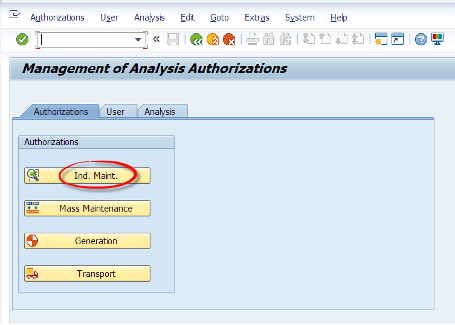
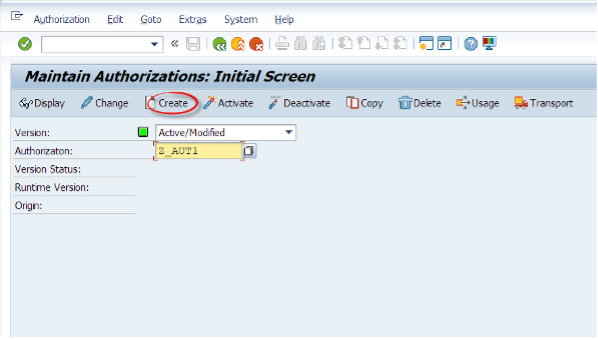
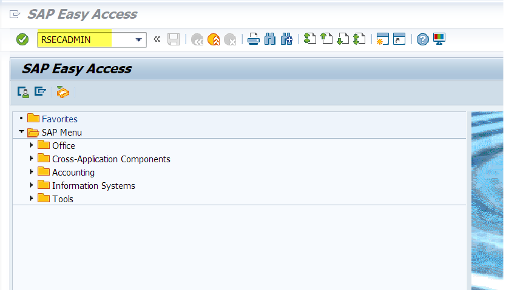
We type the RSECADMIN T-code and from there we will click on the Authorizations tab. Then we will click on Ind. Maint. Then we will click on Create button and give Z_AUT1 as a name to our new object. 
 

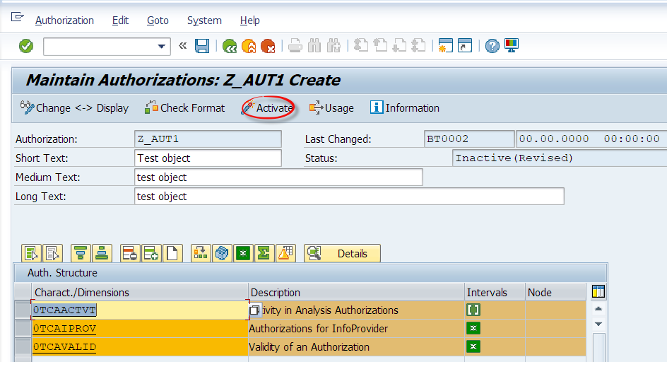
Then we will add pre-defined special authorization characteristics to this list. 0TCAACTVT (activity), 0TCAIPROV (InfoProvider) and 0TCAVALID (validity). 

A user must have at least one assigned authorization object which includes these characteristics. Elsewise they will not be able to run queries. SAP recommends adding them to every authorization object for transparency, even though it is not a requirement.   

In the default setting, values in the intervals: 

-Read (03) is set as the default activity
-Always Valid (*) is set as the validity
-All (*) is set for the InfoProvider

You also need to assign the activity Change (02) for changes to data in Integrated Planning.
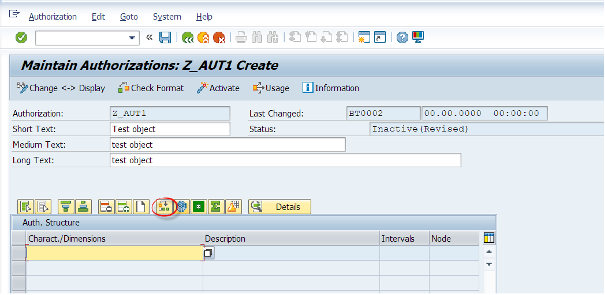
 

Lets add a row as shown below and then lets select a characteristic which is related to authorizations.
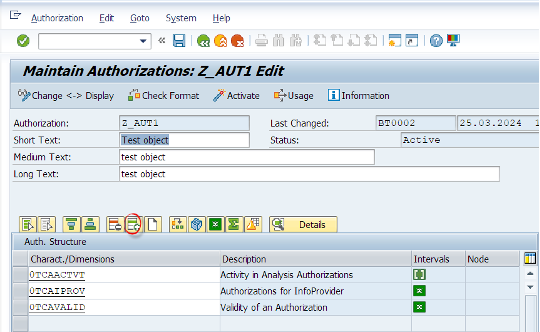
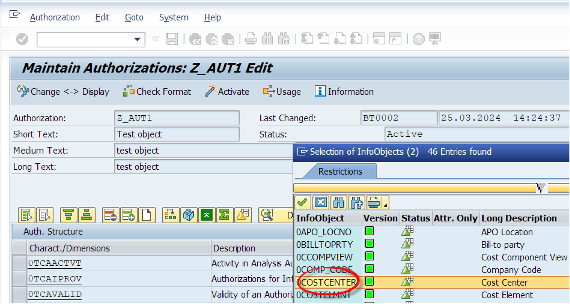
 

Now we have added 0COSTCENTER to our authorization object with access to all cost center entries using the * character.
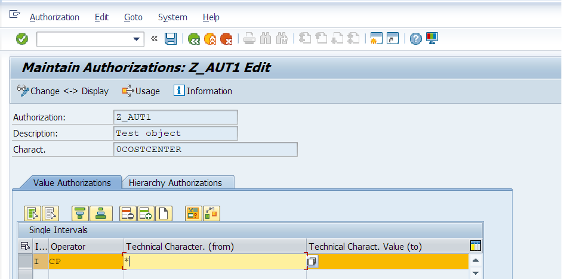
How can we assign this authorization object to a user ?

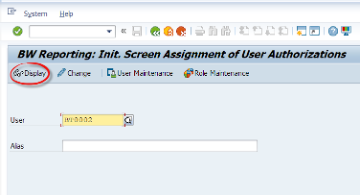
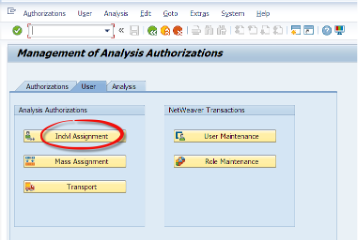
Let’s go to RSECADMIN T-code. Under the User tab we will click the Indvl. Assignment button.
 

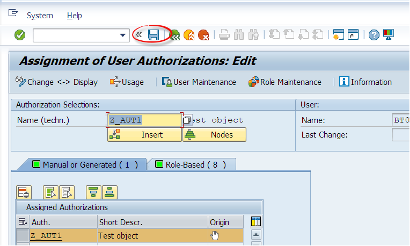
After entering the user name, we will git the change button. We enter the technical name of the authorization object we have created. Then we can press the Insert button to manually add this object to the user. Then we hit the Save button. 
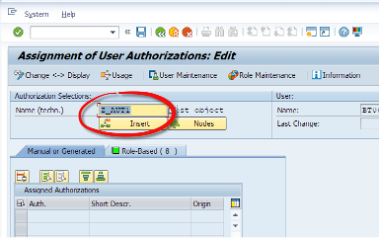
As mentioned before, this is not a preferred way. Let’s see the other way.

We will assign this object to a role - Let’s first create a role.

How to create a Role in SAP BW?

Now lets move to the Role Creation. We have Authorization Objects, we assign them to Roles or Users. We also can assign the roles to the users which could be easier to maintain.
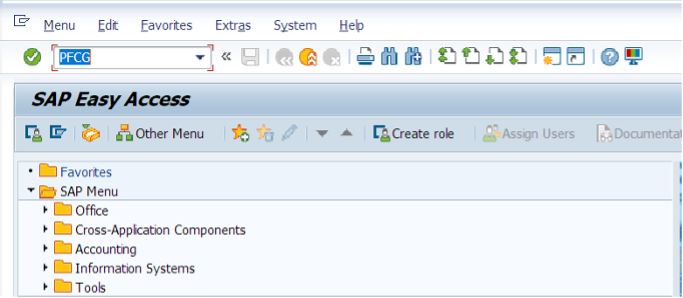
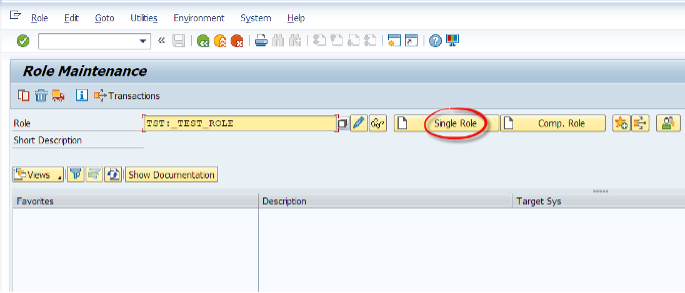
 

Now we can use RSECADMIN or PFCG to create a role.
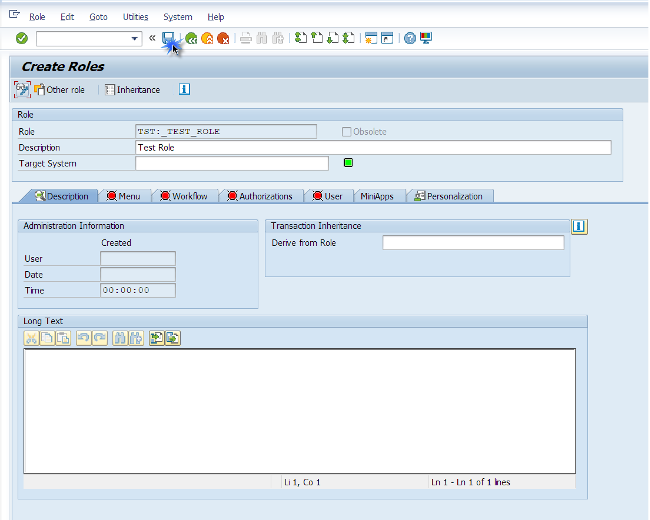
Assigning Authorization Objects to Roles

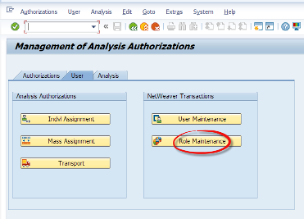
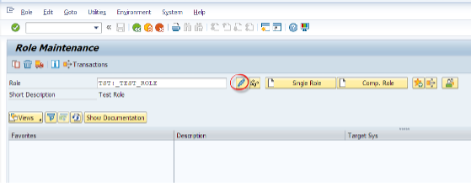
Now we can assign our authorization object to this test role. Let’s go to RSECADMIN. Let’s go to Role Maintenance under the user tab.

A system prompt will ask if we want to apply any generic templates. For the sake of simplicity we will skip this process.
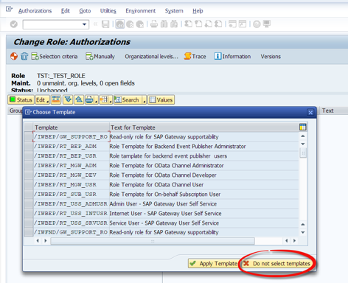
There is a system object to store analysis auth. objects which is called S_RS_AUTH. For every authorization object we create, must be stored under this object.

We will manually assign this object to our custom role. Then we will assign this role to the user for easier management of security.
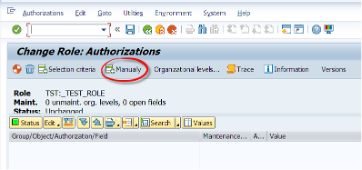
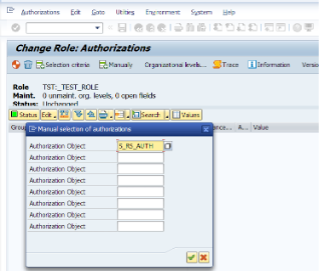
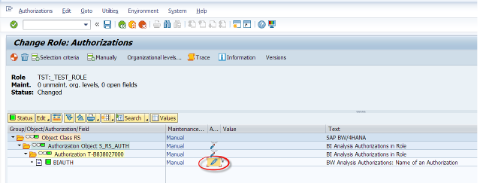
Now we are adding the authorization object we have previously created under the S_RS_AUTH object.
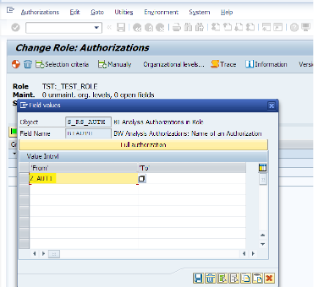
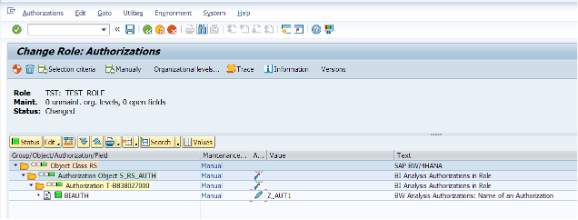
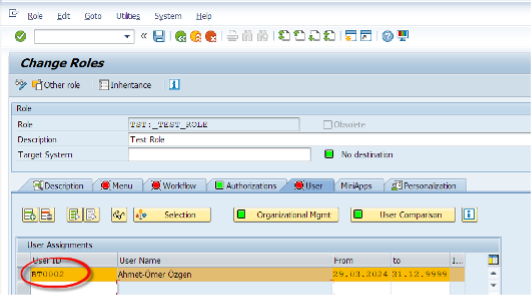
Now we are assigning this role to the user
How to generate the Authorization Profile

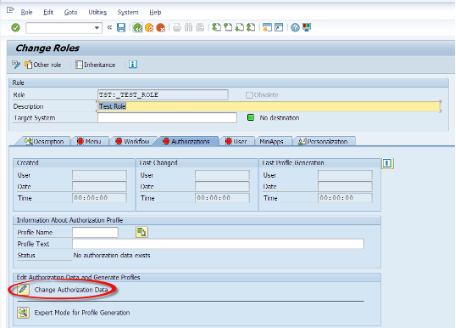
Before saving the assignment to role, we must generate the authorization profile. To do so, we need the S_USER_PRO authorization in our user as a prerequisite.

What SAP says:  “You must generate authorization profiles before you can assign them to users. An authorization is generated for each authorization level in the browser view, and an authorization profile for the whole role as represented in the browser view.”
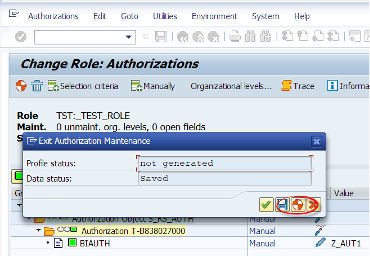
By clicking the Generate button, we are generating the related authorization profile.

Notes

Notes: when assigning authorization objects to a role, if we do not know about the objects, we can click on the Selection criteria button. When we click on the red minus icons they turn into green plus icons then we hit the Insert Chosen button which adds them to the role.

We can add authorization objects which lets users to access Info Cubes, ADSOs or related BW objects. We can modify user access to READ, MODIFY and such from the * Activity part under the added authorization object.


Written May 2024

Data Products Setup

I’ll start with Data Products setup. If you’re new to the concept, this recent video is a great starting point, but here’s a short summary. A data product is a well-described, easily discoverable, and consumable collection of data sets.

Creating a Data Product in Datasphere

Note that in this article I create Data Products in the Data Sharing Cockpit in Datasphere. This functionality is expected to move into the Data Product Studio, but that had not taken place at the time writing.

Before creating a Data Product in Datasphere, I need to set up a Data Provider profile, collecting descriptive metadata like contact and address details, industry, regional coverage, and importantly define Data Product Visibility. Enabling Formations allows me to share the Data Product with systems across your BDC Formation – Databricks, in this case.

With the Data Provider set up, I can go ahead and create a Data Product. As with the Data Provider, I’ll need to add metadata about the product and define its artifacts – the datasets it contains. Only datasets from a space of SAP HANA Data Lake Files type can be selected. Since this Data Product is visible across the Formation, it is available free of charge.

For this demo, the artifact is a local table containing ten years of Ice Cream sales data. Since this is a File type space, importing a CSV file directly to create a local table isn’t an option (see documentation).

I used a Replication Flow to perform an initial load from a BW aDSO table into a local table.

Once Data Product is created and listed, it becomes available in the Catalog & Marketplace, from where it can be shared with Databricks by selecting the appropriate connection details.

Jump into Databricks

To use the shared object In Databricks, I need to mount it to the Catalog – either by creating a new Catalog or using an existing one.

Databricks appends a version number to the end of the schema – ‘:v1’ – to maintain versioning in case of any future changes to the Data Product.

Once the share is mounted, the schema is created automatically, and the Sales actual data table becomes available within it. From there, I can access the shared table directly in a Notebook.

Creating a Data Product in Databricks

To create a Data Product in Databricks, I first need to create a Share – which I can either do via the Delta Sharing settings in the Catalog:

Or directly out of the table which is going to become a part of the Share:

Since a single Share can contain multiple tables, I have the option to either add the table to an existing Share, or create a new one:

To publish the Share as a Data Product, I run a Python script where I define the target table for the forecast and describe the Share in CSN notation, setting the Primary Keys. Primary Keys are required for installing Data Products in Datasphere.

Jump back into Datasphere

Once the Databricks Data Product is available in Datasphere, I install it into a Space configured as a HANA Database space – since my intention is to build a view on top of the table and use it for planning in SAC.

There are two installation options: as a Remote table for live data access, or as a Replication Flow, in which case the data is physically copied into the object store in Datasphere.

Since I want live access, I install it as a Remote Table:

and build a Graphical view of type Fact on top:

Forecast calculation

With my Data Products set up and Sales actual data are available in Databricks, I create a Notebook to calculate the Sales Forecast.

The approach combines Sales and Weather data to train a Linear Regression model. I import the Weather data *https://zenodo.org/records/4770937 from an external server directly into Databricks, select the relevant features from the weather dataset, and combine them with the Sales actual data:

* Klein Tank, A.M.G. and Coauthors, 2002. Daily dataset of 20th-century surface
air temperature and precipitation series for the European Climate Assessment.
Int. J. of Climatol., 22, 1441-1453.
Data and metadata available at http://www.ecad.eu

Using the “sklearn” library, I build and train a Linear regression model:

Once trained, the model predicts the Sales forecast for Rome in June 2026 based on the weather forecast, and I save the results to my Catalog table:

Seamless planning data model

Seamless planning concept is built around physically storing planning data and public dimensions directly in Datasphere, keeping them alongside the actual data.

Since the QRC4 2025 SAC release, it has also been possible to use live versions and bring reference data into planning models without replication.

In this scenario, I build a seamless planning model on top of the Graphical view I created over the Remote table. This lets me use the forecast generated in Databricks as a reference for the final SAC Forecast version.


The model setup follows these steps:

Create a new model:

Start with data:

Select Datasphere as the data storage:

From there, I define the model structure and can review the data in the preview.

For a deeper dive into Seamless Planning, I recommend this biX blog.

Process Flow automation

Multi-action triggers Datasphere task chain

The final step is automating the entire forecast generation by using SAC Multi-actions and a Task-Chain in Datasphere – so that my user can trigger the calculation with a single button click from an SAC Story.

The model setup follows these steps:

Create a new model:

Triggering Task Chains from Multi-actions is a recent release. This blog post walks through how to set it up.

For details on how to trigger a Databricks Notebook from Datasphere, I recommend referring to this blog.

With everything in place, I create a Story, add my Seamless planning Model, and attach the Multi-action:

Running the Multi-action triggers the Task Chain, which in turn triggers the Databricks Notebook.

I can monitor the execution details in Datasphere:

and in Databricks:

Once the calculation completes, the updated forecast appears in the Story:

The end-to-end calculation took 2 minutes 45 seconds in total. The Task Chain in Datasphere is triggered almost instantly by the Multi-action, the Databricks Notebook execution itself took 1 minute 29 seconds, with the remaining time spent on Serverless Cluster startup.   


From here, I can copy the calculated forecast into a new private version:

adjust the numbers as needed, and publish it as a new public version to Datasphere:

Conclusion

With SAP Business Data Cloud, it is possible to build a forecasting workflow that feels seamless to the end user — even though it spans multiple systems under the hood.

Companies using BW as the main Data Warehouse and Databricks for ML calculations or Data Science tasks can benefit from using the platform, as the data no longer needs to be physically copied out of BW.

What this scenario demonstrates is that once wrapped as a Data Product, BW sales data can be shared with Databricks via the Delta Share protocol. Databricks, in turn, can then create its own Data Products on top of the calculation results and share them back with Datasphere as a Remote Table.

A Seamless Planning model in SAC sits on top of that Remote Table, giving planners live access to the generated forecast. A single Multi-action in an SAC Story ties it all together, triggering a Datasphere Task Chain that kicks off the Databricks Notebook — completing the full cycle in under three minutes.

As SAP Business Data Cloud continues to mature, scenarios like this one are becoming achievable – leaving the complexity in the architecture and not in the workflow.

Contact

Ilya Kirzner
Consultant
biX Consulting
Privacy overview

This website uses cookies so that we can provide you with the best possible user experience. Cookie information is stored in your browser and performs functions such as recognizing you when you return to our website and helps our team to understand which sections of the website are most interesting and useful to you.