
Introduction
Welcome to our comprehensive guide on integrating SAP data into Microsoft Fabric Platform. In today's digital landscape, businesses rely on the seamless flow of data between different systems to drive efficiency and productivity. This guide will walk you through the process of connecting SAP, a leading enterprise resource planning (ERP) system, with Microsoft Fabric, a suite of powerful business applications.
SAP and Microsoft Fabric Fabric
SAP:
SAP is a market-leading ERP software used by organizations worldwide for managing various business functions such as finance, human resources, supply chain, and more. SAP houses critical business data that is invaluable for decision-making and process optimization.
SAP BW (Business Warehouse), on the other hand, is a data warehousing solution provided by SAP. It is specifically designed for storing and analyzing large volumes of business data. BW collects data from various sources within the organization, cleanses and transforms it into meaningful insights, and provides powerful reporting and analytics capabilities. By consolidating data from different systems and departments, SAP BW enables organizations to gain a comprehensive view of their business performance and make informed decisions.
Microsoft Fabric Platform
Microsoft Fabric is a data platform designed to provide a comprehensive environment for managing and processing large volumes of data efficiently. It offers various tools and services for tasks such as data ingestion, storage, processing, and analysis. Fabric leverages cloud infrastructure to provide scalability, reliability, and high-performance capabilities for handling diverse data workloads. By integrating different components and services seamlessly, Microsoft Fabric simplifies the development and deployment of data-driven applications and solutions, empowering organizations to derive valuable insights from their data assets.
Prerequisites
- Access to an SAP system (e.g., SAP BW, SAP S/4HANA)
- Microsoft Fabric subscription (Microsoft Fabric trial)
- Permissions to configure connections and access data in both SAP and Microsoft Fabric
- Azure Data Factory subscription
Integration of SAP Data in Microsoft Fabric
Option 1: SAP Connector
NoteData Factory in Microsoft Fabric doesn't currently support an SAP BW Application Server or HANA database in data pipelines. That's why it is necessary to do all extract operations with Data Flow Gen 2 for now. Data Factory in Microsoft Fabric uses Power Query connectors to connect Dataflow Gen 2 to an SAP BW Application Server or HANA database.
Extract Data From BW to Fabric with SAP HANA DB
-
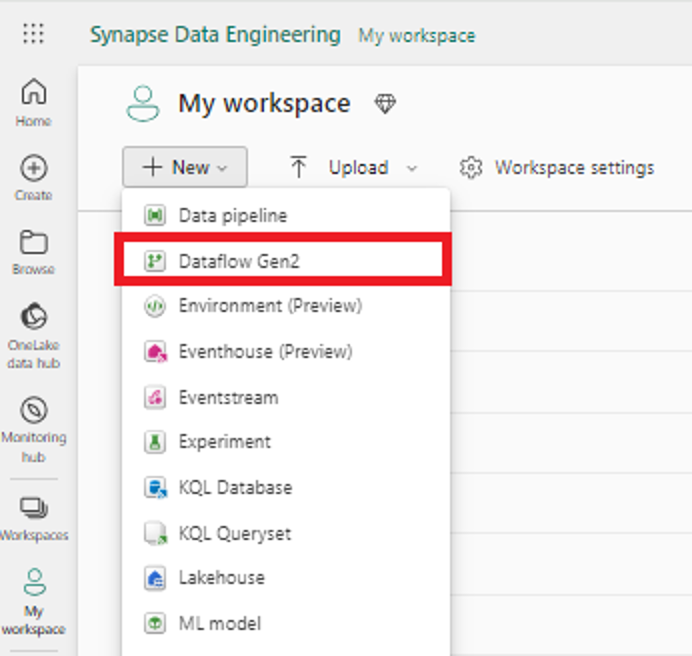
- On the left side of Data Factory, select Workspaces. From your Data Factory workspace, select New > Dataflow Gen2 (Preview), to create a new dataflow.
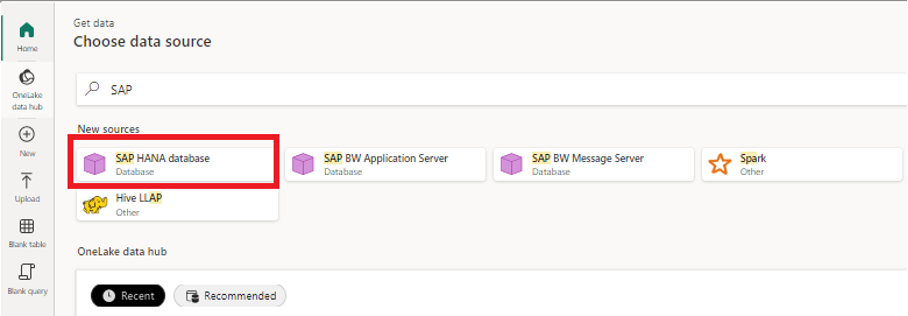
2. In the Choose data source page, use Search to search for the name of the connector. (for this case "SAP") and select SAP HANA database.
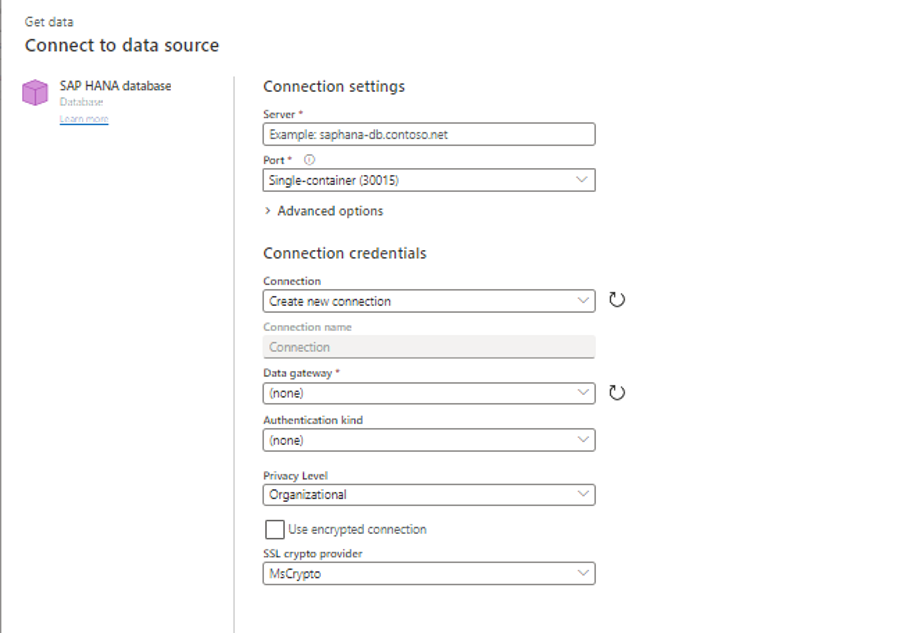
3. Fill in the required fields on the screen that will appear with your credentials and system information and create your SAP HANA connection.
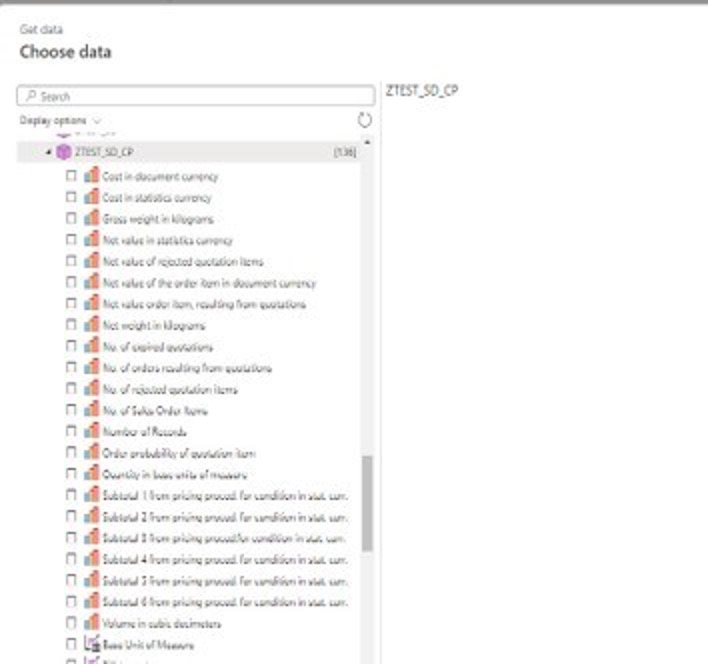
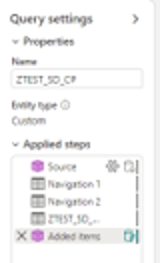
4. The properties of the relevant BW object will appear on the left hand side. The desired objects are selected here.
5. The desired target to sink is selected. (In this example LakeHouse). It is recorded in delta parquet format at the target.
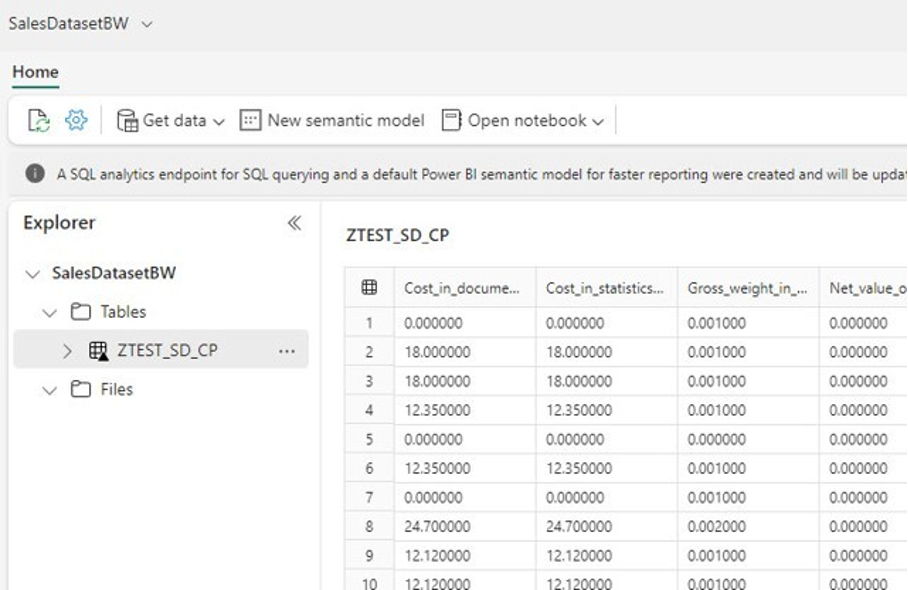
6. The table created in delta parquet format can be used as a source for any desired tools such as Power BI.
Extract Data From BW to Fabric with SAP BW Application Server
BW Connection will connect to the BW server using Power Query and provide access to BW objects, queries, and views. It is important to note that while this method offers easy access to objects created on BW, it can be slower in terms of performance. Additionally, when transferring created fields to Fabric, you need to select them one by one, and in some cases, they may not work correctly and may require adjustments.
Here are some key points to consider:
Advantages:
- Easy access to BW objects
Disadvantages:
- Slower performance compared to other methods
- Requires manual selection of fields when transferring to Fabric
- May require adjustments for correct functionality
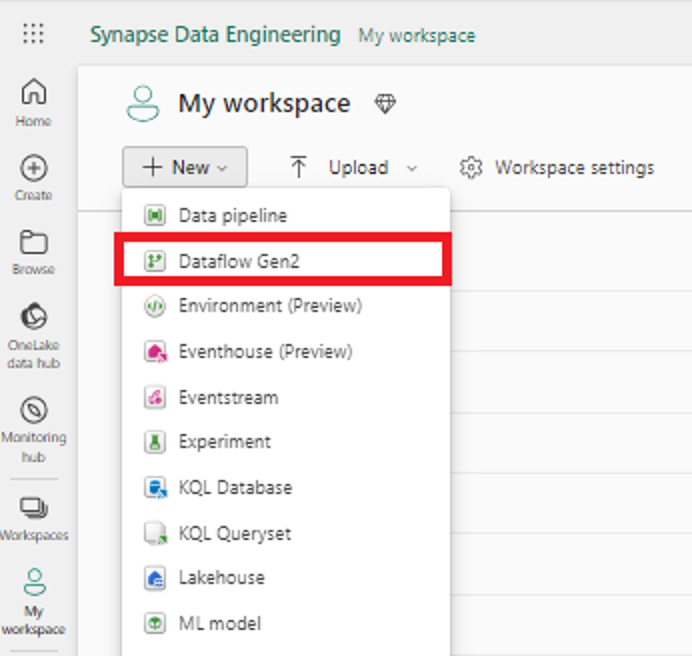
1. On the left side of Data Factory, select Workspaces. From your Data Factory workspace, select New > Dataflow Gen2 (Preview), to create a new dataflow.
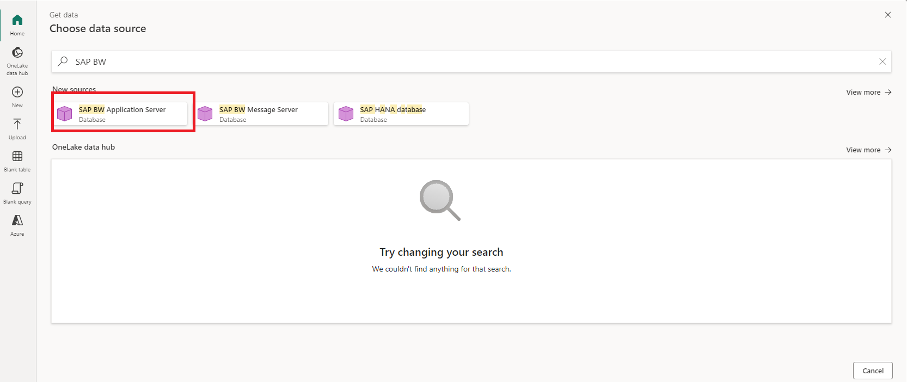
2. In the Choose Data Source page, use Search to search for the name of the connector. (for this case "SAP") and select SAP BW Application Server.
3. On the screen that appears, enter the necessary information to access your BW server. The information you need to enter will vary depending on your specific BW server configuration. Once you have entered all of the required information, click Next to continue
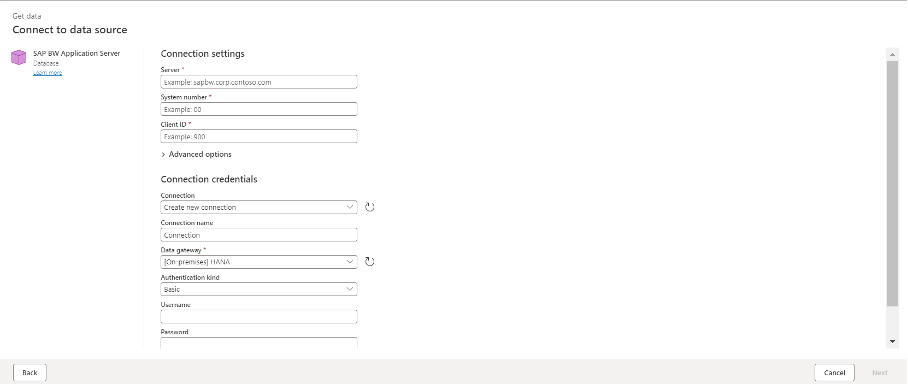
4. On the next screen, you will see the BW objects. This screen will display a list of all of the BW objects that are available to you.
1) Click on the data set you want to access. Once you have found the data set you want to access, click on it to select it.
2) Select the fields you want to extract. Once you have selected the data set, you will need to select the fields that you want to extract. You can do this by clicking on the checkboxes next to the field names.
3) Click Next. Once you have selected the fields you want to extract, click Next to continue.
Here are some additional tips:
- You can use the filter bar at the top of the screen to filter the list of BW objects.
- You can use the search bar at the top of the screen to search for specific BW objects.
- You can use the preview pane on the right side of the screen to preview the data that you are about to extract.
- You can use the help button at the top of the screen to get help with using the BW Connection feature.
Option 2: Extract Data from BW to Fabric with ADF using Data pipeline
Note:
In this session, SAP data previously transferred to the Storage Account in Parquet format via the Copy Data activity using SAP Table Connection in Azure Data Factory has been used as the source.
-
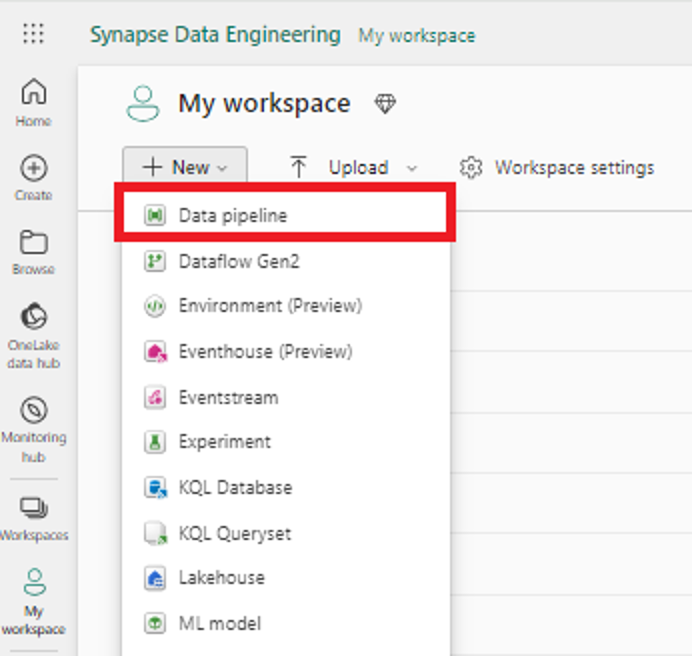
- Select Workspaces and choose the workspace that you are going to create your pipeline in. From the toolbar, select New > Data Pipeline.
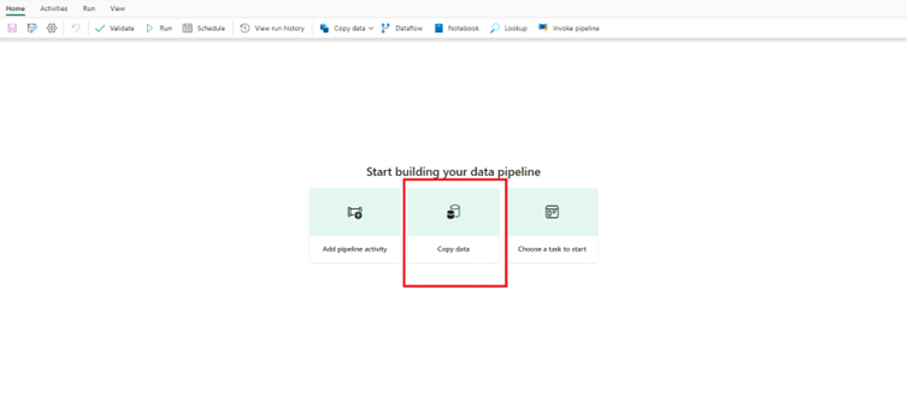
2. Now the option to create your pipeline shows up. Select Copy Data to start building your pipeline.
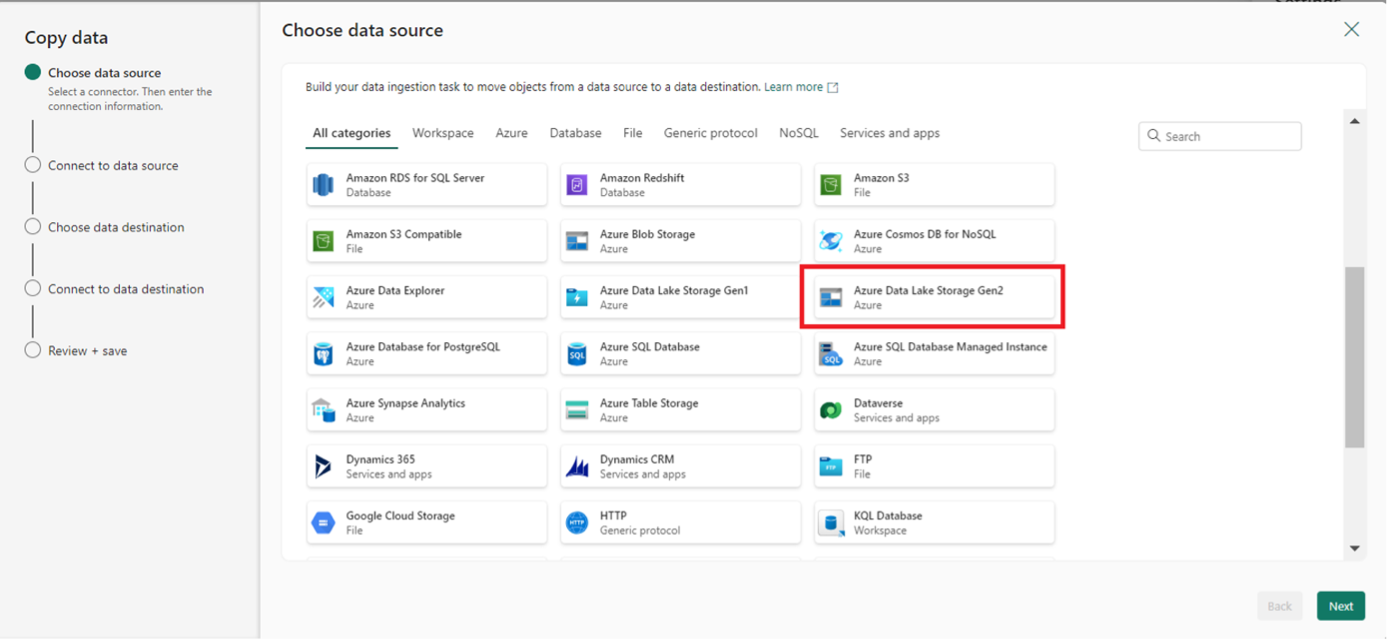
3. To run the Copy Activity, first, you need to define the source. In order to successfully connect to the source, we need a connection. Let's choose Azure Data Lake Storage Gen 2 as the source.
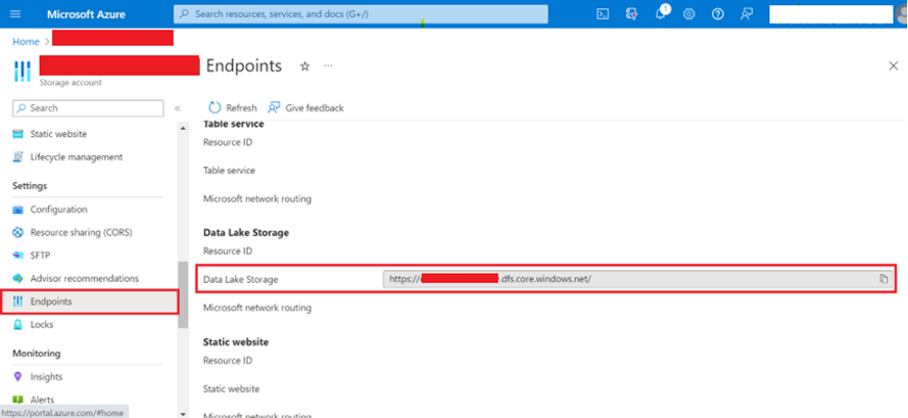
4. We need to access the URL and Account Key of the Azure Blob Storage Container we want to connect to establish the data source connection.
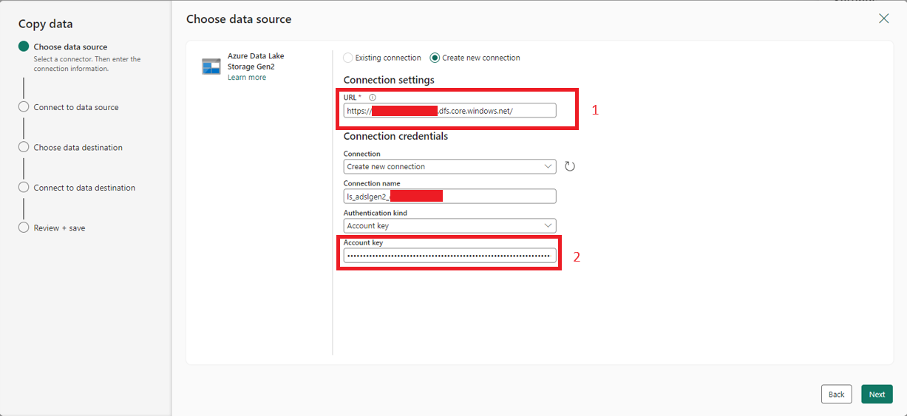
Please follow the steps below:
-
-
-
- Sign in to Azure Portal Log in to the Azure portal by visiting https://portal.azure.com .
- Find the Storage Service: Locate the "Storage Accounts" section on the left-hand menu.
- Select Your AccountYour storage accounts will be listed. Find the Blob Storage account you want to connect to and click on it.
- Determine the URL: Open the "Endpoints" tab under the "Settings" heading in the left menu, and copy the "Data Lake Storage link" under the "Data Lake Storage" section. Typically, it will be in the format https://[storageaccountname].blob.core.windows.net/[containername]..
-
-
- View Keys: Within the Access keys section, you'll find two keys labeled as "key1" and "key2." These are the keys you'll use for accessing your account.
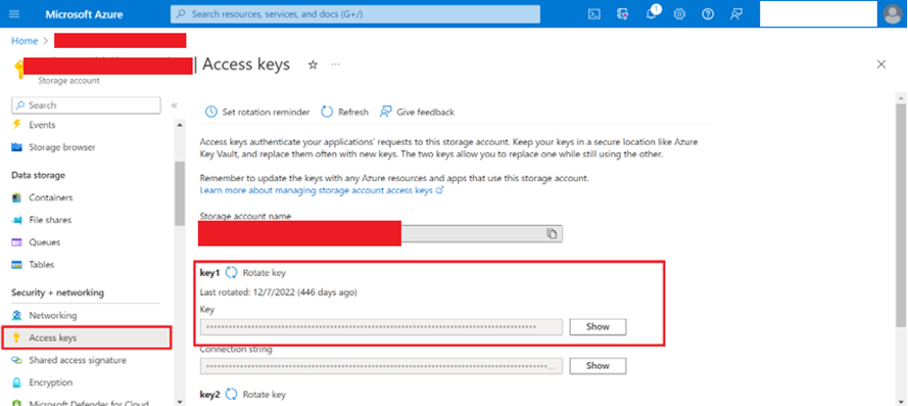
You can successfully establish the connection with these information.
5. We need to access the URL and Account Key of the Azure Blob Storage Container we want to connect to establish the data source connection.
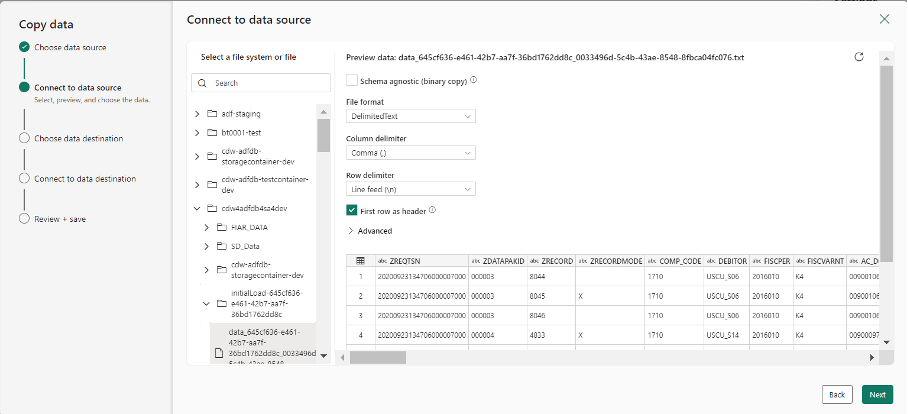
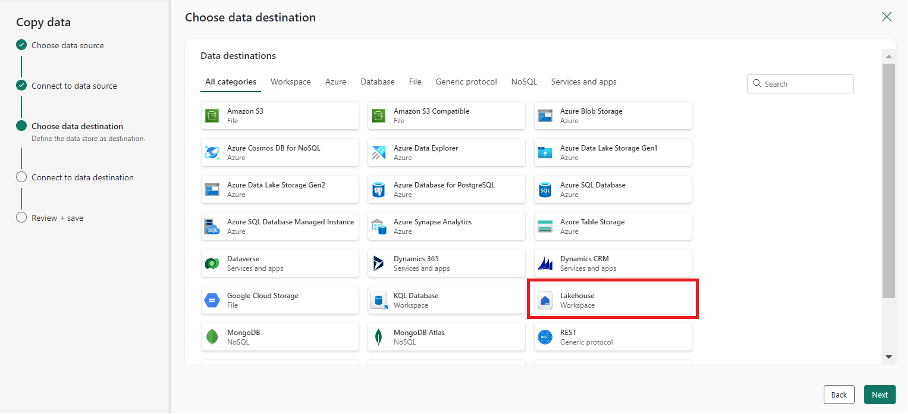
6. Choose the location where you want to upload your data. In this example, we will select the Lakehouse as the data destination.
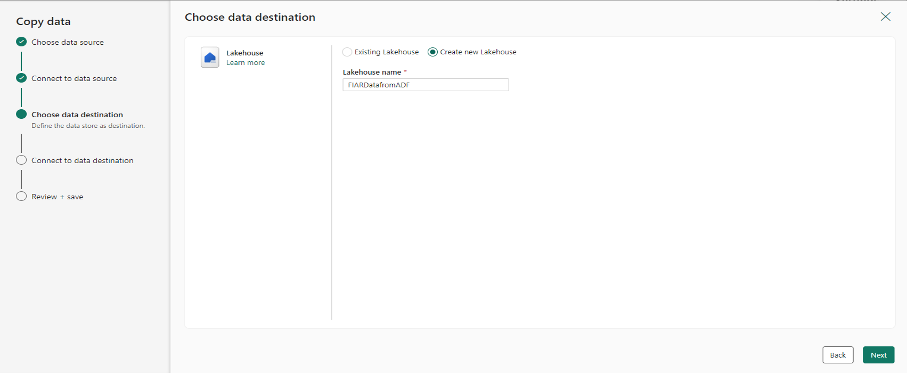
7. Create a new Lakehouse with a name of your choice, or save your data into an existing Lakehouse.
8. The connections are ready for use in the Copy activity. Now, select the Source and Destination connections created within the Copy activity.
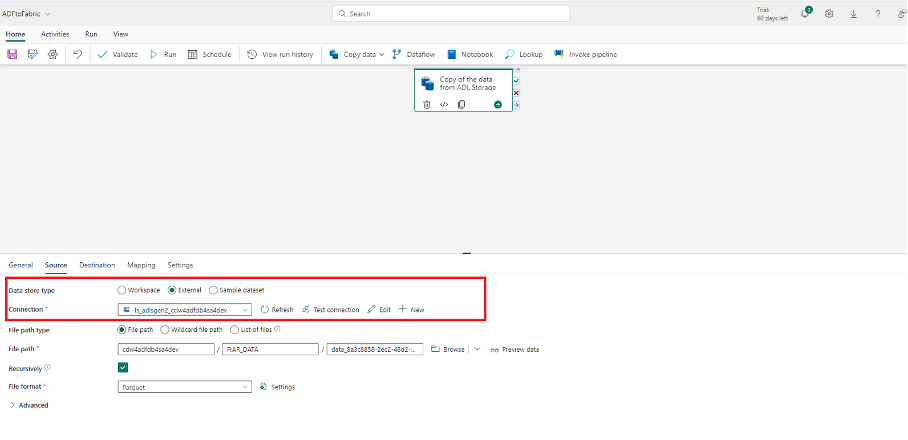
Source - Data Lake Storage
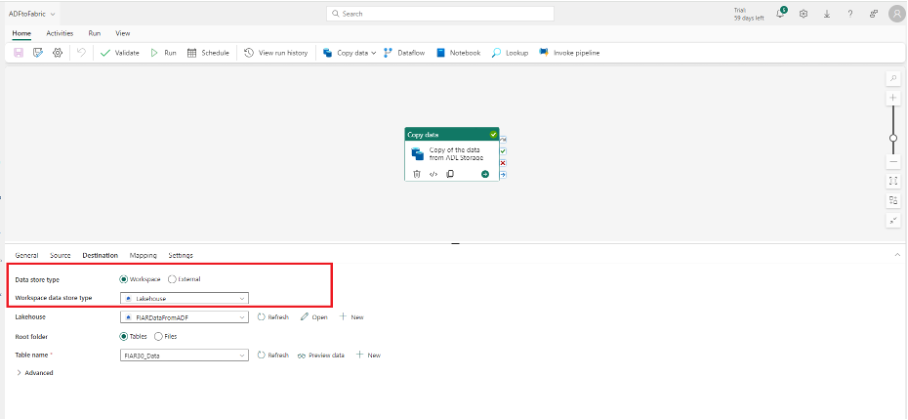
Destination - Lakehouse
9. Run the pipeline and data will be copied into the Lakehouse.
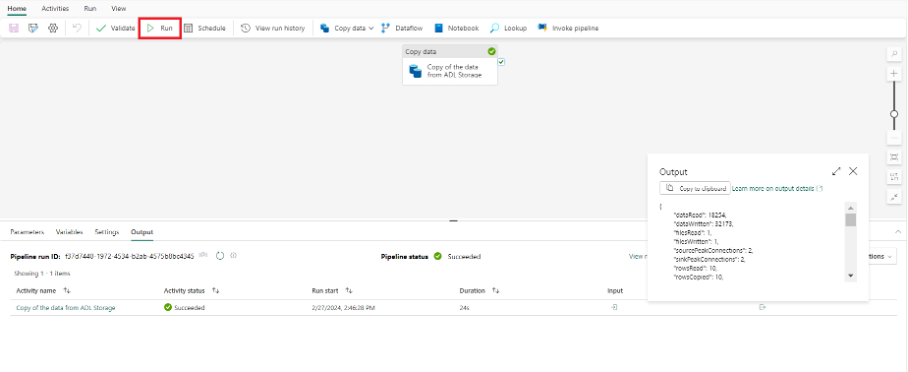
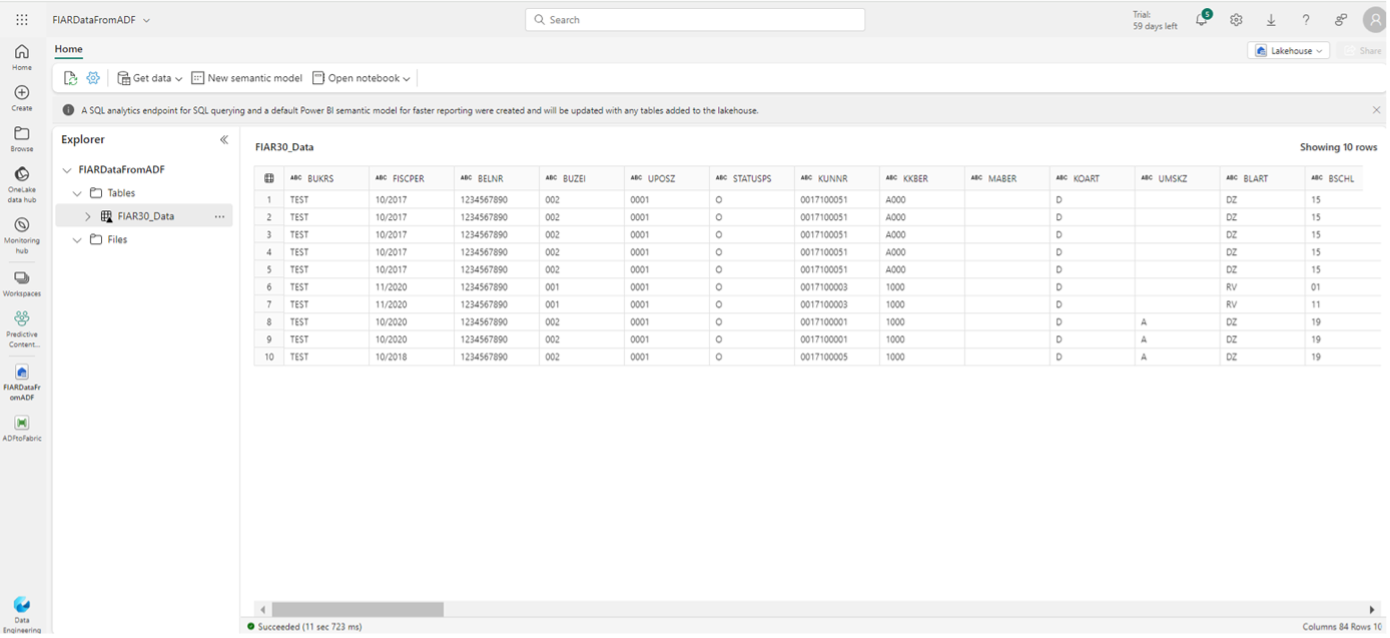
10. And the output will be ready for use on the Lakehouse we created.
Conclusion
Integrating SAP into Microsoft Fabric offers a transformative solution for organizations aiming to enhance their data management and analytics capabilities. By leveraging the strengths of SAP's BW data warehousing and HANA in-memory computing technologies within the flexible and scalable environment of Microsoft Fabric, businesses can unlock new levels of performance and insights.
Microsoft Fabric provides a comprehensive ecosystem for data processing, storage, and analytics, seamlessly integrating SAP BW and HANA into existing workflows. This integration enables organizations to harness the power of SAP's data warehousing and real-time analytics capabilities while leveraging Fabric's cloud-based infrastructure for scalability and reliability.
The combination of SAP with Microsoft Fabric empowers organizations to centralize their data, streamline data processing workflows, and derive actionable insights faster than ever before. With Fabric's advanced analytics tools and support for real-time data processing, businesses can make informed decisions quickly and drive innovation across their operations.
In conclusion, the integration of SAP in Microsoft Fabric enables organizations to unlock the full potential of their data assets, accelerate their digital transformation journey, and stay ahead in today's competitive business landscape.