Review of file upload functionality in SAC from within a story 

August 2025 / Update November 2025

Introduction

Since the Q3 2024 release of SAP Analytics Cloud (SAC), Planning users can upload flat files directly from a story using a built-in story trigger. This feature allows business users to upload data in bulk, right from the story interface, without needing to go through the modeler. It streamlines the data update process and significantly reduces the dependency on administrators for routine data imports. 

This blog will explain how to set up the data upload function in SAC, how to work with it in the SAC story and where we found room for improvement. 

This is where you can find additional blogs that cover this topic: 

Plan Data Upload Starter – Directly upload plan da… – SAP Community
New End User File Upload in SAP Analytics Cloud QR… – SAP Community
How to configure a dynamic file upload in SAP Anal… – SAP Community

Update Nov. 2025 – Version Q4/2025 

As announced, version Q4/2025 includes a new feature that allows you to delete data according to specific characteristics before uploading. When defining the upload job in the job settings, you can now select a new import method called “Clean up and replace subset of data.” If you select this option, you must specify the characteristics according to which the data to be cleaned up should be selected. 

Details are described in the following blog: 

New Clean and Replace Feature for SAC End User File Upload  


Setting up the upload

In the first step, the administrator or modeler must create an Upload Job under the Data Management Tab. There you need to upload a template file (.csv/.xlsx and .txt are supported) where the modeler can create necessary transformations. As a last step, the columns from the template file need to be mapped to model dimensions and measures. You finalize the creation of an upload job by defining the Import Method (Update or Append) and the Reverse Sign by Account Type (Off or On) in the job settings:
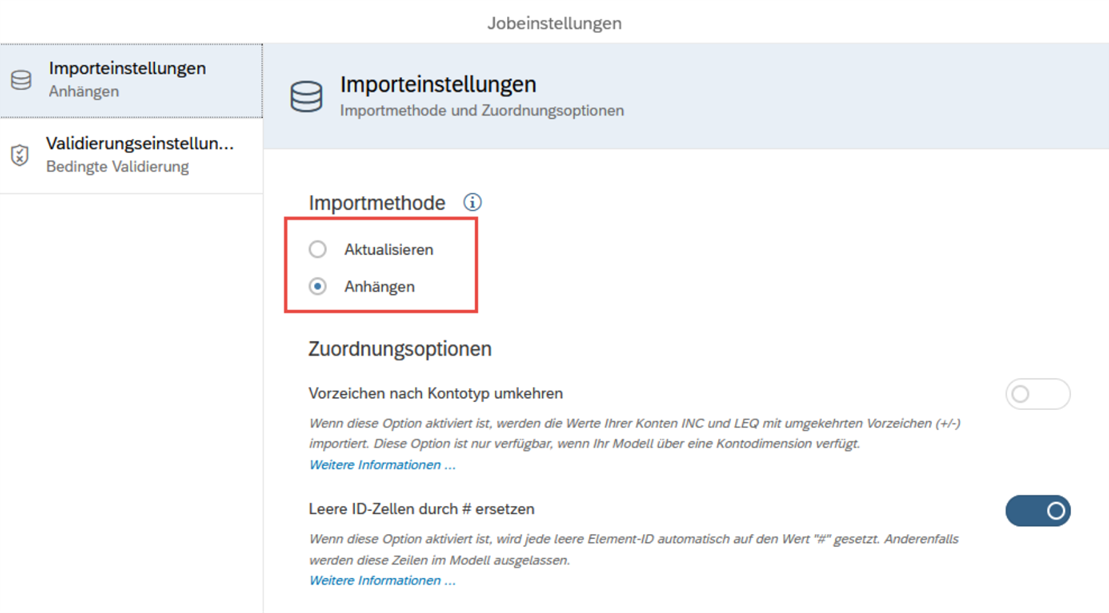
Figure 1: Job settings for import job

Since release Q3/2025 you can set up if and from which hierarchy the system should make sure only leaf members are updated during the upload. 
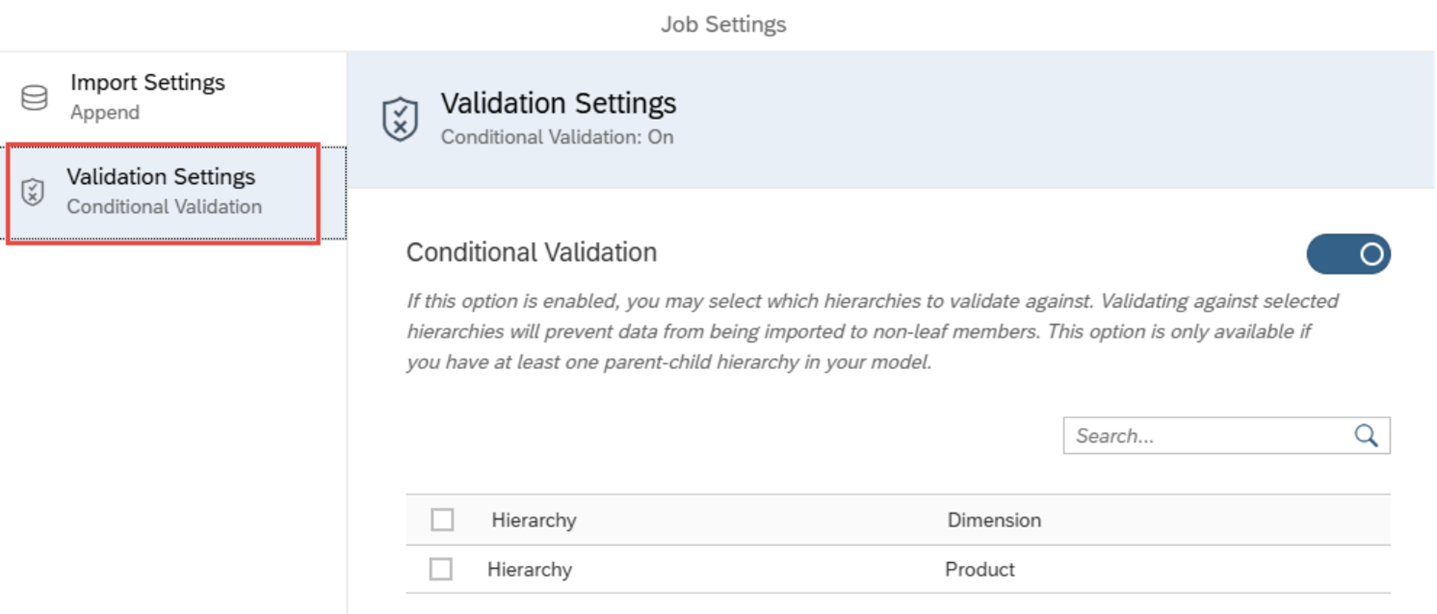
Figure 2: Job setting for import job - validation settings

In the Data Management view you find in the timeline each upload executed later by the planner with the option to download again the error report for the rejected rows.
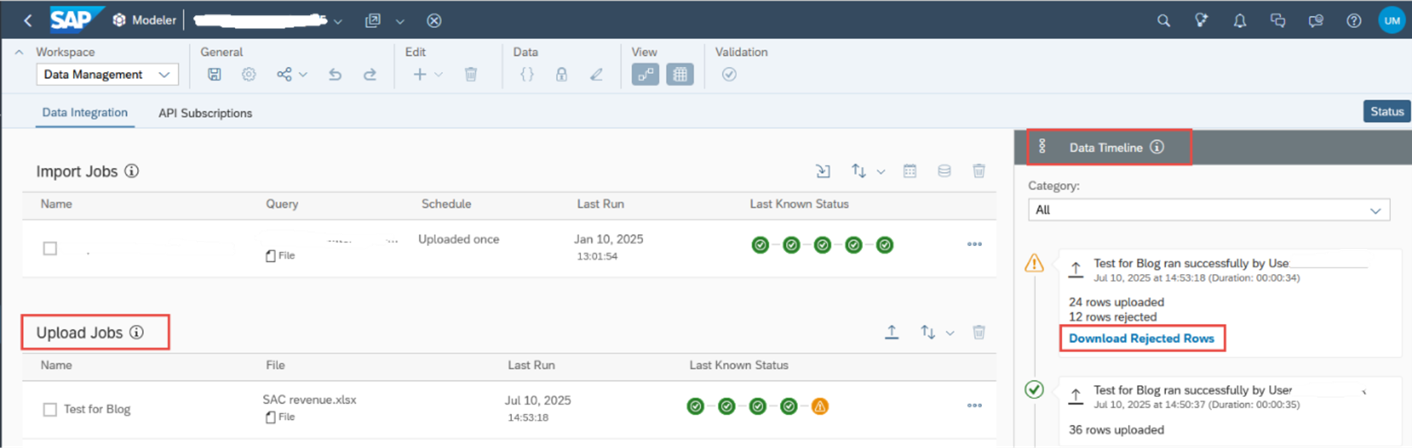
Figure 3: New option for upload jobs definition in the data management tab with the protocol of uploads in the timeline

Once the Upload Job is created, the story designer needs to add the Upload Job Button to the Story. The button functions much like a data action widget, offering consistent user experience. When configuring the story, designers specify the model, choose the upload job that was created earlier, and apply default settings such as the target version or whether the data should be published automatically. These configurations can be either fixed or exposed as prompts, allowing end users some control during the upload process. If you use planning areas for big data volume you can finetune handling during the upload process. Once everything is set up, the story is ready to be used for uploads.
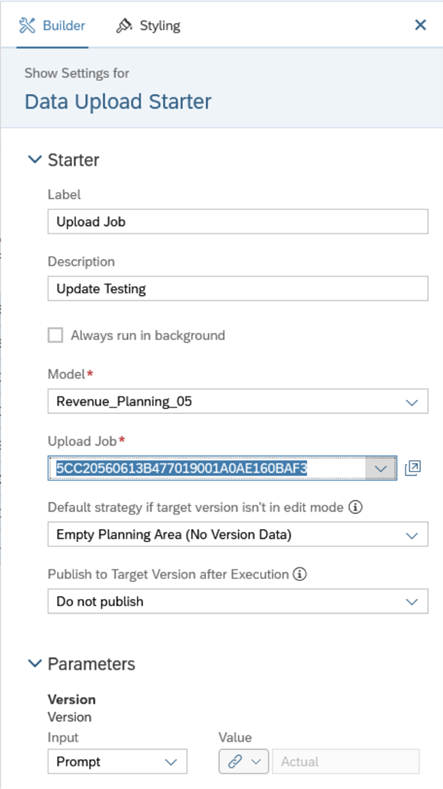
Figure 4: Settings within data upload starter

Upload Process
From the end user's perspective, the process is simple. When they open the story, they’ll see a button for uploading data, such as "Sales Plan Upload".  
Clicking this button opens a prompt where they can select the source file and the target version, if applicable. Supported file formats include CSV, XLSX and TXT. 

As previously mentioned, the modeler can choose either 'Update' or 'Append' as the import method when uploading data. Let's now examine how each of these methods behaves in the system during the data upload process.

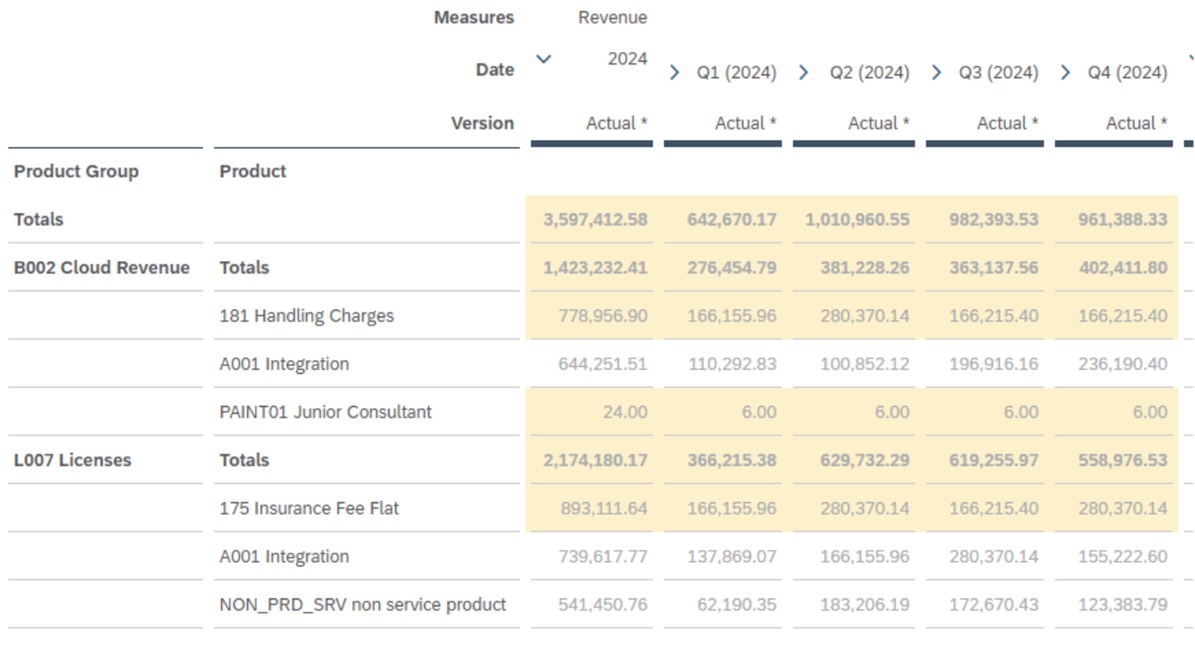
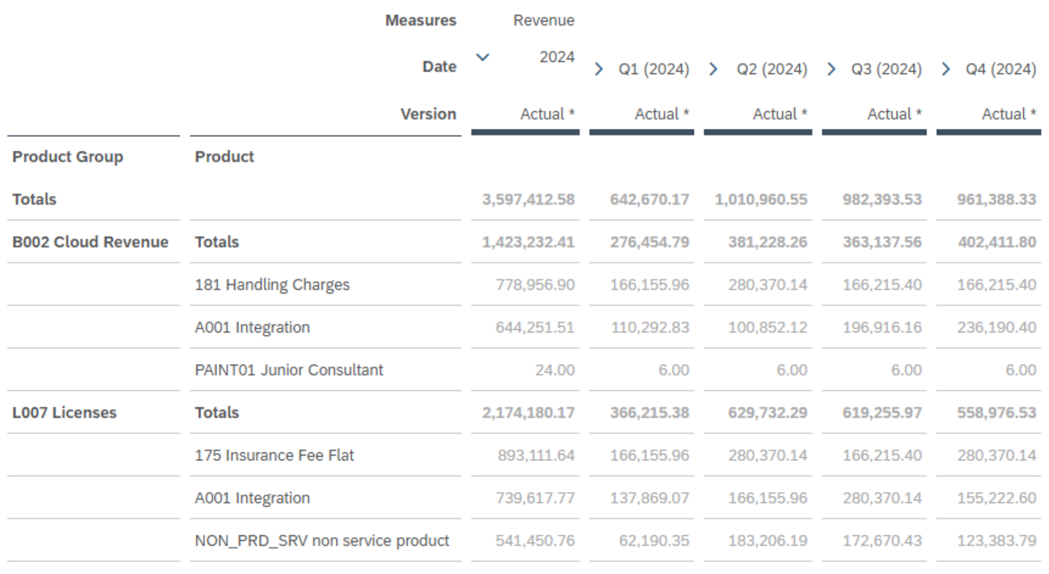
Assume we have a file with actual data containing values as shown after an upload with ‘Update’ setting in the following picture: 

Figure 5: Upload with update containing all shown data

If you repeat the upload with the update mode, values will always remain in SAC as in the file, values are updated.

If you use the append mode, data will be added, thus second upload of the same file will double the values.

What will happen if the file does not contain data for e.g. product A001 in an update step? Data from the file will be marked as updated, values for A001 remain unchanged as shown in the next picture:

Figure 6: Updated values after upload of a file without A001 and NON_PRD_SRV data

With the update mode you expect data to be replaced. Attention with missing lines, they will be untouched. 

Now it is up to the user or designer, how to handle missing lines in a second ‘Update’ upload. If the user expects all data to be replaced, you must manually delete data. If you want to use the script function beforehand to handle the cancel option during the upload process (see below). SAP announced to improve this topic with the Q4/2025 update!

After each upload, you get notified if the data upload was successful or not: 

Figure 7: Message after successful upload

Figure 8: Message after upload with rejected rows

If the upload is only partially successful, a rejection summary can be downloaded as a CSV file. This file provides an overview of the rejected rows along with the reasons for their rejection. Common causes include authorization issues, missing or incorrect master data, data locks, or validation rules defined in the system. In such cases, the planner must identify and correct the errors, then re-upload the data through the SAC story interface. 

The rejection summary is a useful tool for gaining an initial overview of which lines were rejected and why. However, in practice, it can be quite time-consuming to pinpoint exactly which data caused the issue. While the summary indicates which rows contain errors, it does not specify which master data entries were incorrect, or whether the problem lies in a single dimension or across multiple dimensions. 

For example, if you upload a dataset with 10 dimensions and 200 rows, and half of it is rejected due to master data issues, identifying the specific dimensions causing the errors can be a laborious task. More detailed insights into the rejected data would significantly improve usability. Benutzerfreundlichkeit deutlich verbessern. 

Script options

For the data upload job, users can leverage scripting through onBeforeExecute and onAfterExecute hooks. The onBeforeExecute script is triggered before the upload popup is shown, while the onAfterExecute script runs after the upload job is completed. 

As a designer, it's important to note that these scripts are executed even if the upload was canceled by the user, was only partially successful or completely failed. To ensure that a data action is executed only after a successful upload, the following line of code can be used within the onAfterExecute script (or on the other status Warning, Error respectively): 

if (status === DataUploadExecutionResponseStatus.Success ) { 

…; 

} 

This status is not known in the script onBeforeExecute! Pay attention to revert changes done in the onBeforeExecute if the user canceled the upload or warnings were issued with lines rejected.

Unfortunately, the rejection information is not accessible within the script. 

Recent improvements - Release Q3/2025

Data Upload: control visibility to rejected records in end-user data upload and data load jobs 

Users cannot download rejected records for data they are not allowed to see and not nodes. 


Plan Entry: enforce loading to leaf members during data file upload 

Make sure, only leaf members of an attribute can be changed during a file upload. 

Better error handling 

Error handling is cumbersome, possibility to edit wrong lines in a popup would be nice: Popup-Fenster korrigieren zu können: 

https://influence.sap.com/sap/ino/#/idea/221946 

Example file structure

Users must know the file structure for the upload. You must share with them an example file, e.g. by adding a link to tour story. SAC does not provide the option to generate, and example file out of the definition of the upload job.

No master data upload 

In the current solution only transaction data can be changed during the upload. Masterdata must be maintained upfront in a different process. For the moment only option to add to a story you must implement adding master data via script functionality. SAP acknowledge that they want to add this function at a later stage in blog.

New End User File Upload in SAP Analytics Cloud QRC3 2024  

Only fix columns possible in the file

If you want to upload data, for example for a rolling forecast, the plan and upload columns will represent planning quarters. However, these quarters shift over time. In the current solution, column headers can only be static.  

This is explained in blog with a workaround: 

How to configure a dynamic file upload in SAP Analytics Cloud 

Besides the option explained in this blog, you could work as well with an intermediate data model, containing e.g. four planning quarters and copy in the script after execution from the intermediate data model to the final model with the correct periods. 

Improvement request: 

Data Upload Starter with updating Local Dimension Member Option 

Import Job – pivoting on Date dimension doesn’t allow dynamic values 

Deleting data during update upload 

Better handling of deleting data missing in the upload file during update as already mentioned: 

Data Upload Starter Clean/Replace and Clean/Replace Subset not available 

This is planned for Q4/2025: 

Plan Entry: clean and replace for data file upload 

Update Nov. 2025: This functionality was implemented as announced (details see above)!! 

Conclusion

The upload activity is fully traceable, providing transparency and accountability for all data changes made by end users. Administrators can view the history of data uploads within the Data Management tab, while the Activity Log offers detailed tracking of changes introduced through the upload process. Right now, it’s not possible to track the specific cell that caused the issue. This would help users identify the source of rejections more easily and improve the overall troubleshooting process. 

Finally, the rejection summary does not allow for direct data corrections. Users must manually update the data in a new file and re-upload it through the SAC story interface. 

All in all, the new built-in story trigger for flat file uploads in SAC improves the planning workflow by enabling planners to upload data directly from stories without relying on modelers or administrators. It streamlines the process, supports flexible configuration, and ensures traceability through upload history and activity logs. However, the rejection summary lacks detailed insights into master data errors, making troubleshooting time-consuming for complex datasets.  


Data Products Setup

I’ll start with Data Products setup. If you’re new to the concept, this recent video is a great starting point, but here’s a short summary. A data product is a well-described, easily discoverable, and consumable collection of data sets.

Creating a Data Product in Datasphere

Note that in this article I create Data Products in the Data Sharing Cockpit in Datasphere. This functionality is expected to move into the Data Product Studio, but that had not taken place at the time writing.

Before creating a Data Product in Datasphere, I need to set up a Data Provider profile, collecting descriptive metadata like contact and address details, industry, regional coverage, and importantly define Data Product Visibility. Enabling Formations allows me to share the Data Product with systems across your BDC Formation – Databricks, in this case.

With the Data Provider set up, I can go ahead and create a Data Product. As with the Data Provider, I’ll need to add metadata about the product and define its artifacts – the datasets it contains. Only datasets from a space of SAP HANA Data Lake Files type can be selected. Since this Data Product is visible across the Formation, it is available free of charge.

For this demo, the artifact is a local table containing ten years of Ice Cream sales data. Since this is a File type space, importing a CSV file directly to create a local table isn’t an option (see documentation).

I used a Replication Flow to perform an initial load from a BW aDSO table into a local table.

Once Data Product is created and listed, it becomes available in the Catalog & Marketplace, from where it can be shared with Databricks by selecting the appropriate connection details.

Jump into Databricks

To use the shared object In Databricks, I need to mount it to the Catalog – either by creating a new Catalog or using an existing one.

Databricks appends a version number to the end of the schema – ‘:v1’ – to maintain versioning in case of any future changes to the Data Product.

Once the share is mounted, the schema is created automatically, and the Sales actual data table becomes available within it. From there, I can access the shared table directly in a Notebook.

Creating a Data Product in Databricks

To create a Data Product in Databricks, I first need to create a Share – which I can either do via the Delta Sharing settings in the Catalog:

Or directly out of the table which is going to become a part of the Share:

Since a single Share can contain multiple tables, I have the option to either add the table to an existing Share, or create a new one:

To publish the Share as a Data Product, I run a Python script where I define the target table for the forecast and describe the Share in CSN notation, setting the Primary Keys. Primary Keys are required for installing Data Products in Datasphere.

Jump back into Datasphere

Once the Databricks Data Product is available in Datasphere, I install it into a Space configured as a HANA Database space – since my intention is to build a view on top of the table and use it for planning in SAC.

There are two installation options: as a Remote table for live data access, or as a Replication Flow, in which case the data is physically copied into the object store in Datasphere.

Since I want live access, I install it as a Remote Table:

and build a Graphical view of type Fact on top:

Forecast calculation

With my Data Products set up and Sales actual data are available in Databricks, I create a Notebook to calculate the Sales Forecast.

The approach combines Sales and Weather data to train a Linear Regression model. I import the Weather data *https://zenodo.org/records/4770937 from an external server directly into Databricks, select the relevant features from the weather dataset, and combine them with the Sales actual data:

* Klein Tank, A.M.G. and Coauthors, 2002. Daily dataset of 20th-century surface
air temperature and precipitation series for the European Climate Assessment.
Int. J. of Climatol., 22, 1441-1453.
Data and metadata available at http://www.ecad.eu

Using the “sklearn” library, I build and train a Linear regression model:

Once trained, the model predicts the Sales forecast for Rome in June 2026 based on the weather forecast, and I save the results to my Catalog table:

Seamless planning data model

Seamless planning concept is built around physically storing planning data and public dimensions directly in Datasphere, keeping them alongside the actual data.

Since the QRC4 2025 SAC release, it has also been possible to use live versions and bring reference data into planning models without replication.

In this scenario, I build a seamless planning model on top of the Graphical view I created over the Remote table. This lets me use the forecast generated in Databricks as a reference for the final SAC Forecast version.


The model setup follows these steps:

Create a new model:

Start with data:

Select Datasphere as the data storage:

From there, I define the model structure and can review the data in the preview.

For a deeper dive into Seamless Planning, I recommend this biX blog.

Process Flow automation

Multi-action triggers Datasphere task chain

The final step is automating the entire forecast generation by using SAC Multi-actions and a Task-Chain in Datasphere – so that my user can trigger the calculation with a single button click from an SAC Story.

The model setup follows these steps:

Create a new model:

Triggering Task Chains from Multi-actions is a recent release. This blog post walks through how to set it up.

For details on how to trigger a Databricks Notebook from Datasphere, I recommend referring to this blog.

With everything in place, I create a Story, add my Seamless planning Model, and attach the Multi-action:

Running the Multi-action triggers the Task Chain, which in turn triggers the Databricks Notebook.

I can monitor the execution details in Datasphere:

and in Databricks:

Once the calculation completes, the updated forecast appears in the Story:

The end-to-end calculation took 2 minutes 45 seconds in total. The Task Chain in Datasphere is triggered almost instantly by the Multi-action, the Databricks Notebook execution itself took 1 minute 29 seconds, with the remaining time spent on Serverless Cluster startup.   


From here, I can copy the calculated forecast into a new private version:

adjust the numbers as needed, and publish it as a new public version to Datasphere:

Conclusion

With SAP Business Data Cloud, it is possible to build a forecasting workflow that feels seamless to the end user — even though it spans multiple systems under the hood.

Companies using BW as the main Data Warehouse and Databricks for ML calculations or Data Science tasks can benefit from using the platform, as the data no longer needs to be physically copied out of BW.

What this scenario demonstrates is that once wrapped as a Data Product, BW sales data can be shared with Databricks via the Delta Share protocol. Databricks, in turn, can then create its own Data Products on top of the calculation results and share them back with Datasphere as a Remote Table.

A Seamless Planning model in SAC sits on top of that Remote Table, giving planners live access to the generated forecast. A single Multi-action in an SAC Story ties it all together, triggering a Datasphere Task Chain that kicks off the Databricks Notebook — completing the full cycle in under three minutes.

As SAP Business Data Cloud continues to mature, scenarios like this one are becoming achievable – leaving the complexity in the architecture and not in the workflow.

Contact

Ilya Kirzner
Consultant
biX Consulting
Privacy overview

This website uses cookies so that we can provide you with the best possible user experience. Cookie information is stored in your browser and performs functions such as recognizing you when you return to our website and helps our team to understand which sections of the website are most interesting and useful to you.