
March 2026
Manual Creation to Intelligent Validation
Prerequisites for using the Tableau Agent
Before we start with Tableau Desktop, a quick look at the technical prerequisites for using the Tableau Agent is necessary. The integration of generative AI into Tableau is not a purely local feature (in Tableau Desktop), but a Cloud/Server feature that places specific demands on the architecture.
For the Tableau Agent to work, the following requirements must be met:
- Infrastructure: The Tableau Agent is a Cloud service. Its use requires Tableau Desktop (from 2025.1) strictly in connection with Tableau Cloud (Edition Tableau+) or Tableau Server (from 2025.3).
- Data Connection: For the AI to understand the semantics, the data (e.g., Superstore) must be available as a published data source or extract in your Cloud or Server environment.
- Data Protection: In the Cloud, the Einstein Trust Layerguarantees that your data is not used to train public AI models. For Server usage (on-premise), your individual security guidelines apply for the LLM connection.
For our scenario, we use the “Sample - Superstore” because it offers a realistic mix of transactional data (orders), geographical information, and product hierarchies—ideal for testing the Agent's capabilities.
Getting Started – Quick Orientation Instead of a Blank Workspace
It is a well-known situation: You connect to a new data source and initially only see a long list of tables and fields. Unless specific requirements for the dashboard already exist, you face the first hurdle: you have to gain an initial overview and recognize relationships. A lot of time is often invested here just to understand the data structure.
The Tableau Agent offers efficient support here through “Suggestions” or „Recommended Questions“. As soon as the connection to the data source is established, the Agent analyzes the metadata in the background. It recognizes time series, categorical fields, and measures. This enables the creation of initial visualizations and the highlighting of data correlations to gain a better initial understanding of the data.
As a practical introductory example, we first establish a connection to the Superstore dataset in Tableau and then open the Agent panel. Instead of manually dragging fields into the workspace, the Agent suggests context-related questions:
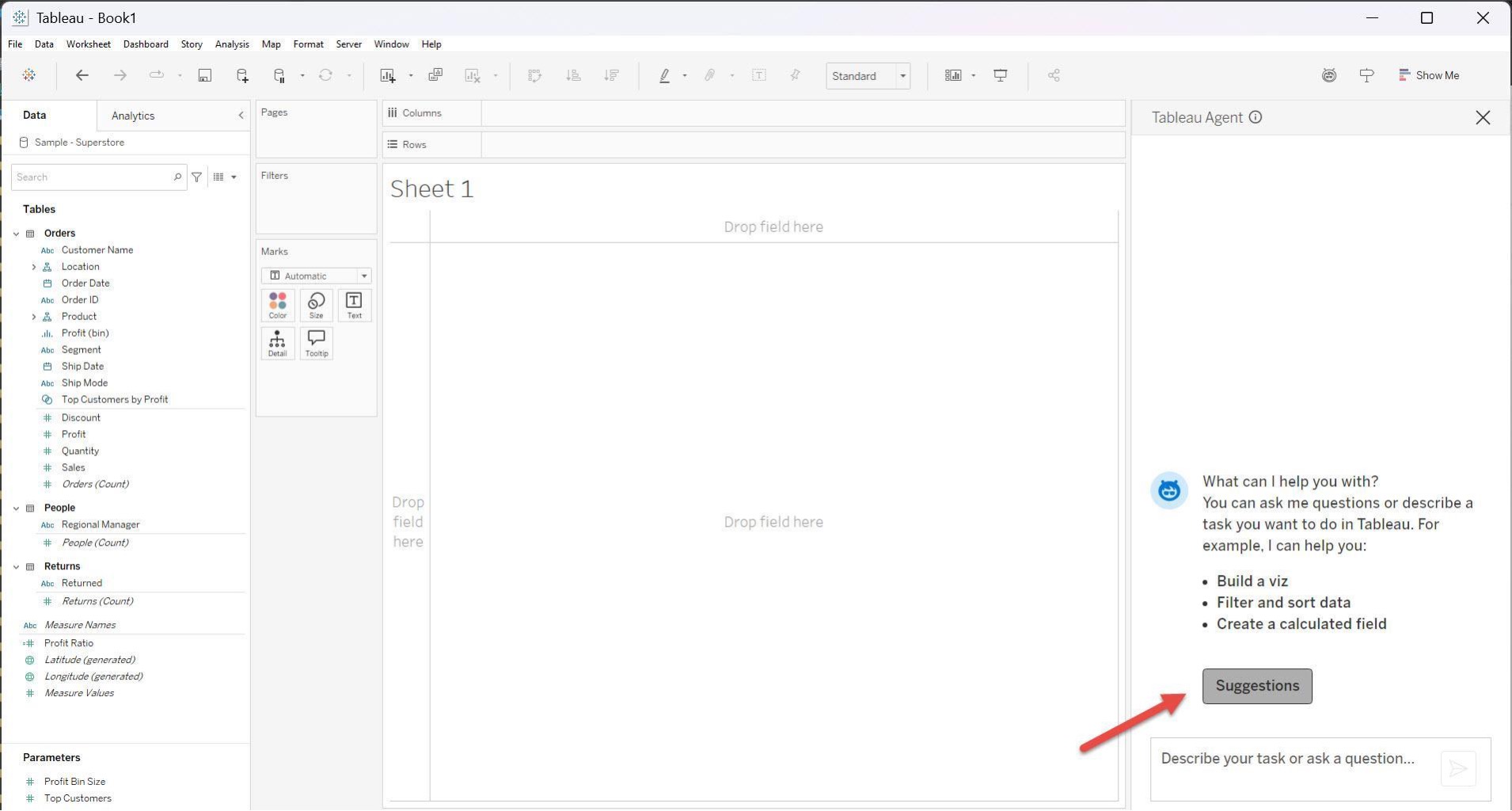

Clicking on these suggestions immediately generates a first view.
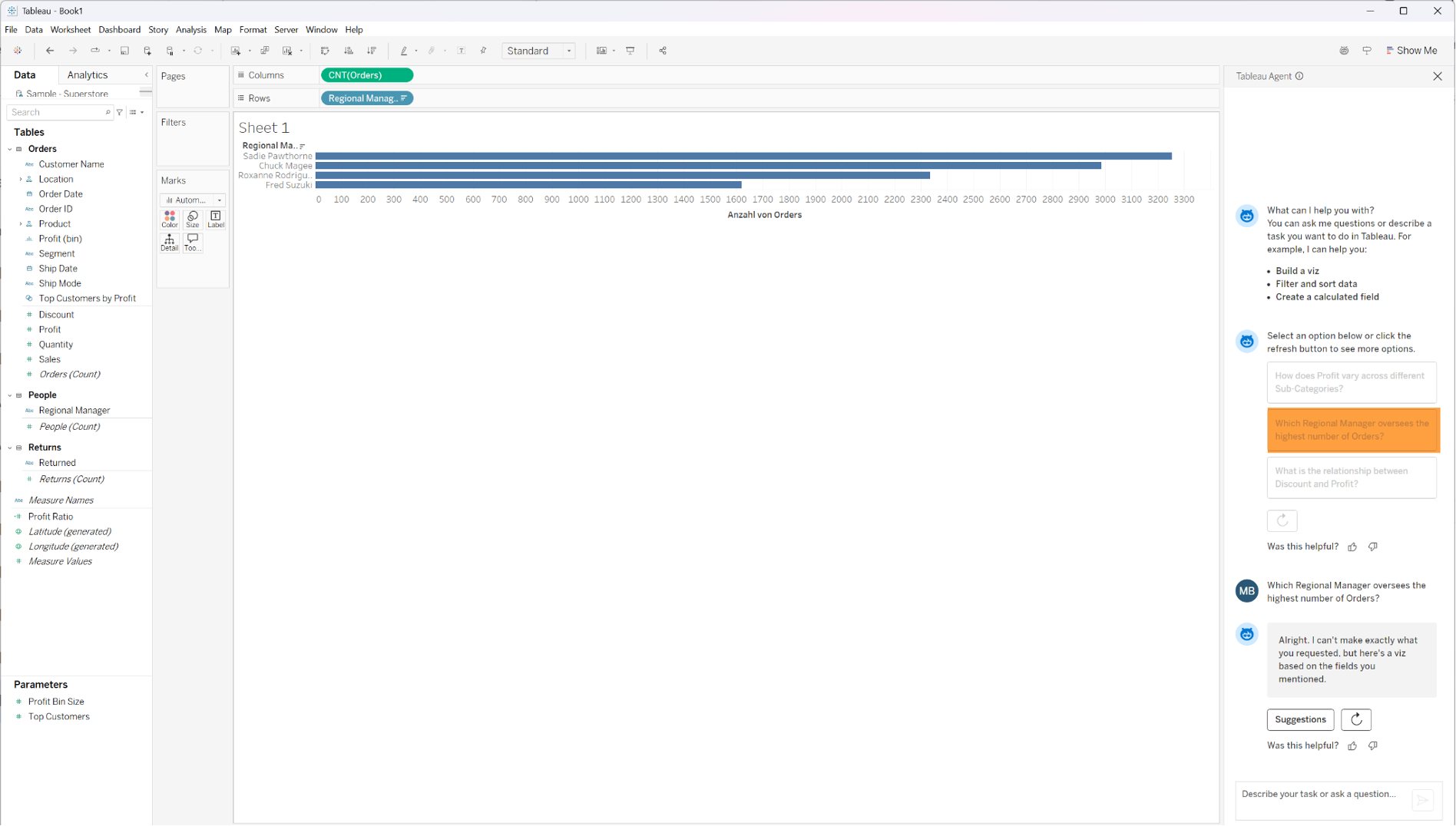
This function serves as an accelerator. It allows the analyst to immediately start validating hypotheses instead of spending time on the mechanical construction of “basic” charts. This is not about the final result, but about the quickest possible entry into the analysis flow.
Visualization through Natural Language (Text-to-Viz)
After gaining an initial overview, we want to investigate specific questions. Let's assume we want to analyze the relationship between Sales and Profit, in detail at the level of product sub-categories.
Traditionally, this requires several steps: selecting the correct chart type, placing the measures on the correct axes, and adding dimensions for granularity and color. With the Tableau Agent, we can formulate this desire in natural language.
The prompt: “Create a scatter plot showing revenue and profit by subcategory. Color-code the data points by category.”
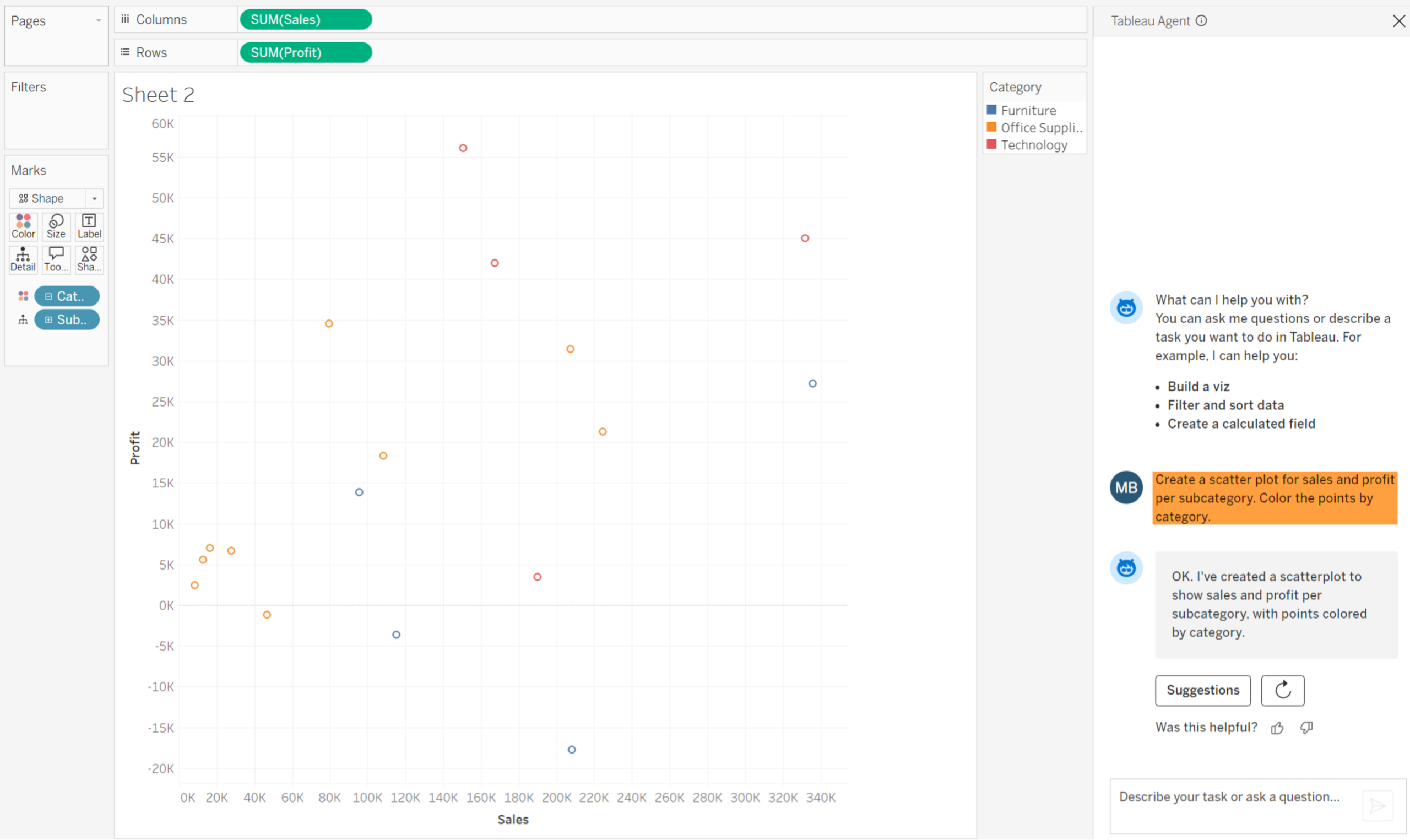
The Implementation by the AI: The Agent translates this textual intent into VizQL (Visual Query Language). It autonomously performs the following steps:
- Selection of SUM(Sales) SAP and SUM(Profit) for the axes.
- Use of Sub-Category in the detail container to set the granularity.
- Use of Category in the color to provide the visual context.
- Selection of the “Shape” mark type.
The result is a finished visualization. The analyst no longer has to think about the technical implementation here but can immediately concentrate on the pattern in the data: Are there clusters? Are there outliers?
Calculation and Logic – Semantics Before Syntax
A common challenge in data analysis is the creation of complex calculated fields. While the business logic is often clear (“I need the duration between order and shipping”), the implementation often fails due to the exact syntax of the formula language in the BI tool.
The Tableau Agent acts as a “translator” here. The analyst provides the business requirements, and the AI delivers the correct code.
Example A: Logistics Analysis (Time Calculations) We want to check the efficiency of our supply chain:
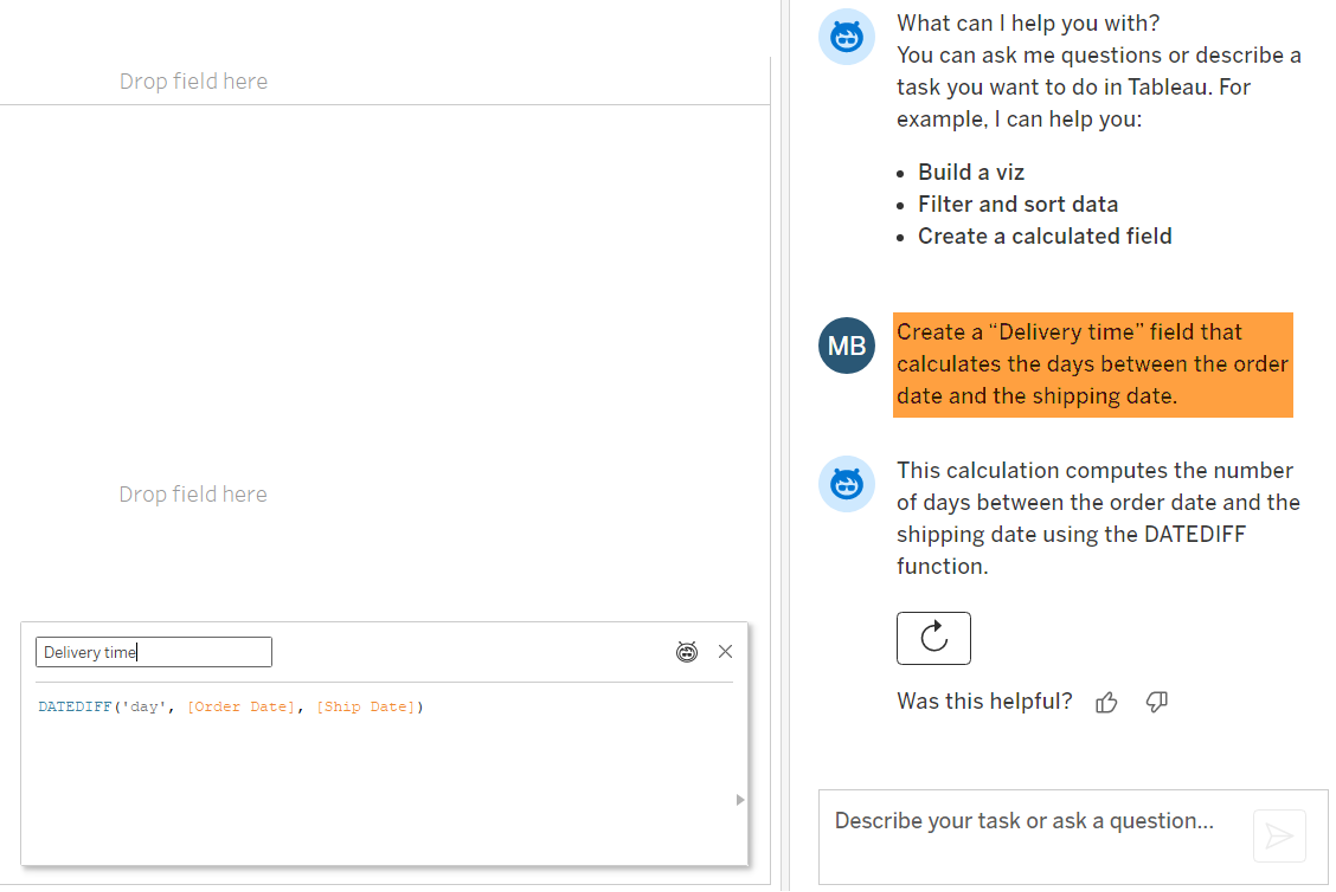
Result: The Agent generates the code DATEDIFF(‚day‘, [Order Date], [Ship Date])It automatically recognizes the relevant date fields in the Superstore dataset and selects the appropriate function.
Example B: Business Logic (Segmentation of Transactions)
Often, data not only has to be calculated but also categorized according to business rules. We want to identify orders that generate revenue but are unprofitable due to high discounts.
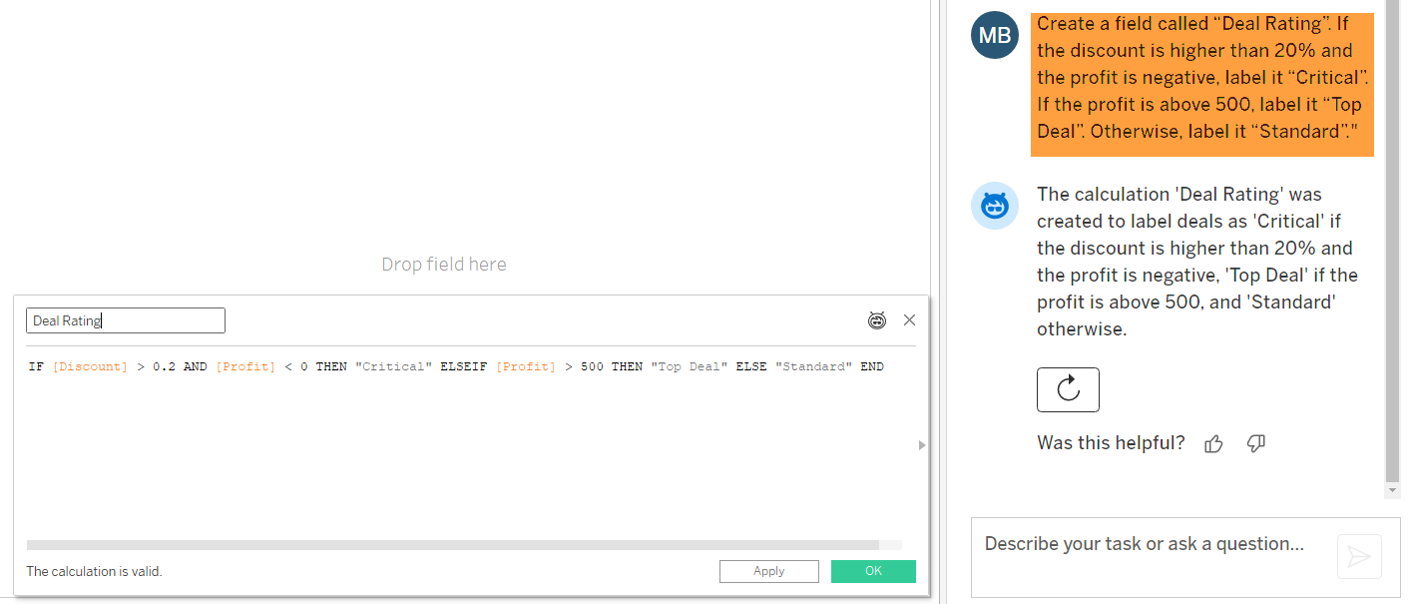
Result: The Agent translates this spoken logic into a suitable syntax. It automatically recognizes that “20%” must be written as 0.2 in the code:
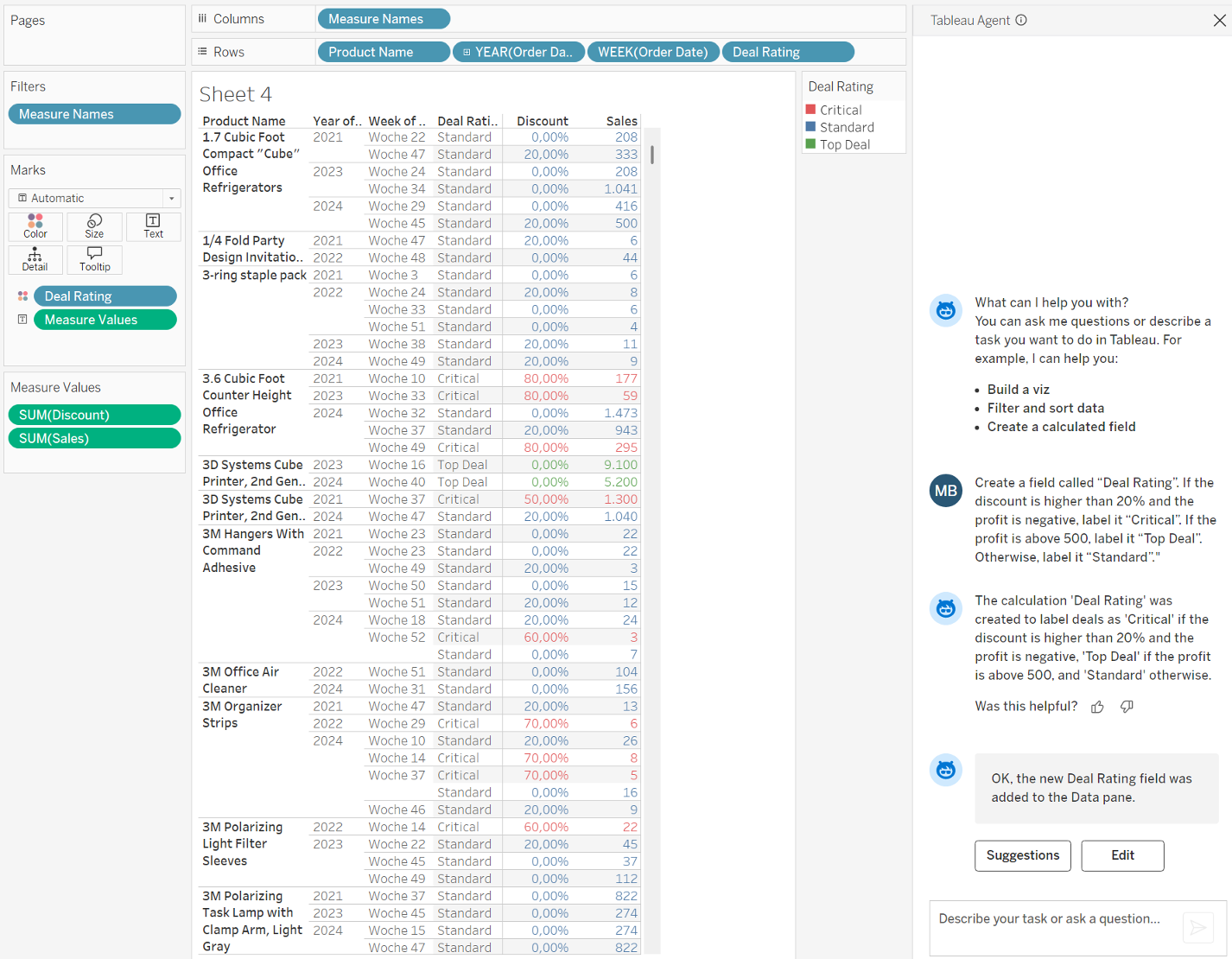
The newly created calculation can then be used in any visualizations.
Explain Data – Statistical Cause Analysis
Back to our AI-generated visualization. We now see the data points, and perhaps it is noticeable that the category “Tables” performs unusually poorly. A classic dashboard shows us the "What". The "Why" had to be laboriously determined by the analyst through manual filtering and searching ("Drill-Down") until now.
This is where the AI component “Explain Data”comes in, which is seamlessly integrated into the workflow.
- Click on the noticeable data point in the visualization (e.g., the point for “Tables”).
- Click on the Explain Data symbol.
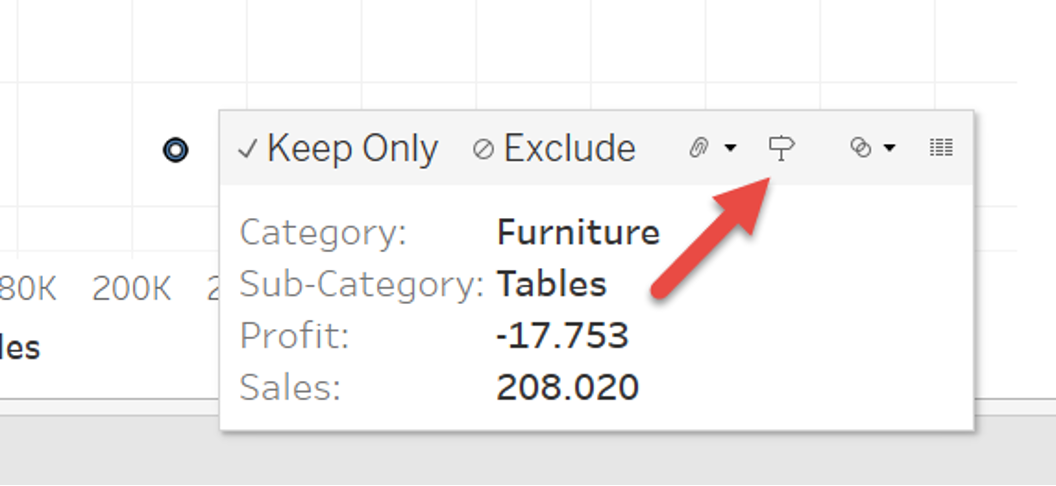
Tableau checks hundreds of possible explanatory models in the background. It tests correlations that you might not even have considered.
The Result: The Explain Data pane with the main characteristics of the selected data point is displayed in the right sidebar. There you can determine which values should be examined in detail. In this case, our interest lies in the "Profit," which is already classified as “low.”
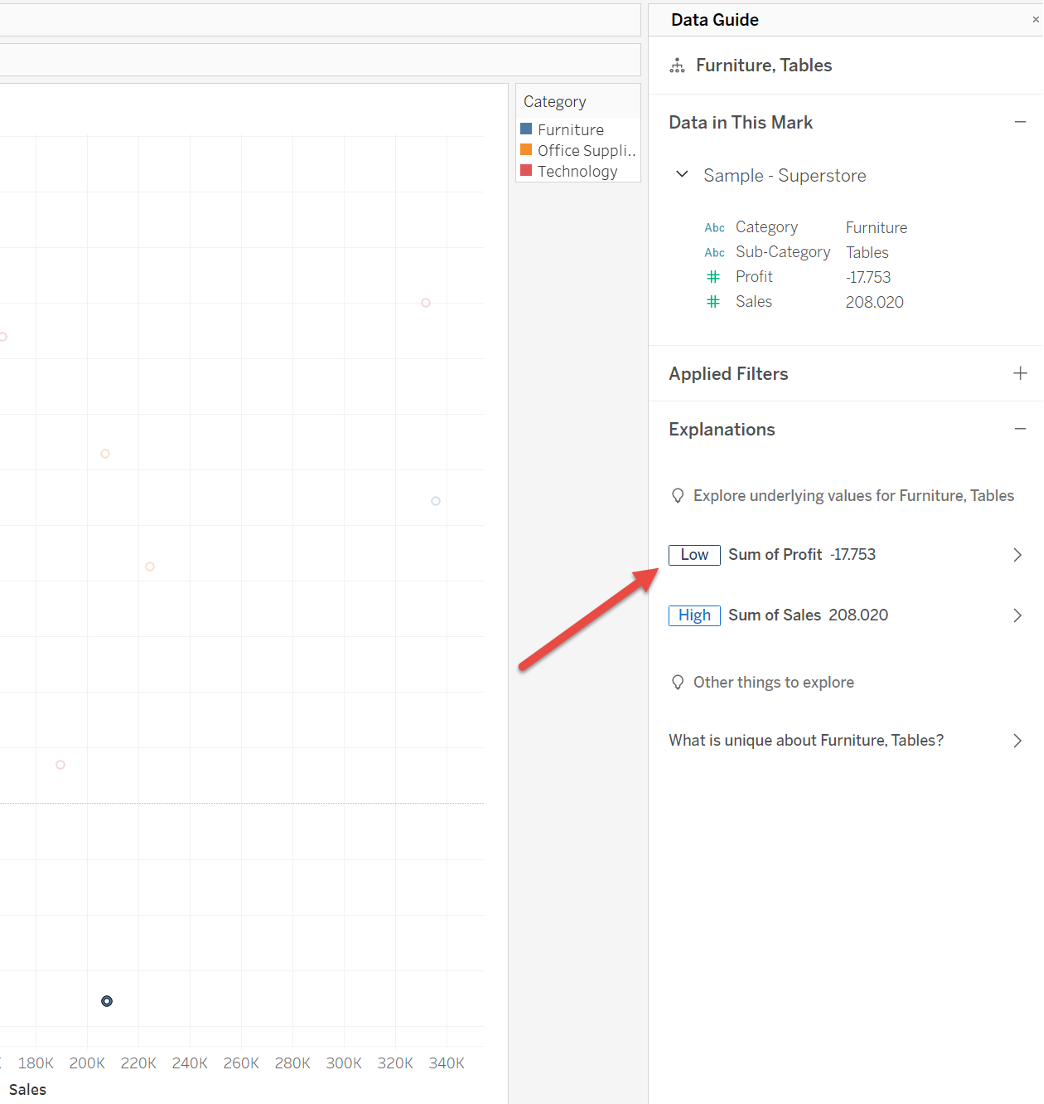
The following window presents the fundamental characteristics and influencing factors that could be responsible for the negative outlier in this case. This allows us to find out what caused these negative outliers and take appropriate action.
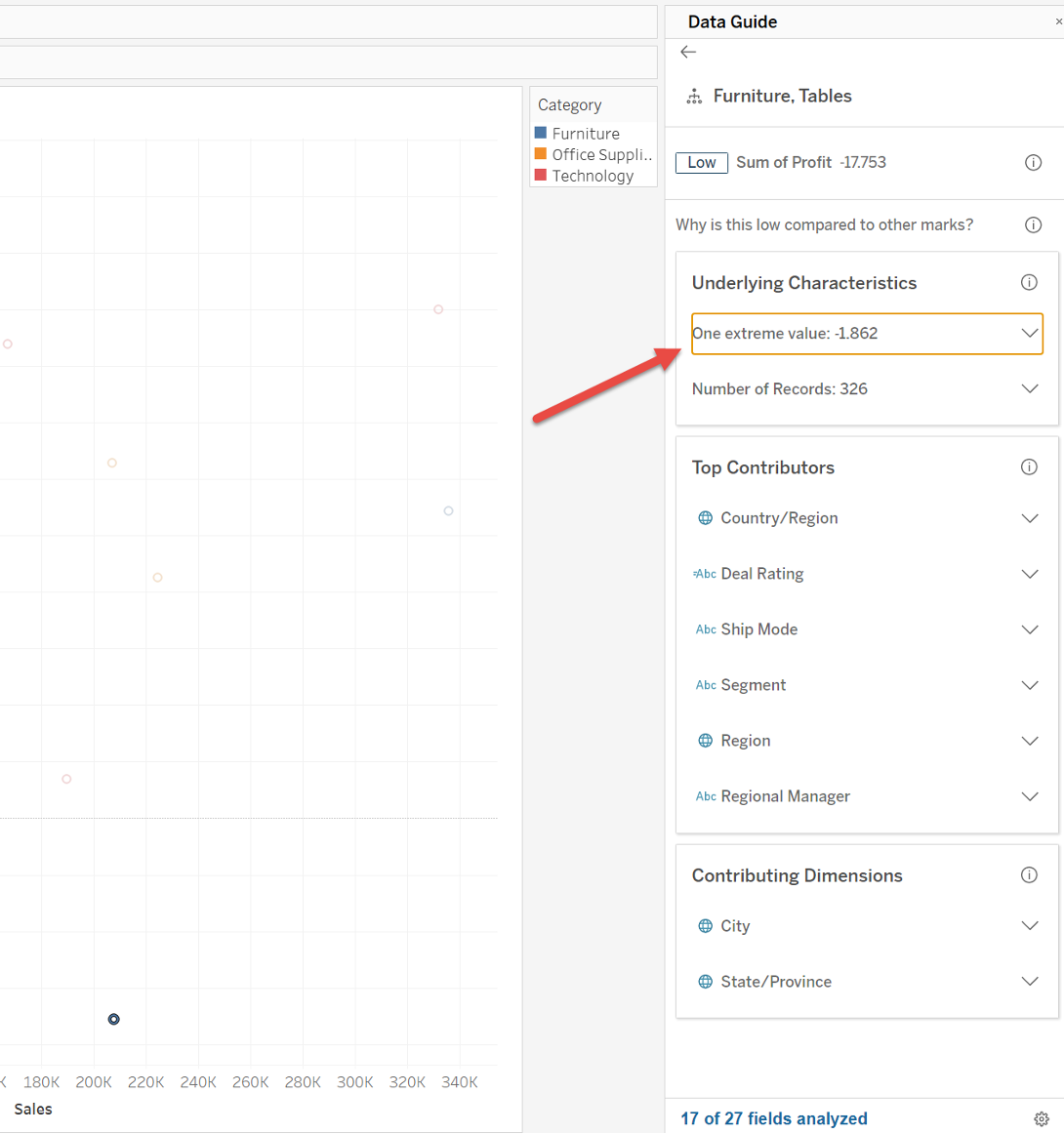
Further details can be expanded if necessary. In the present example, it is likely that one or more “critical” deals were processed. These can also be identified with the help of the formula that we generated for calculation in one of the previous steps and which is now also considered in Explain Data.
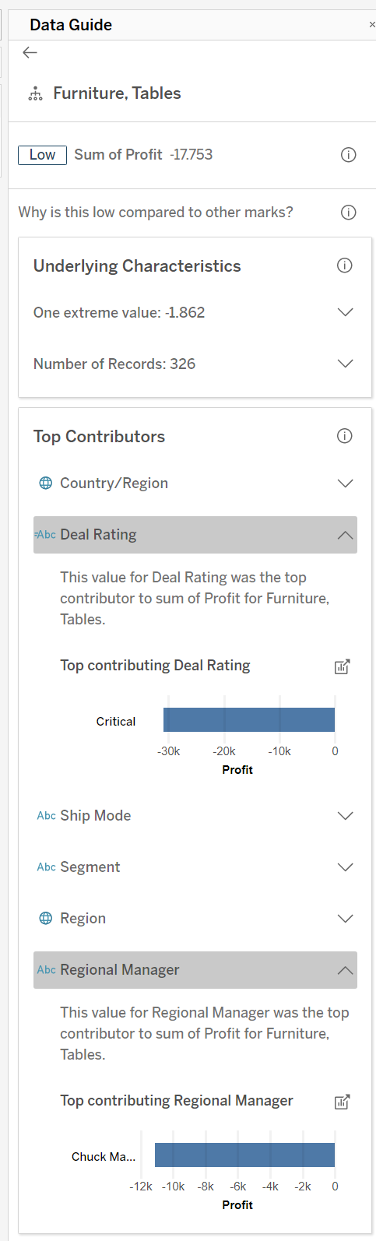
This step marks the transition from deskriptiver descriptive analytics (What happened?) to diagnostic analytics (Why did it happen?). The AI takes on the role of an unbiased statistician who also checks for connections that humans might not have looked for due to “Confirmation Bias.” Nevertheless, the human analyst remains an indispensable part of the process and must always critically question the results presented. In the above example, it would be possible to take a closer look at why unprofitable deals were concluded. On this basis, processes or evaluation criteria can be adjusted in the future.
Interactive Refinement of the View
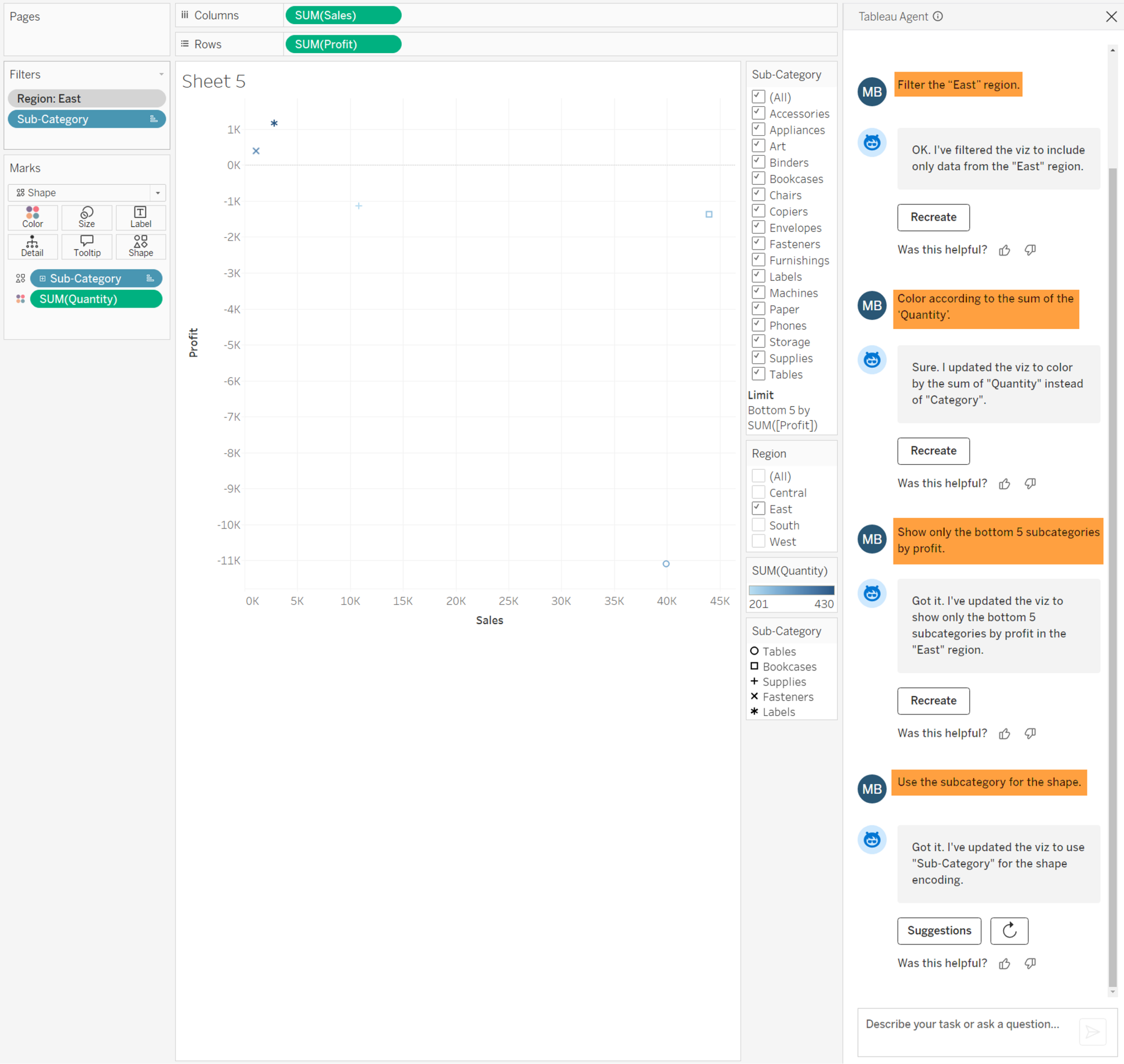
Often, the first draft is not yet perfect. Instead of clicking through menus, we use the Agent to iteratively improve the view. We want to focus on the current numbers and optimize the analysis. At the same time, we want to accelerate and simplify the necessary development steps.
The strength of the AI here lies in the quick manipulation of the view (View Modifications).
Working Prompts for Refinement:
1. Geographical Filter:
- "Filter to the 'East' region."
- (A safe method to specifically narrow down the scope of the data.)
2. Context through Color:
- "Color by the sum of 'Quantity'."
- (The Agent automatically uses a diverging palette.)
3. Set Focus:
- "Show only the bottom 5 Sub-Categories by Profit."
- (The Agent automatically creates a filter.)
4. Ensure Distinctiveness:
- “"Use the Sub-Category for the Shape."
- (The Agent sets the Sub-Category as the feature for the displayed shapes).
Conclusion: The Analyst as Quality Manager
The application of AI functions in the Superstore scenario shows that the Tableau Agent is far more than a technical gadget. These features make it easier and faster for analysts to get started with the tool and enable them to work more efficiently.
The essential advantages can be summarized as follows:
- Speed (Time-to-Insight): The latency between the analytical question and the visual answer is drastically reduced.
- Quality Assurance: Since the Agent generates syntax for calculations, syntax errors are eliminated. The analyst focuses on logical validation.
- Accessibility: Complex methods like RegEx or statistical explanatory models become accessible even to users who do not have deep programming knowledge.
The introduction of this technology requires a change in thinking in BI teams. We are moving away from mere creation ("How do I operate the tool?") toward validation and interpretation ("Is the result correct and what does it mean for the business?"). The analyst of the future spends less time on the "How" and more time on the "Why." The Tableau Agent is the first step to freeing up these resources.