
Let’s install an Open Source infrastructure for the SAP Datahub on-premise – Part 1 of 2

In this article we want to explain how to install an SAP Datahub into an Open Source infrastructure and what’s important to consider. This is the first part, which deals with the underlying container- and storage-system. You can skip this part if you already know all essentials about Kubernetes, container networks and dynamic volume provisioning and move on directly to part 2: The Datahub installation itself. Otherwise you are welcome to start right here!
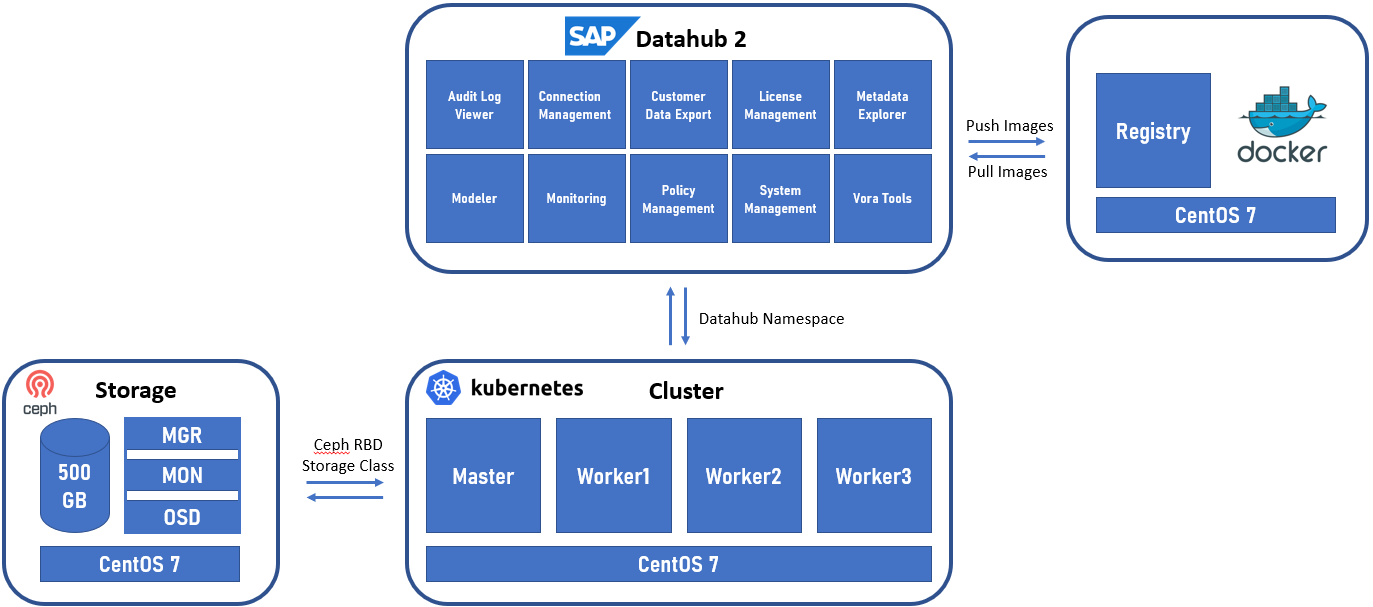
Since SAP officially releases only Enterprise Kubernetes products like SUSE CaaS Platform or RedHat OpenShift to use for SAP Datahub installations on-premise, we will give you a short overview on how to get the Datahub running on an officially unsupported, but free to use Kubernetes installation. Whether your company is just beginning to look into the Datahub world or needs it for developing purposes, the recommended approach by SAP will sooner or later require a big financial investment, even just for the containerized infrastructure behind. An implementation as described in this article could offer a solution to increase your know-how with these products and save money. Kubernetes itself is an Open Source product developed by Google, for non-productive environments, which is why there is no need for any enterprise overhead, if you pay attention to some simple details.

Let’s start with a few basic thoughts and decisions on our project to prevent problems later on. There are several Open Source projects, which, besides the ones that must be paid for, also pursue the goal of implementing a simple and easy to handle Kubernetes infrastructure. So why don’t we use one of those? The problem is, that most of them immediately implement the newest versions of Kubernetes, Docker, Python and more components as soon as new versions are available, which is exactly what we don’t want. SAP is usually conservative in releasing its products for versions from other manufacturers, which is why the automatic updates might damage the implemented system. We therefore recommend installing Kubernetes directly from the Google repositories on your preferred Linux distribution and to perform the necessary configuration yourself, to keep control over the used versions. After testing the Datahub installation and playing with different distributions, the RedHat EL based CentOS 7 Linux has proven to be very stable in its performance and compatible with all of our requirements.

Apart from the container environment, a storage system that supports dynamic volume provisioning is of great importance for the Datahub installation. SAP recommends specific storage solutions in combination with corresponding container platforms. In our case, we also wanted to rely on Open Source, so we checked the Kubernetes documentation to figure out which solutions would be compatible.
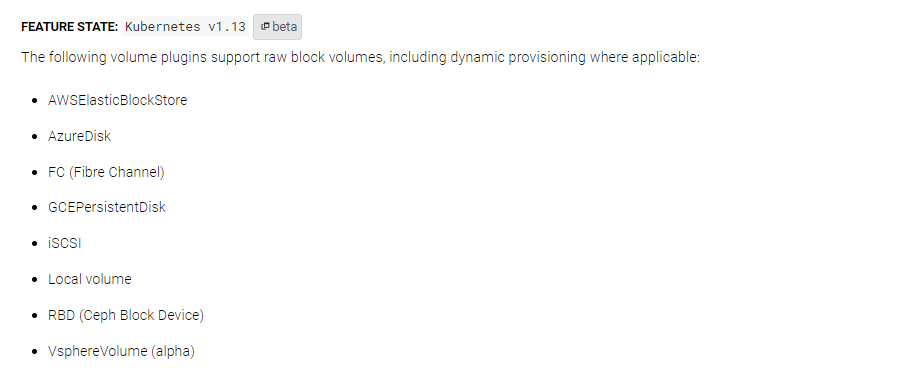
We had good experiences with Ceph RDB so far. You can find easy instructions for the installation online and the storage system can be adapted and scaled to the individual requirements. So, let’s go ahead and show what we are about to do.

For the Kubernetes infrastructure we will use a cluster consisting of one master and three worker nodes. There is not really a need for high availability in our development installation and implementing more than one master node will increase complexity, that is why we decided to use this setup, which will still allow for a good computing performance through our three workers.
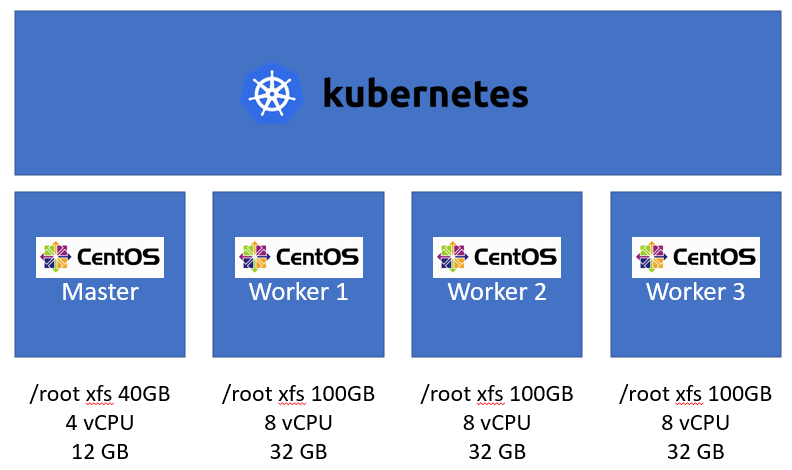
 

At this point, we would like to mention that the Datahub works with less hardware performance than we use for our installation. This depends on your individual needs and the resources available.

Make sure you are aware of the following checkpoints for the infrastructure installation:

  1. Install the base OS with minimal packages and disable the SWAP partition. We will configure 40GB /root for the master and 100GB for the worker nodes and use the LVM.
  2. Check firewall settings and configure the required rules.
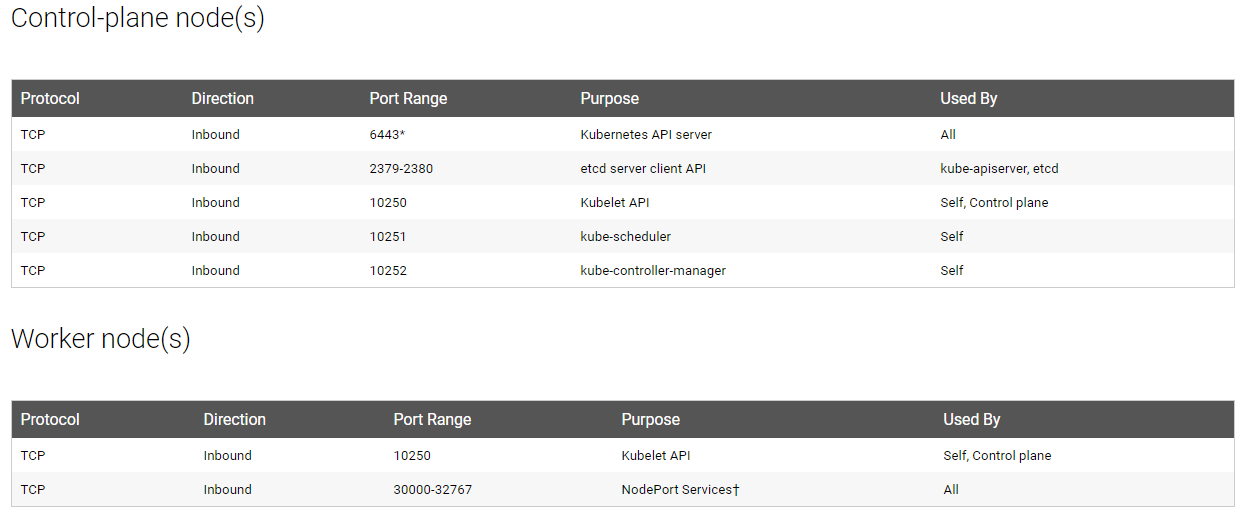
Illustration 2: Kubernetes communication ports

3. Edit the SELinux config and disable it:[root@datahubmaster ~]# vi /etc/selinux/config
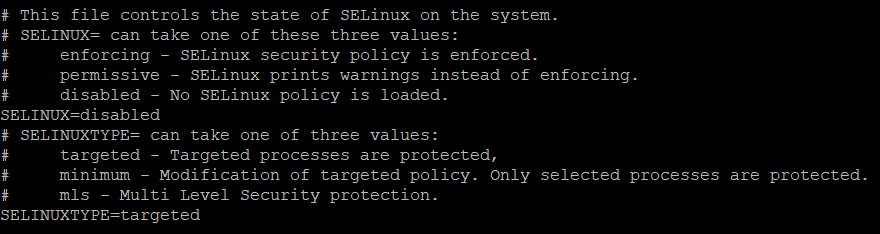
 

4. Install the following components:

  1. Kubernetes v1.13
  2. Container.io and Docker
  3. Python 2.7 and python-yaml (required by the SAP Datahub)
  4. Ceph-common (required by the storage connection later)

5. Bootstrap the cluster and implement a preferred network policy. As known for good performance and scalability, we used Calico. For more information, just follow the link.Your kube-system Namespace should now look something like this:

6. [root@datahubmaster ~]# kubectl -n kube-system get pods
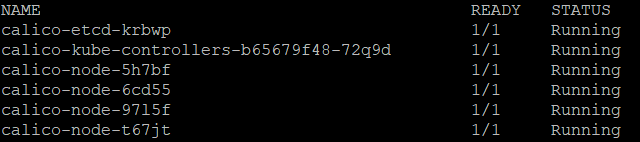
 

7. Install Helm and deploy Tiller to your cluster, if everything works correctly, you will receive one more pod:

As mentioned above, we had good experience with Ceph RBD providing our dynamic storage. The installation is well described and easy to handle, when you follow the steps here. During the Datahub installation, several volumes are created, so make sure you provide at least 500GB of space.

Hint: The storage system can be deployed very large and scaled fail-safe, as well as redundant over several nodes. We think that for the time being it is sufficient to save resources by installing all components on one server.

After you put the storage unit into operation, deploy the corresponding Storage-Class to your cluster and check out, if test claims dynamically creates persistent volumes, for example with a test claim like that finding here.

[root@datahubmaster ~]# kubectl create -f ceph-test-claim.yml

[root@datahubmaster ~]# kubectl get pvc

If everything is working, you are good to move onto the next steps and install SAP Datahub through the Jumphost with Docker registry.

Part 2

Ansprechpartner

Oliver Ossenbrink

Geschäftsführung Vertrieb und HR

Data Products Setup

I’ll start with Data Products setup. If you’re new to the concept, this recent video is a great starting point, but here’s a short summary. A data product is a well-described, easily discoverable, and consumable collection of data sets.

Creating a Data Product in Datasphere

Note that in this article I create Data Products in the Data Sharing Cockpit in Datasphere. This functionality is expected to move into the Data Product Studio, but that had not taken place at the time writing.

Before creating a Data Product in Datasphere, I need to set up a Data Provider profile, collecting descriptive metadata like contact and address details, industry, regional coverage, and importantly define Data Product Visibility. Enabling Formations allows me to share the Data Product with systems across your BDC Formation – Databricks, in this case.

With the Data Provider set up, I can go ahead and create a Data Product. As with the Data Provider, I’ll need to add metadata about the product and define its artifacts – the datasets it contains. Only datasets from a space of SAP HANA Data Lake Files type can be selected. Since this Data Product is visible across the Formation, it is available free of charge.

For this demo, the artifact is a local table containing ten years of Ice Cream sales data. Since this is a File type space, importing a CSV file directly to create a local table isn’t an option (see documentation).

I used a Replication Flow to perform an initial load from a BW aDSO table into a local table.

Once Data Product is created and listed, it becomes available in the Catalog & Marketplace, from where it can be shared with Databricks by selecting the appropriate connection details.

Jump into Databricks

To use the shared object In Databricks, I need to mount it to the Catalog – either by creating a new Catalog or using an existing one.

Databricks appends a version number to the end of the schema – ‘:v1’ – to maintain versioning in case of any future changes to the Data Product.

Once the share is mounted, the schema is created automatically, and the Sales actual data table becomes available within it. From there, I can access the shared table directly in a Notebook.

Creating a Data Product in Databricks

To create a Data Product in Databricks, I first need to create a Share – which I can either do via the Delta Sharing settings in the Catalog:

Or directly out of the table which is going to become a part of the Share:

Since a single Share can contain multiple tables, I have the option to either add the table to an existing Share, or create a new one:

To publish the Share as a Data Product, I run a Python script where I define the target table for the forecast and describe the Share in CSN notation, setting the Primary Keys. Primary Keys are required for installing Data Products in Datasphere.

Jump back into Datasphere

Once the Databricks Data Product is available in Datasphere, I install it into a Space configured as a HANA Database space – since my intention is to build a view on top of the table and use it for planning in SAC.

There are two installation options: as a Remote table for live data access, or as a Replication Flow, in which case the data is physically copied into the object store in Datasphere.

Since I want live access, I install it as a Remote Table:

and build a Graphical view of type Fact on top:

Forecast calculation

With my Data Products set up and Sales actual data are available in Databricks, I create a Notebook to calculate the Sales Forecast.

The approach combines Sales and Weather data to train a Linear Regression model. I import the Weather data *https://zenodo.org/records/4770937 from an external server directly into Databricks, select the relevant features from the weather dataset, and combine them with the Sales actual data:

* Klein Tank, A.M.G. and Coauthors, 2002. Daily dataset of 20th-century surface
air temperature and precipitation series for the European Climate Assessment.
Int. J. of Climatol., 22, 1441-1453.
Data and metadata available at http://www.ecad.eu

Using the “sklearn” library, I build and train a Linear regression model:

Once trained, the model predicts the Sales forecast for Rome in June 2026 based on the weather forecast, and I save the results to my Catalog table:

Seamless planning data model

Seamless planning concept is built around physically storing planning data and public dimensions directly in Datasphere, keeping them alongside the actual data.

Since the QRC4 2025 SAC release, it has also been possible to use live versions and bring reference data into planning models without replication.

In this scenario, I build a seamless planning model on top of the Graphical view I created over the Remote table. This lets me use the forecast generated in Databricks as a reference for the final SAC Forecast version.


The model setup follows these steps:

Create a new model:

Start with data:

Select Datasphere as the data storage:

From there, I define the model structure and can review the data in the preview.

For a deeper dive into Seamless Planning, I recommend this biX blog.

Process Flow automation

Multi-action triggers Datasphere task chain

The final step is automating the entire forecast generation by using SAC Multi-actions and a Task-Chain in Datasphere – so that my user can trigger the calculation with a single button click from an SAC Story.

The model setup follows these steps:

Create a new model:

Triggering Task Chains from Multi-actions is a recent release. This blog post walks through how to set it up.

For details on how to trigger a Databricks Notebook from Datasphere, I recommend referring to this blog.

With everything in place, I create a Story, add my Seamless planning Model, and attach the Multi-action:

Running the Multi-action triggers the Task Chain, which in turn triggers the Databricks Notebook.

I can monitor the execution details in Datasphere:

and in Databricks:

Once the calculation completes, the updated forecast appears in the Story:

The end-to-end calculation took 2 minutes 45 seconds in total. The Task Chain in Datasphere is triggered almost instantly by the Multi-action, the Databricks Notebook execution itself took 1 minute 29 seconds, with the remaining time spent on Serverless Cluster startup.   


From here, I can copy the calculated forecast into a new private version:

adjust the numbers as needed, and publish it as a new public version to Datasphere:

Conclusion

With SAP Business Data Cloud, it is possible to build a forecasting workflow that feels seamless to the end user — even though it spans multiple systems under the hood.

Companies using BW as the main Data Warehouse and Databricks for ML calculations or Data Science tasks can benefit from using the platform, as the data no longer needs to be physically copied out of BW.

What this scenario demonstrates is that once wrapped as a Data Product, BW sales data can be shared with Databricks via the Delta Share protocol. Databricks, in turn, can then create its own Data Products on top of the calculation results and share them back with Datasphere as a Remote Table.

A Seamless Planning model in SAC sits on top of that Remote Table, giving planners live access to the generated forecast. A single Multi-action in an SAC Story ties it all together, triggering a Datasphere Task Chain that kicks off the Databricks Notebook — completing the full cycle in under three minutes.

As SAP Business Data Cloud continues to mature, scenarios like this one are becoming achievable – leaving the complexity in the architecture and not in the workflow.

Ansprech­partner

Ilya Kirzner
Consultant
biX Consulting
Datenschutz-Übersicht

Diese Website verwendet Cookies, damit wir dir die bestmögliche Benutzererfahrung bieten können. Cookie-Informationen werden in deinem Browser gespeichert und führen Funktionen aus, wie das Wiedererkennen von dir, wenn du auf unsere Website zurückkehrst, und hilft unserem Team zu verstehen, welche Abschnitte der Website für dich am interessantesten und nützlichsten sind.