
Parallele Planung in der SAC

Januar 2025

Parallele Planung in der SAC – Wer wird gewinnen, der Erste oder der Letzte, der seine Daten veröffentlicht?

Während der Planung in der SAC gibt es im Gegensatz zur Planung in BPC keine Sperren. Daher ist die Frage, welche Änderungen gewinnen, wenn zwei User gleichzeitig planen. Wie immer ist die Antwort nicht einfach, manchmal gewinnt der Erste, manchmal der Letzte.

Dieser Blog wird die Hintergründe beschreiben, wie die SAC unveröffentlichte Daten verwaltet, wie man diese nachvollziehen kann und welche Prüfungen beim Veröffentlichen gemacht werden, um unsere Frage zu beantworten, welche Daten gewinnen.

Hintergrund – Private und öffentliche Version

Wenn ein SAP–Modell im Eingabemodus geöffnet wird, werden alle Daten in eine private Version kopiert. Änderungen werden in dieser privaten Version gespeichert, bis diese veröffentlicht wird.

All das ist gut in dem folgenden Online–Kurs beschrieben:

https://learning.sap.com/learning-journeys/leveraging-sap-analytics-cloud-functionality-for-enterprise-planning/managing-versions_fe088b2d-c658-4911-a854-6cb55427eefe

Viele Fragen zu diesem Thema sind schon in den folgenden Blogs beantwortet:

FAQ: Version Management with SAP Analytics Cloud (Part I – Basics)

FAQ: Version Management with SAP Analytics Cloud (Part II – Versions in Action)

Wie speichert SAP Änderungen und wie kann man diese nachvollziehen?
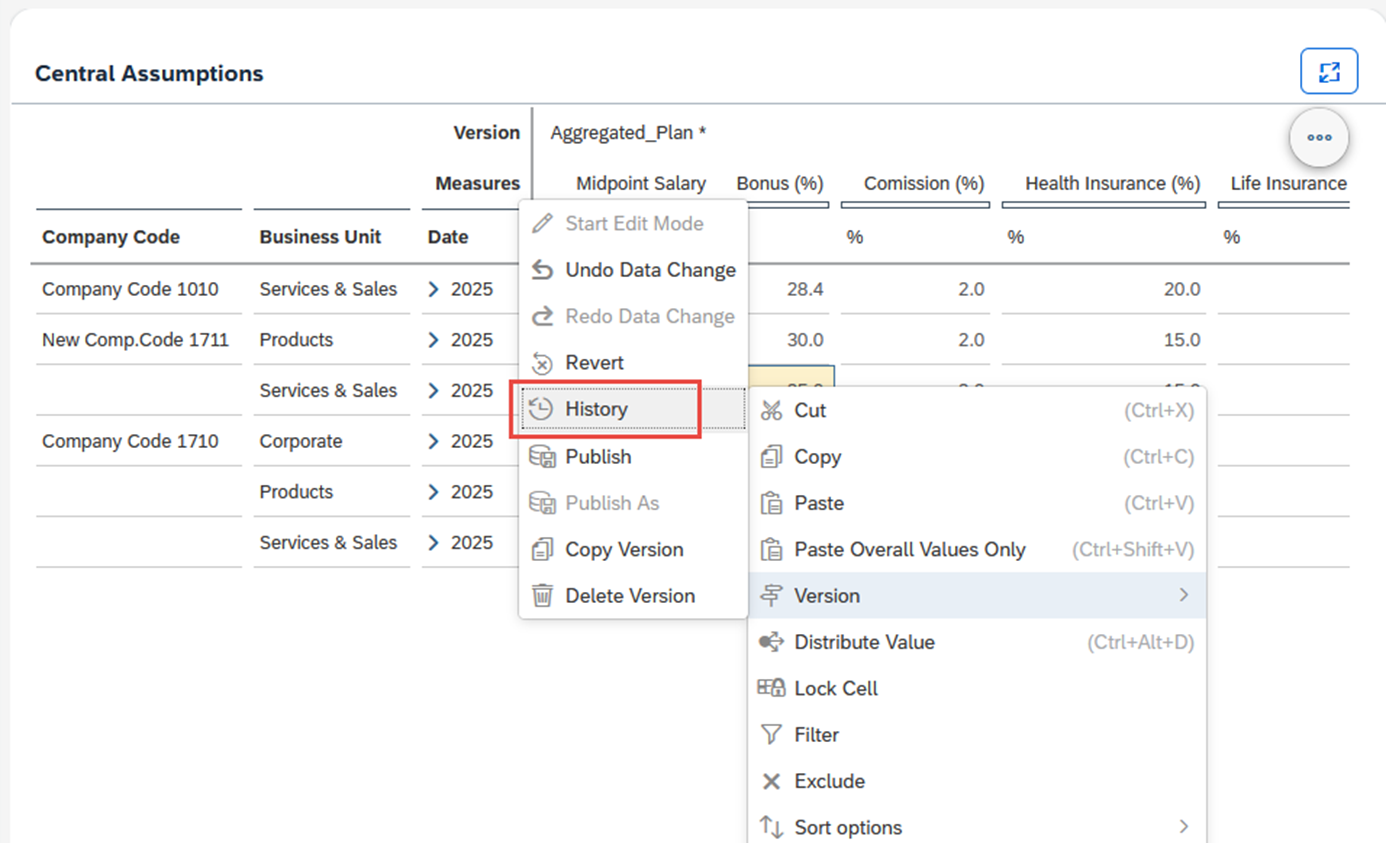
Während der Erfassung markiert die SAC geänderte Zellen. Aber wenn man viele Änderungen gemacht hat, sieht man lediglich nur die Markierungen für die letzte Änderung.

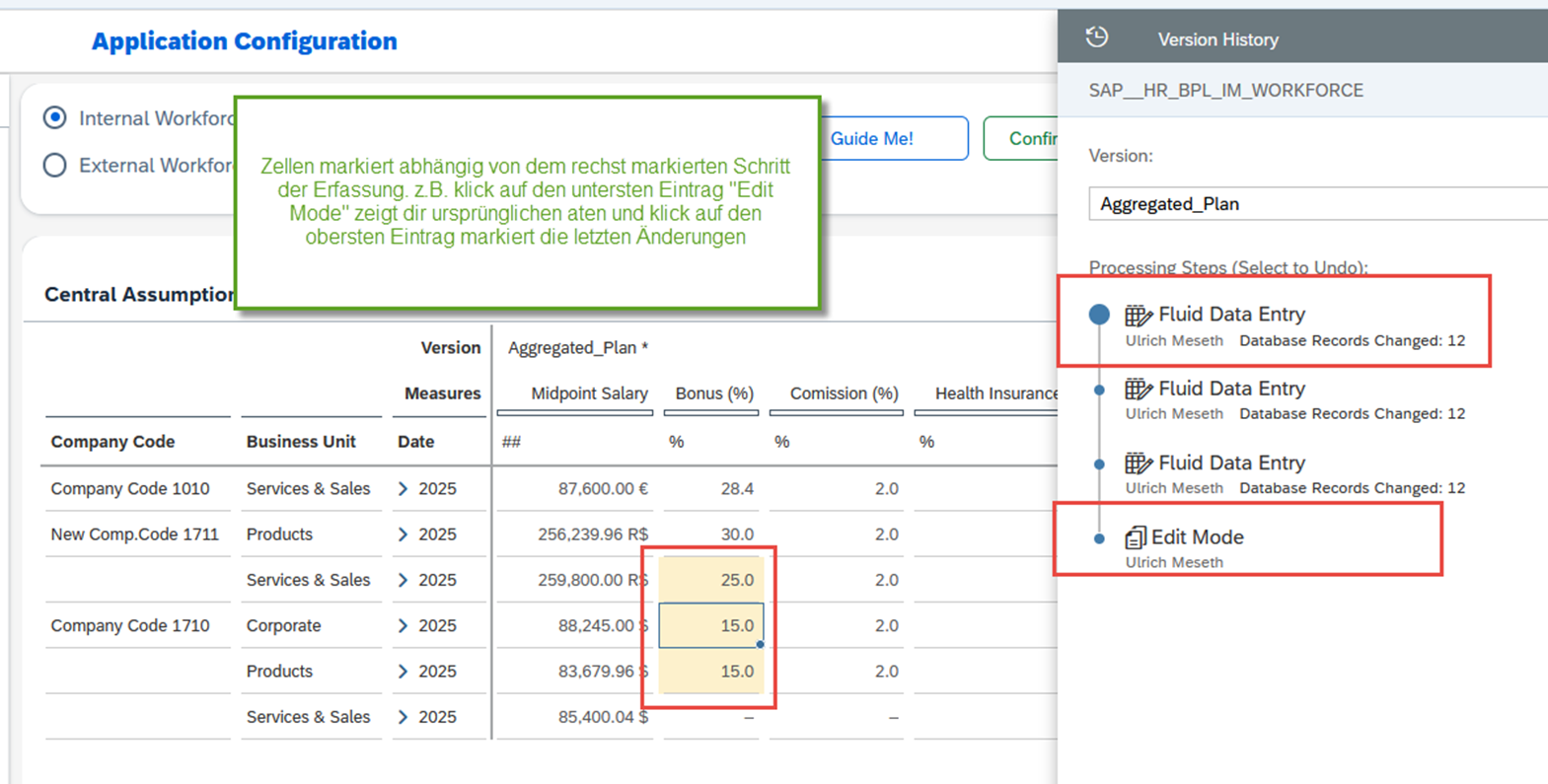
Um die Markierungen der vorherigen Änderungen anzuzeigen, muss man zuerst die Versions- Historie einblenden:

Jetzt sieht man für jeden Eingabeschritt einen „Fluid Data Entry“-Schritt. Abhängig von dem markierten Schritt werden die entsprechenden geänderten Zellen markiert. Hier kann man auch einzelne Schritte wieder zurücknehmen.
Schauen wir jetzt, wie SAP die Daten speichert. Die Daten können im unteren Bereich mit der Datengrundlage des Modelers angezeigt werden. Dort gibt es einen Schiebeschalter, um unveröffentlichte Daten anzuzeigen. Initial ist dieser Schalter aus und es werden die Daten der öffentlichen Version angezeigt. Wenn man diesen Schalter aktiviert, sieht man für jeden Eingabeschritt eine Zeile mit dem Delta der erfassten Werte. Die aktuelle Planzahl ist also die Summe aller Zeilen für eine bestimmte Selektion.
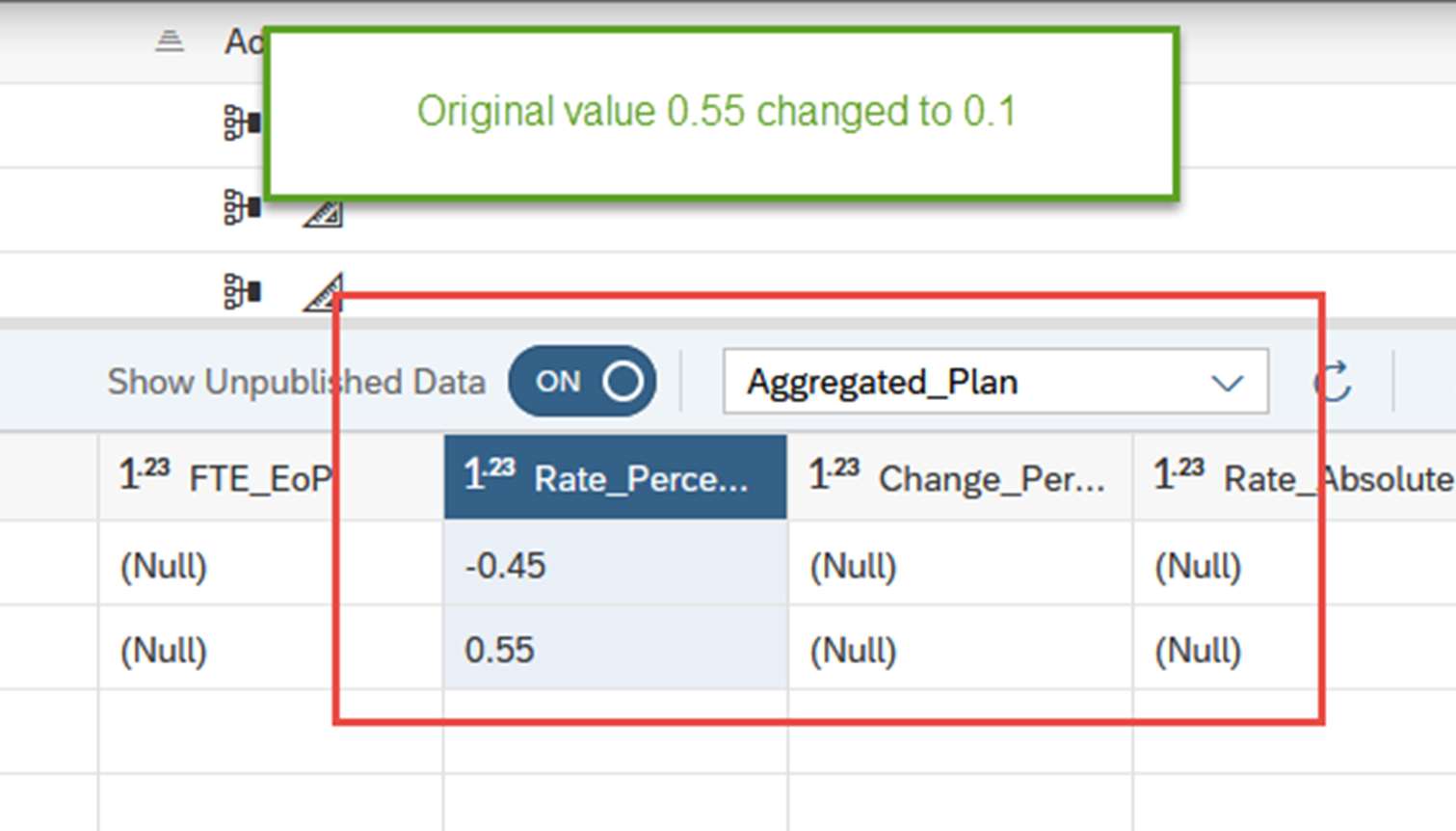
Man sieht die unveröffentlichten Daten und die Änderungshistorie nur für seinen eigenen User. Es gibt keine Möglichkeit, die unveröffentlichten Daten eines anderen Users zu sehen.

Datenprüfung während des Speicherns

Was macht die SAC nun beim Speichern der Daten?

SAP vergleicht die Originaldaten der privaten Version mit der aktuellen öffentlichen Version. Sind diese unverändert, so werden die Daten veröffentlicht. Sind diese inzwischen aber von einem anderen User geändert worden, so muss man sich entscheiden, ob man nur die Änderungen ohne Konflikte veröffentlicht (markiert) oder ob man alle eigenen Änderungen veröffentlicht und die anderen Änderungen überschreibt:
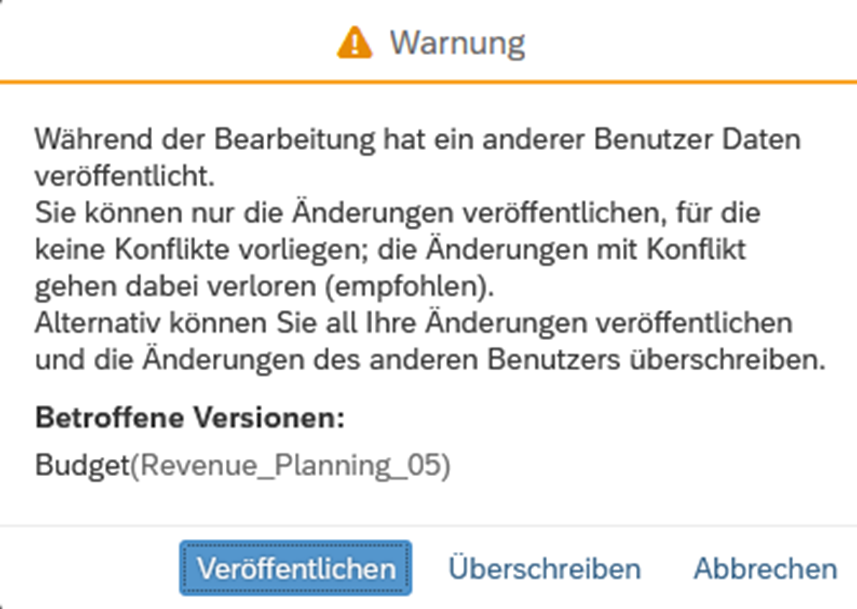
Es gibt keine Möglichkeit, die Merkmalskombinationen mit Konflikten zu identifizieren (oder zumindest haben wir keine gefunden, außer alle öffentliche Werte in einem zweiten Bildschirm mit seinen eigenen Werten zu vergleichen).

Wenn man die Planung nur kurz nach dem Speichern der Änderungen eines anderen Users gestartet hätte, so kann man seine Änderung ohne Warnung speichern und die andere Planung überschreiben. Natürlich ist dies keine wirkliche parallele Planung, aber es mag nur an Sekunden liegen, ob man vor oder nach dem Sichern des Kollegen die eigene Planung startet. Besonders wenn man mit einer Verteilung arbeitet, mag man nicht immer alle Änderungen auf unterster Ebene sofort erkennen.


Private Version und Planungsbereich

In den Anfängen von der SAC wurde immer das komplette Datenmodell in die private Version kopiert. Anwender haben berichtet, dass nächtliche Aktualisierungen der Ist–Daten nicht in ihrer privaten Version sichtbar waren, wenn sie am nächsten Tag mit dieser weiterarbeiteten.

Mit der Einführung des Planungsbereiches ist das Datenvolumen in der privaten Version reduziert worden. Neben Performanceverbesserungen sieht man nun Änderungen außerhalb seines Planungsbereiches, selbst wenn man länger an einer privaten Version arbeitet.

Weitere Details, wie der Planungsbereich einzustellen ist und wie er funktioniert, sind in diesem Blog beschrieben:

Dynamic Planning Area extension for SAP Analytics Cloud

Schlussfolgerung

Änderungen in der privaten Version können gut nachverfolgt werden.

Um Konflikte mit Änderungen anderer User zu vermeiden und immer den aktuellen Stand aller Daten zu sehen, sollte man nicht zu lange (z.B. mehrere Tage) warten, bis man seine Daten veröffentlicht.

Data Products Setup

I’ll start with Data Products setup. If you’re new to the concept, this recent video is a great starting point, but here’s a short summary. A data product is a well-described, easily discoverable, and consumable collection of data sets.

Creating a Data Product in Datasphere

Note that in this article I create Data Products in the Data Sharing Cockpit in Datasphere. This functionality is expected to move into the Data Product Studio, but that had not taken place at the time writing.

Before creating a Data Product in Datasphere, I need to set up a Data Provider profile, collecting descriptive metadata like contact and address details, industry, regional coverage, and importantly define Data Product Visibility. Enabling Formations allows me to share the Data Product with systems across your BDC Formation – Databricks, in this case.

With the Data Provider set up, I can go ahead and create a Data Product. As with the Data Provider, I’ll need to add metadata about the product and define its artifacts – the datasets it contains. Only datasets from a space of SAP HANA Data Lake Files type can be selected. Since this Data Product is visible across the Formation, it is available free of charge.

For this demo, the artifact is a local table containing ten years of Ice Cream sales data. Since this is a File type space, importing a CSV file directly to create a local table isn’t an option (see documentation).

I used a Replication Flow to perform an initial load from a BW aDSO table into a local table.

Once Data Product is created and listed, it becomes available in the Catalog & Marketplace, from where it can be shared with Databricks by selecting the appropriate connection details.

Jump into Databricks

To use the shared object In Databricks, I need to mount it to the Catalog – either by creating a new Catalog or using an existing one.

Databricks appends a version number to the end of the schema – ‘:v1’ – to maintain versioning in case of any future changes to the Data Product.

Once the share is mounted, the schema is created automatically, and the Sales actual data table becomes available within it. From there, I can access the shared table directly in a Notebook.

Creating a Data Product in Databricks

To create a Data Product in Databricks, I first need to create a Share – which I can either do via the Delta Sharing settings in the Catalog:

Or directly out of the table which is going to become a part of the Share:

Since a single Share can contain multiple tables, I have the option to either add the table to an existing Share, or create a new one:

To publish the Share as a Data Product, I run a Python script where I define the target table for the forecast and describe the Share in CSN notation, setting the Primary Keys. Primary Keys are required for installing Data Products in Datasphere.

Jump back into Datasphere

Once the Databricks Data Product is available in Datasphere, I install it into a Space configured as a HANA Database space – since my intention is to build a view on top of the table and use it for planning in SAC.

There are two installation options: as a Remote table for live data access, or as a Replication Flow, in which case the data is physically copied into the object store in Datasphere.

Since I want live access, I install it as a Remote Table:

and build a Graphical view of type Fact on top:

Forecast calculation

With my Data Products set up and Sales actual data are available in Databricks, I create a Notebook to calculate the Sales Forecast.

The approach combines Sales and Weather data to train a Linear Regression model. I import the Weather data *https://zenodo.org/records/4770937 from an external server directly into Databricks, select the relevant features from the weather dataset, and combine them with the Sales actual data:

* Klein Tank, A.M.G. and Coauthors, 2002. Daily dataset of 20th-century surface
air temperature and precipitation series for the European Climate Assessment.
Int. J. of Climatol., 22, 1441-1453.
Data and metadata available at http://www.ecad.eu

Using the “sklearn” library, I build and train a Linear regression model:

Once trained, the model predicts the Sales forecast for Rome in June 2026 based on the weather forecast, and I save the results to my Catalog table:

Seamless planning data model

Seamless planning concept is built around physically storing planning data and public dimensions directly in Datasphere, keeping them alongside the actual data.

Since the QRC4 2025 SAC release, it has also been possible to use live versions and bring reference data into planning models without replication.

In this scenario, I build a seamless planning model on top of the Graphical view I created over the Remote table. This lets me use the forecast generated in Databricks as a reference for the final SAC Forecast version.


The model setup follows these steps:

Create a new model:

Start with data:

Select Datasphere as the data storage:

From there, I define the model structure and can review the data in the preview.

For a deeper dive into Seamless Planning, I recommend this biX blog.

Process Flow automation

Multi-action triggers Datasphere task chain

The final step is automating the entire forecast generation by using SAC Multi-actions and a Task-Chain in Datasphere – so that my user can trigger the calculation with a single button click from an SAC Story.

The model setup follows these steps:

Create a new model:

Triggering Task Chains from Multi-actions is a recent release. This blog post walks through how to set it up.

For details on how to trigger a Databricks Notebook from Datasphere, I recommend referring to this blog.

With everything in place, I create a Story, add my Seamless planning Model, and attach the Multi-action:

Running the Multi-action triggers the Task Chain, which in turn triggers the Databricks Notebook.

I can monitor the execution details in Datasphere:

and in Databricks:

Once the calculation completes, the updated forecast appears in the Story:

The end-to-end calculation took 2 minutes 45 seconds in total. The Task Chain in Datasphere is triggered almost instantly by the Multi-action, the Databricks Notebook execution itself took 1 minute 29 seconds, with the remaining time spent on Serverless Cluster startup.   


From here, I can copy the calculated forecast into a new private version:

adjust the numbers as needed, and publish it as a new public version to Datasphere:

Conclusion

With SAP Business Data Cloud, it is possible to build a forecasting workflow that feels seamless to the end user — even though it spans multiple systems under the hood.

Companies using BW as the main Data Warehouse and Databricks for ML calculations or Data Science tasks can benefit from using the platform, as the data no longer needs to be physically copied out of BW.

What this scenario demonstrates is that once wrapped as a Data Product, BW sales data can be shared with Databricks via the Delta Share protocol. Databricks, in turn, can then create its own Data Products on top of the calculation results and share them back with Datasphere as a Remote Table.

A Seamless Planning model in SAC sits on top of that Remote Table, giving planners live access to the generated forecast. A single Multi-action in an SAC Story ties it all together, triggering a Datasphere Task Chain that kicks off the Databricks Notebook — completing the full cycle in under three minutes.

As SAP Business Data Cloud continues to mature, scenarios like this one are becoming achievable – leaving the complexity in the architecture and not in the workflow.

Ansprech­partner

Ilya Kirzner
Consultant
biX Consulting
Datenschutz-Übersicht

Diese Website verwendet Cookies, damit wir dir die bestmögliche Benutzererfahrung bieten können. Cookie-Informationen werden in deinem Browser gespeichert und führen Funktionen aus, wie das Wiedererkennen von dir, wenn du auf unsere Website zurückkehrst, und hilft unserem Team zu verstehen, welche Abschnitte der Website für dich am interessantesten und nützlichsten sind.