SAP BW Rollen & Berechtigungen

Einleitung

In diesem Blog-Beitrag werden Ihnen einige Details über SAP-Rollen und Berechtigungen mit Schwerpunkt auf dem BW-Produkt vorgestellt. Rollen werden Benutzern zugewiesen, um ihren Zugang zu T-Codes, Menüs, Berichten, Programmfunktionen und dergleichen zu steuern. 

Allgemeines Konzept der SAP-Rollen und Berechtigungen 

Zunächst einmal gibt es einige wichtige Transaktionscodes (T-Code) für den Zugriff auf die von SAP bereitgestellten integrierten Tools. Bevor ich auf die Erstellung und Pflege von Rollen eingehe, möchte ich kurz auf die Gründe eingehen, warum wir in einem Data Warehouse Rollen und Berechtigungen benötigen.  

In SAP BW-Systemen greifen die Benutzer oft über Abfragen und Berichte, die von erfahrenen Beratern entwickelt wurden, auf Daten zu. Rollen sind jedoch nicht nur dazu da, den Zugriff auf Daten zu beschränken. Sie sind auch für Berater, Entwickler, Programmierer und Basisadministratoren wichtig, die Zugriff auf dasselbe System benötigen. 

Beginnen wir mit der Benutzerseite des Ganzen. In einem Unternehmen kann es mehrere Abteilungen geben, z. B. Finanzen und Planung, Vertrieb, Personalwesen, CRM, Logistik und Produktion. Warum sollte ein Kollege aus dem Vertrieb auf Informationen aus dem Finanzberichtswesen oder der Personalabteilung zugreifen dürfen? Um Datenintegrität und -sicherheit zu gewährleisten, müssen wir Rollen und Berechtigungen einsetzen. Eine globale Beschränkung des Zugriffs auf sensible Daten innerhalb eines Systems ist für alle Datendienste unabdingbar, um auch die Gesetze zum Schutz der Verbraucherdaten einzuhalten. 

Regeln und Berechtigungen werden jedoch nicht nur zur Einschränkung des Zugriffs auf sensible Daten verwendet. Wir nutzen sie auch, um strukturelle Zugriffsbeschränkungen für die technische Entwicklung und Wartung für SAP-Berater zu ermöglichen, unabhängig davon, ob sie intern oder extern sind. Auf diese Weise können wir eine gemeinsame Grundlage für die technische Entwicklung und eine einwandfreie Laufzeit im SAP BW-Produkt schaffen. Kurz gesagt, wer auf HANA Data Base Level Objekte und Tabellen für READ, WRITE, MODIFY und DELETION oder CREATION Eigenschaften zugreifen darf, wird innerhalb des Systems verwaltet. Auch für andere Objekte wie Berichte, Ansichten, InfoAreas, DataStore-Objekte usw. kann der Zugriff auf Benutzergruppen beschränkt werden. 

Es ist wichtig, daran zu denken, dass globale Benennungskonventionen und Berechtigungsregeln von Anfang an gut definiert sein müssen. Andernfalls wird es äußerst schwierig sein, jedes Ticket zu verfolgen, das spezifische Rollen und Berechtigungen von Endbenutzern oder technischen und funktionalen Beratern verlangt. Außerdem gibt es bewährte Praktiken, die man befolgen und Dinge, die man vermeiden sollte. 

SAP BW zentrierte Berechtigungen 

Beginnen wir mit den Grundlagen in einem SAP BW-System. 

Im SAP BW gibt es verschiedene Konzepte für Berechtigungen. 

1. Standard Berechtigungen: Diese basieren auf dem SAP-Standardberechtigungskonzept. Sie werden von allen Benutzern benötigt, die Daten modellieren oder laden und die Zugang zur Planungsworkbench oder zur Definition von Abfragen benötigen. 

2. Analyse Berechtigungen: Diese basieren nicht auf dem SAP-Standardberechtigungskonzept. Sie werden für Benutzer benötigt, die sich Bewegungsdaten aus berechtigungsrelevanten Merkmalen für Queries anzeigen lassen wollen. 

SAP BW zentrierte Rollen 

Bei den Rollen können wir in 3 verschiedene Typen denken. 

1. Einzelne Rollen

2. Abgeleitete Rollen

3. Zusammengesetzte Rollen

Berechtigungsobjekte können Benutzern oder Rollen zugewiesen werden. Es ist einfacher, den Berechtigungsprozess zu kontrollieren und zu pflegen, wenn die Objekte den Rollen und die Rollen den Benutzern zugewiesen werden. 

So erstellen Sie ein neues Berechtigungsobjekt

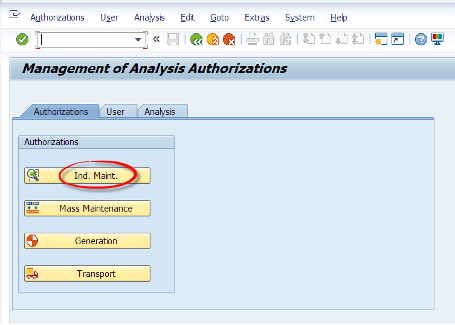
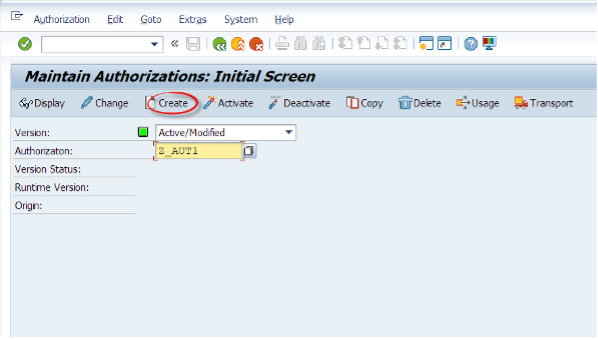
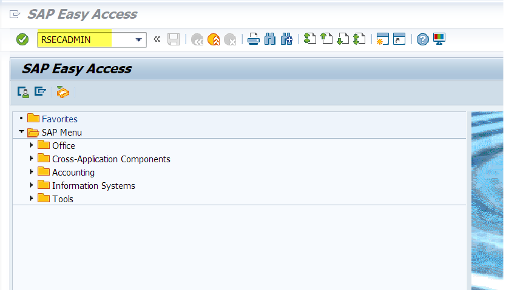
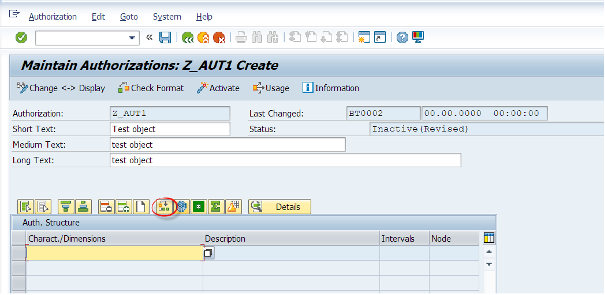
Wir geben den T-Code RSECADMIN ein und klicken dann auf die Registerkarte Berechtigungen. Dann klicken wir auf Ind. Instandhaltung. Dann klicken wir auf die Schaltfläche Erstellen und geben unserem neuen Objekt den Namen Z_AUT1. 
 

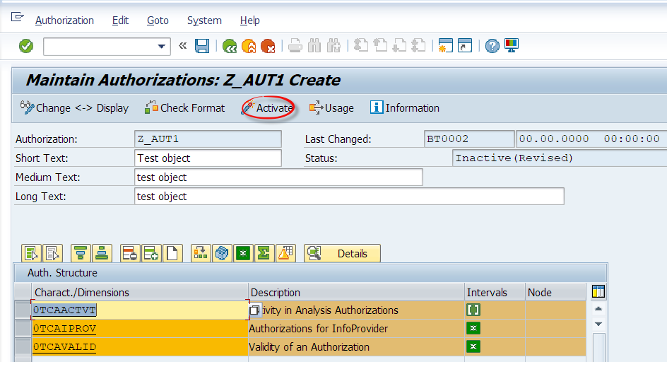
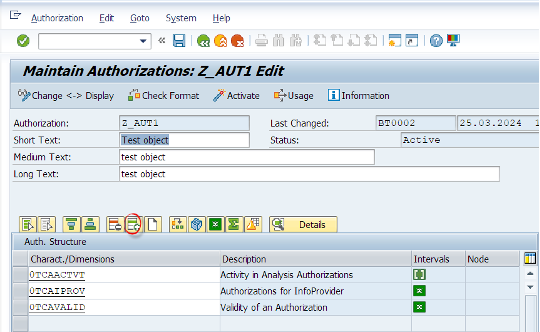
Dann werden wir dieser Liste vordefinierte spezielle Berechtigungsmerkmale hinzufügen. 0TCAACTVT (Aktivität), 0TCAIPROV (InfoProvider) und 0TCAVALID (Gültigkeit). 

Ein Benutzer muss mindestens ein zugewiesenes Berechtigungsobjekt haben, das diese Merkmale enthält. Andernfalls kann er keine Abfragen ausführen. SAP empfiehlt, diese Merkmale aus Gründen der Transparenz zu jedem Berechtigungsobjekt hinzuzufügen, auch wenn dies nicht zwingend erforderlich ist.   

In der Voreinstellung sind die Werte in den Intervallen: 

-Standard: Lesen (03)
-Gültigkeit: immer gültig (*)
-InfoProvider: Alle (*)

-Für Änderungen an Daten: Ordnen sie zusätzlich die Aktivität Ändern (02) zu.
 

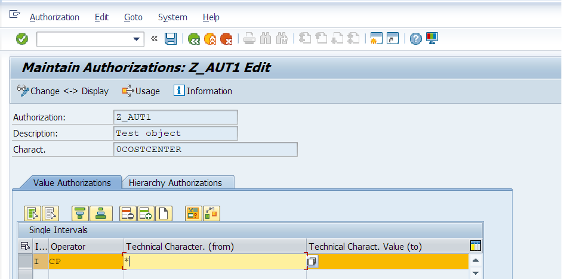
Fügen wir eine Zeile hinzu, wie unten gezeigt, und wählen ein Merkmal aus, das sich auf die Berechtigungen bezieht.
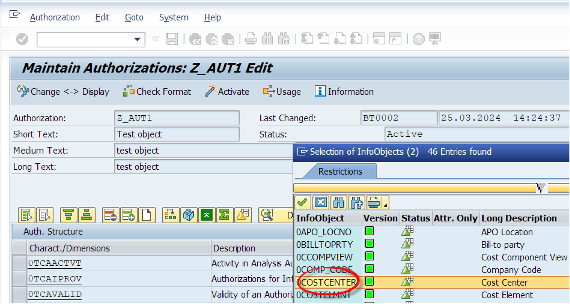
 

Jetzt haben wir 0COSTCENTER zu unserem Berechtigungsobjekt hinzugefügt, das über das Zeichen * Zugriff auf alle Kostenstelleneinträge hat.
Wie können wir dieses Berechtigungsobjekt einem Benutzer zuordnen?

Gehen wir zu RSECADMIN T-code. Unter der Registerkarte Benutzer klicken wir auf die Schaltfläche Indvl. Zuweisung.
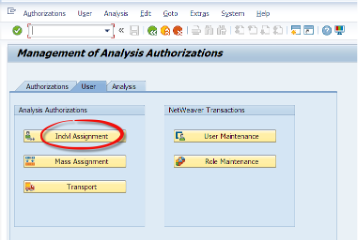
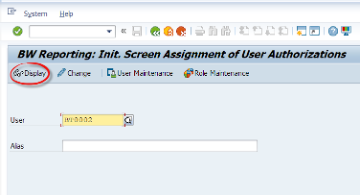
 

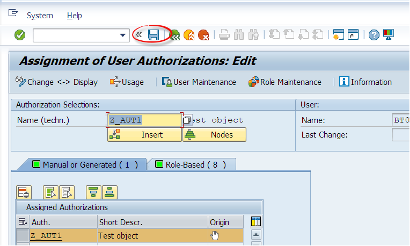
Nachdem wir den Benutzernamen eingegeben haben, klicken wir auf die Schaltfläche Ändern. Wir geben den technischen Namen des Berechtigungsobjekts ein, das wir erstellt haben. Dann können wir auf die Schaltfläche Einfügen klicken, um dieses Objekt manuell zum Benutzer hinzuzufügen. Dann klicken wir auf die Schaltfläche Speichern. 
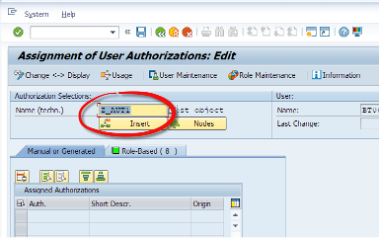
Wie bereits erwähnt, ist dies nicht der bevorzugte Weg. Schauen wir uns die andere Möglichkeit an.

Wir werden dieses Objekt einer Rolle zuweisen – Erstellen wir zunächst eine Rolle.

Wie erstellen wir eine Rolle im SAP BW?

Kommen wir nun zur Rollenerstellung. Wir haben Berechtigungsobjekte, die wir Rollen oder Benutzern zuweisen. Wir können die Rollen auch den Benutzern zuweisen, was die Verwaltung vereinfachen könnte.
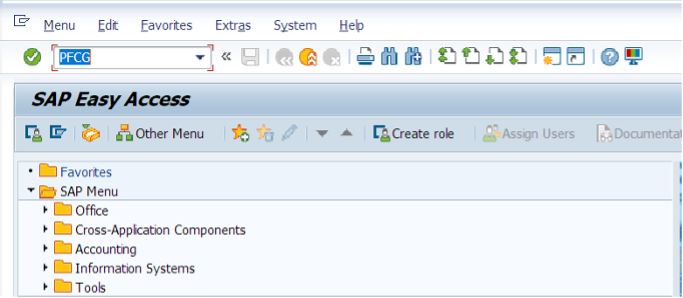
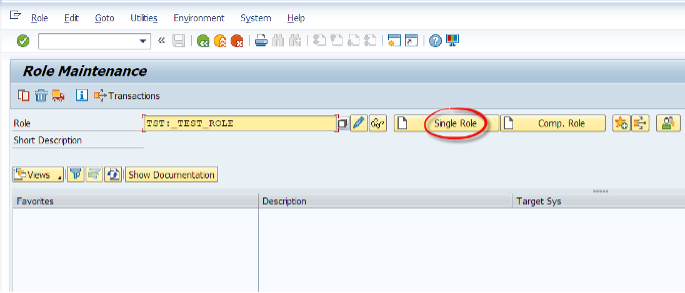
 

Jetzt können wir RSECADMIN oder PFCG verwenden, um eine Rolle zu erstellen.
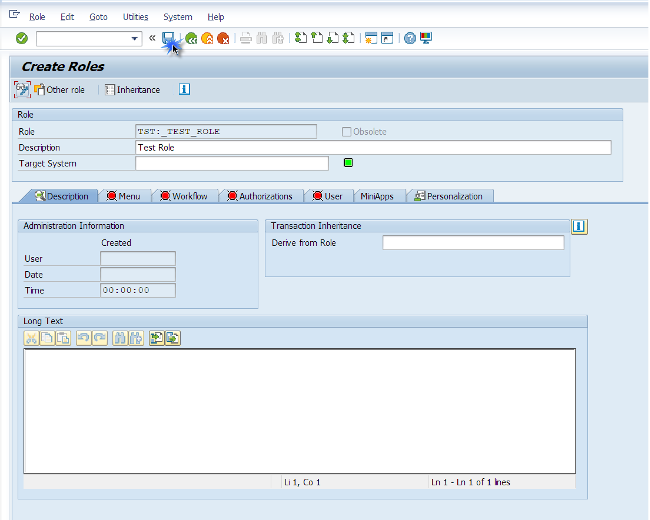
Zuweisung von Berechtigungsobjekten zu Rollen

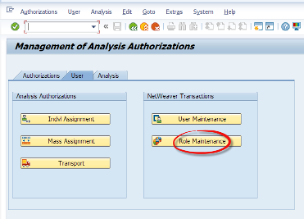
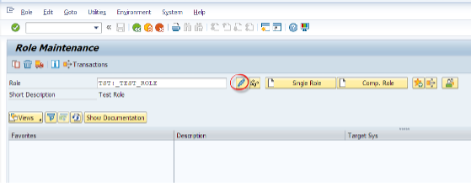
Jetzt können wir unser Berechtigungsobjekt dieser Testrolle zuweisen. Gehen wir zu RSECADMIN. Gehen Sie unter der Registerkarte „Benutzer“ auf „Rollenpflege“.

Eine Systemabfrage fragt, ob wir generische Vorlagen anwenden wollen. Der Einfachheit halber werden wir diesen Vorgang überspringen.
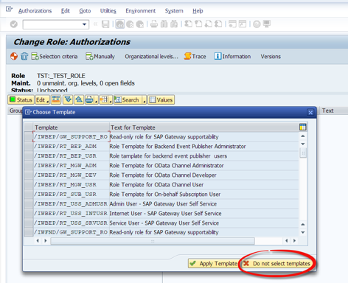
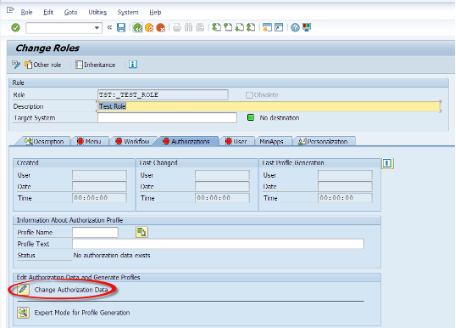
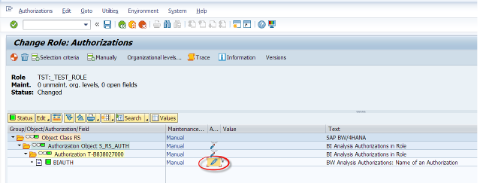
Es gibt ein Systemobjekt zum Speichern von Analyseberechtigungsobjekten, das S_RS_AUTH heißt. Jedes Berechtigungsobjekt, das wir erstellen, muss unter diesem Objekt gespeichert werden.

Wir werden dieses Objekt manuell unserer benutzerdefinierten Rolle zuweisen. Anschließend weisen wir diese Rolle dem Benutzer zu, um die Verwaltung der Sicherheit zu erleichtern.
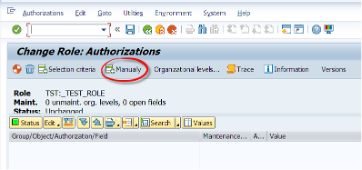
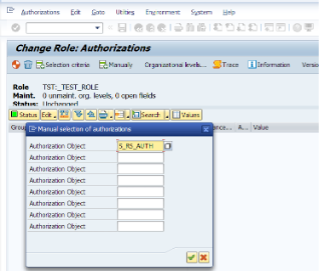
Jetzt fügen wir das Berechtigungsobjekt hinzu, das wir zuvor unter dem Objekt S_RS_AUTH erstellt haben.
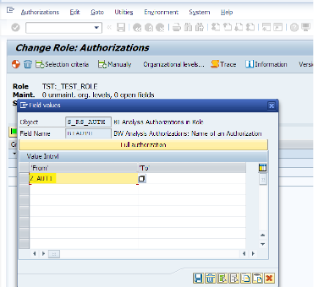
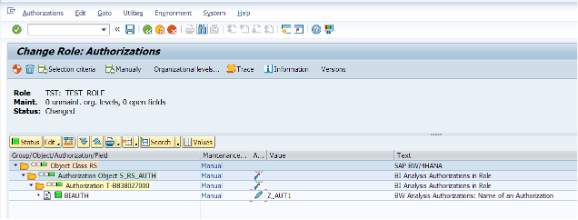
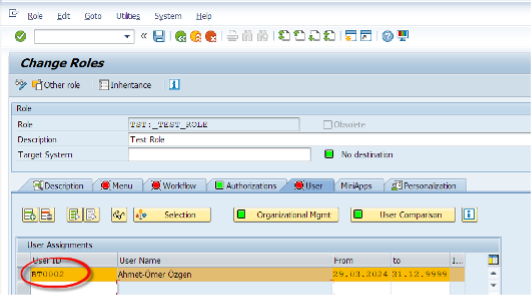
Wir Weisen dem Benutzer eine Rolle zu
So erzeugen Sie das Berechtigungsprofil

Bevor wir die Zuordnung zur Rolle speichern, müssen wir das Berechtigungsprofil generieren. Dazu benötigen wir als Voraussetzung die Berechtigung S_USER_PRO in unserem Benutzer.

Was die SAP sagt:  “Sie müssen Berechtigungsprofile generieren, bevor Sie sie Benutzern zuweisen können. Für jede Berechtigungsstufe in der Browser-Ansicht wird eine Berechtigung generiert und ein Berechtigungsprofil für die gesamte Rolle, wie sie in der Browser-Ansicht dargestellt ist.“
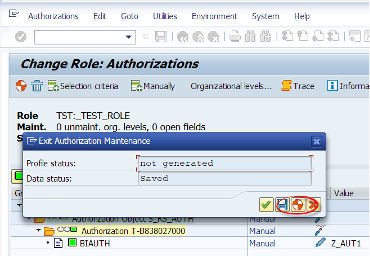
Wenn Sie auf die Schaltfläche Generieren klicken, wird das entsprechende Berechtigungsprofil erstellt.

Anmerkungen

Hinweise: Wenn wir einer Rolle Berechtigungsobjekte zuweisen, die wir nicht kennen, können wir auf die Schaltfläche Auswahlkriterien klicken. Wenn wir auf die roten Minus-Symbole klicken, verwandeln sie sich in grüne Plus-Symbole, und wir klicken auf die Schaltfläche Ausgewählte einfügen, die sie der Rolle hinzufügt.

Wir können Berechtigungsobjekte hinzufügen, die Benutzern den Zugriff auf Info Cubes, ADSOs oder verwandte BW-Objekte ermöglichen. Wir können den Benutzerzugriff auf LESEN, ÄNDERN usw. im Teil * Aktivität unter dem hinzugefügten Berechtigungsobjekt ändern.


Erstellt im Mai 2024

Data Products Setup

I’ll start with Data Products setup. If you’re new to the concept, this recent video is a great starting point, but here’s a short summary. A data product is a well-described, easily discoverable, and consumable collection of data sets.

Creating a Data Product in Datasphere

Note that in this article I create Data Products in the Data Sharing Cockpit in Datasphere. This functionality is expected to move into the Data Product Studio, but that had not taken place at the time writing.

Before creating a Data Product in Datasphere, I need to set up a Data Provider profile, collecting descriptive metadata like contact and address details, industry, regional coverage, and importantly define Data Product Visibility. Enabling Formations allows me to share the Data Product with systems across your BDC Formation – Databricks, in this case.

With the Data Provider set up, I can go ahead and create a Data Product. As with the Data Provider, I’ll need to add metadata about the product and define its artifacts – the datasets it contains. Only datasets from a space of SAP HANA Data Lake Files type can be selected. Since this Data Product is visible across the Formation, it is available free of charge.

For this demo, the artifact is a local table containing ten years of Ice Cream sales data. Since this is a File type space, importing a CSV file directly to create a local table isn’t an option (see documentation).

I used a Replication Flow to perform an initial load from a BW aDSO table into a local table.

Once Data Product is created and listed, it becomes available in the Catalog & Marketplace, from where it can be shared with Databricks by selecting the appropriate connection details.

Jump into Databricks

To use the shared object In Databricks, I need to mount it to the Catalog – either by creating a new Catalog or using an existing one.

Databricks appends a version number to the end of the schema – ‘:v1’ – to maintain versioning in case of any future changes to the Data Product.

Once the share is mounted, the schema is created automatically, and the Sales actual data table becomes available within it. From there, I can access the shared table directly in a Notebook.

Creating a Data Product in Databricks

To create a Data Product in Databricks, I first need to create a Share – which I can either do via the Delta Sharing settings in the Catalog:

Or directly out of the table which is going to become a part of the Share:

Since a single Share can contain multiple tables, I have the option to either add the table to an existing Share, or create a new one:

To publish the Share as a Data Product, I run a Python script where I define the target table for the forecast and describe the Share in CSN notation, setting the Primary Keys. Primary Keys are required for installing Data Products in Datasphere.

Jump back into Datasphere

Once the Databricks Data Product is available in Datasphere, I install it into a Space configured as a HANA Database space – since my intention is to build a view on top of the table and use it for planning in SAC.

There are two installation options: as a Remote table for live data access, or as a Replication Flow, in which case the data is physically copied into the object store in Datasphere.

Since I want live access, I install it as a Remote Table:

and build a Graphical view of type Fact on top:

Forecast calculation

With my Data Products set up and Sales actual data are available in Databricks, I create a Notebook to calculate the Sales Forecast.

The approach combines Sales and Weather data to train a Linear Regression model. I import the Weather data *https://zenodo.org/records/4770937 from an external server directly into Databricks, select the relevant features from the weather dataset, and combine them with the Sales actual data:

* Klein Tank, A.M.G. and Coauthors, 2002. Daily dataset of 20th-century surface
air temperature and precipitation series for the European Climate Assessment.
Int. J. of Climatol., 22, 1441-1453.
Data and metadata available at http://www.ecad.eu

Using the “sklearn” library, I build and train a Linear regression model:

Once trained, the model predicts the Sales forecast for Rome in June 2026 based on the weather forecast, and I save the results to my Catalog table:

Seamless planning data model

Seamless planning concept is built around physically storing planning data and public dimensions directly in Datasphere, keeping them alongside the actual data.

Since the QRC4 2025 SAC release, it has also been possible to use live versions and bring reference data into planning models without replication.

In this scenario, I build a seamless planning model on top of the Graphical view I created over the Remote table. This lets me use the forecast generated in Databricks as a reference for the final SAC Forecast version.


The model setup follows these steps:

Create a new model:

Start with data:

Select Datasphere as the data storage:

From there, I define the model structure and can review the data in the preview.

For a deeper dive into Seamless Planning, I recommend this biX blog.

Process Flow automation

Multi-action triggers Datasphere task chain

The final step is automating the entire forecast generation by using SAC Multi-actions and a Task-Chain in Datasphere – so that my user can trigger the calculation with a single button click from an SAC Story.

The model setup follows these steps:

Create a new model:

Triggering Task Chains from Multi-actions is a recent release. This blog post walks through how to set it up.

For details on how to trigger a Databricks Notebook from Datasphere, I recommend referring to this blog.

With everything in place, I create a Story, add my Seamless planning Model, and attach the Multi-action:

Running the Multi-action triggers the Task Chain, which in turn triggers the Databricks Notebook.

I can monitor the execution details in Datasphere:

and in Databricks:

Once the calculation completes, the updated forecast appears in the Story:

The end-to-end calculation took 2 minutes 45 seconds in total. The Task Chain in Datasphere is triggered almost instantly by the Multi-action, the Databricks Notebook execution itself took 1 minute 29 seconds, with the remaining time spent on Serverless Cluster startup.   


From here, I can copy the calculated forecast into a new private version:

adjust the numbers as needed, and publish it as a new public version to Datasphere:

Conclusion

With SAP Business Data Cloud, it is possible to build a forecasting workflow that feels seamless to the end user — even though it spans multiple systems under the hood.

Companies using BW as the main Data Warehouse and Databricks for ML calculations or Data Science tasks can benefit from using the platform, as the data no longer needs to be physically copied out of BW.

What this scenario demonstrates is that once wrapped as a Data Product, BW sales data can be shared with Databricks via the Delta Share protocol. Databricks, in turn, can then create its own Data Products on top of the calculation results and share them back with Datasphere as a Remote Table.

A Seamless Planning model in SAC sits on top of that Remote Table, giving planners live access to the generated forecast. A single Multi-action in an SAC Story ties it all together, triggering a Datasphere Task Chain that kicks off the Databricks Notebook — completing the full cycle in under three minutes.

As SAP Business Data Cloud continues to mature, scenarios like this one are becoming achievable – leaving the complexity in the architecture and not in the workflow.

Ansprech­partner

Ilya Kirzner
Consultant
biX Consulting
Datenschutz-Übersicht

Diese Website verwendet Cookies, damit wir dir die bestmögliche Benutzererfahrung bieten können. Cookie-Informationen werden in deinem Browser gespeichert und führen Funktionen aus, wie das Wiedererkennen von dir, wenn du auf unsere Website zurückkehrst, und hilft unserem Team zu verstehen, welche Abschnitte der Website für dich am interessantesten und nützlichsten sind.