
Seamless Planning mit SAP SAC und SAP Datasphere Live Connections – erste Tests  

Dezember 2025

Einleitung 

Die Live Connection bei der SAC Seamless Planning wurde auf der TechEd in Berlin vorgestellt und ist seit kurzem mit dem SAC Release Q4/2025 allgemein verfügbar.  

In diesem Blog werden wir von unserer Erfahrungen aus den ersten Tests mit dieser neuen, tollen Funktionalität berichten. 

Folgende Aspekte werden betrachtet: 

  • Live Connection in Seamless Planning – Was ist das? 
  • Welche Möglichkeiten bietet die neue Funktionalität? 
  • Wie spielen SAC und Datasphere Berechtigungen bei live Connections zusammen? 
  • Ist eine Selbstreferenz auf die Plandaten möglich?

Live Connection in Seamless Planning – Was ist das? 

Einen guten Überblick über Seamless Planning liefert dieser Blog: 

Understanding Seamless Planning  

Live Connection in Seamless Planning ermöglicht das Verknüpfen von weiteren Tabellen / Views mit meinen Planzahlen, ohne diese in das Datenmodell mit den Plandaten zu kopieren. Diese Funktionalität ist in folgendem Blog von Maximilian Gander sehr gut beschrieben: 

Unlocking the Next Chapter of Seamless Planning in SAP Business Data Cloud with Live Versions  

Ebenso gibt es eine ausgezeichnete Schulung / Demo dazu, die auf der TechEd 2025 gezeigt wurde. Den Link zu dieser Schulung und weitere Highlights stehen in diesem Blog: 

TechEd 2025 in Berlin – Recap on planning in SAP Business Data Cloud  

Die Einrichtung einer Live-Verbindung gestaltete sich unkompliziert. Dennoch sollten folgende Punkte berücksichtigt werden, die grundsätzlich aus dem Konzept hervorgehen: 

  • Es ist nur möglich Fact-Views einzubinden 
  • Eine Live-Version kann/muss mit einer leeren/neuen Version verbunden werden. Sind schon Daten für dies Version im Modell vorhanden, kann diese nicht mit Live-Daten verbunden werden.  
  • Es kann nur eine Version als „actual/Ist“ markiert werden. Daher ist es nicht möglich, einen Teil der Ist-Daten sowohl in das Modell zu kopieren als auch einen anderen Teil live zu verknüpfen oder die Ist-Daten aus zwei Live-Verbindungen zu beziehen. Dazu muss man dann Versionen verwenden, die nicht als „ist“ markiert sind oder vorher alle Ist-Daten in einem einzigen View zusammenfassen. 
  • Alle Dimensionen der Live-Daten MÜSSEN mit einer Dimension des Datenmodells verknüpft sein. Solange eine Dimension der Live-Daten nicht verknüpft ist, kann man das Modell nicht sichern. Überflüssige Dimensionen sind vorher in dem View innerhalb von Datasphere auszublenden. Wenn der Live-View nicht alle Dimensionen liefert, ist dies dagegen kein Problem. 
  • Es kann immer nur EINE Version einem Live-View zugeordnet werden. Daher ist es nicht möglich, die Dimension „Version“ zuzuordnen! Der View muss immer auf eine Version gefiltert sein! 
  • Fehlen Stammdaten in den SAC-Tabellen, die in dem Live-View vorkommen, so wird dies im SAC-Modell angezeigt. Die Stammdaten können einfach über Knopfdruck ergänzt werden (s. Screenshots) 
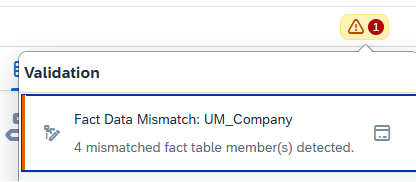
Abbildung 1: Fehlermeldung bei fehlenden Stammdaten 
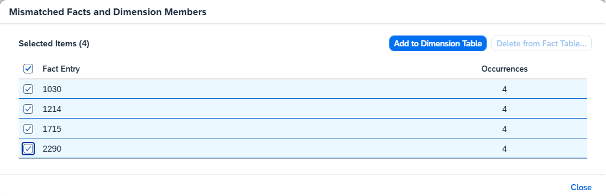
Abbildung 2: Popup, um fehlende Stammdaten zu ergänzen
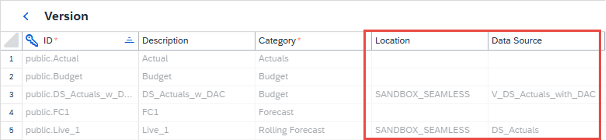
Abbildung 3: Version mit Herkunft bei Live-Versionen

Welche Möglichkeiten bietet die neue Funktionalität?
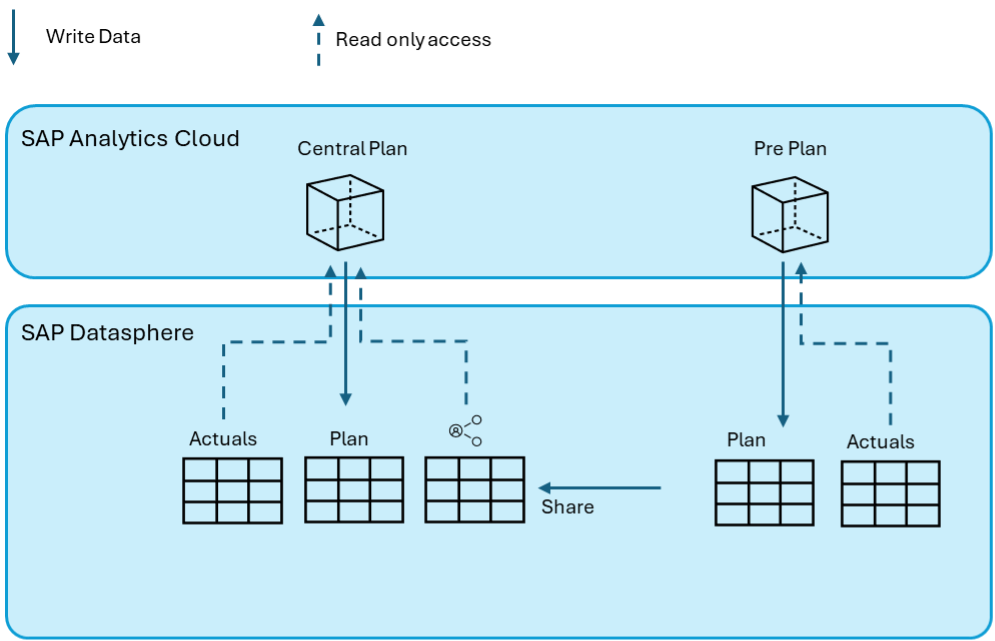
Für alle, die aus der klassischen BW-Welt kommen, entspricht diese Funktionalität nun einem (eingeschränkten) Composite-Provider. Nun gibt es erstmals in SAC die Möglichkeit, Daten in einem Modell zusammenzufassen, ohne dass diese in das SAC-Modell kopiert werden müssen! Damit ist man nicht mehr gezwungen für eine integrierte Planung alles in einem Modell zu verpacken und Daten von einem Modell in das andere zu kopieren.

Abbildung 4: Möglichkeiten mit Live Connection in der Seamless Planung

Wie spielen SAC und Datasphere-Berechtigungen bei Live Connections zusammen?

Bei Seamless Planning liegen die Daten in der Datasphere, es wird aber alles von der SAC verwaltet.
Wie sieht dies nun bei den Berechtigungen aus?

  • Der User benötigt die Berechtigung in der SAC, um auf die Planung zugreifen zu können.
  • Hat der User keine Berechtigung in der Datasphere (entweder gar keinen User oder keinen Zugriff auf den entsprechenden Space) dann kann er die SAC-Planung ausführen, sieht aber keine Daten, die über das Live-Modell eingebunden sind. (s. Abb. 5)
  • Ist eine Dimension in dem SAC-Modell als berechtigungsrelevant markiert, dann schränkt diese die Daten in der SAC sowohl für die Planungsdaten als auch für alle Live-Modelle ein. (s. Abb. 6)
  • Achtung, die Einschränkungen in der SAC gelten nicht für die Daten in der Datasphere! User, die auf die Plandaten in der Datasphere direkt zugreifen können, haben diesen Zugriff erst einmal ohne die SAC-Einschränkungen! Hierfür sind auch in der Datasphere getrennte Einschränkungen (DAC) zu implementieren und synchron zur SAC-Berechtigung zu halten.
  • Gibt es in der Datasphere Einschränkungen über ein „data access control“ für den User, so gelten diese auch, wenn die Daten über eine Live Connection in ein Planungsmodell eingebunden sind. (s. Abb. 6)


Abbildung 5: SAC User ohne Datasphere User oder Space Berechtigung: Planung geht, aber Live-Daten fehlen!
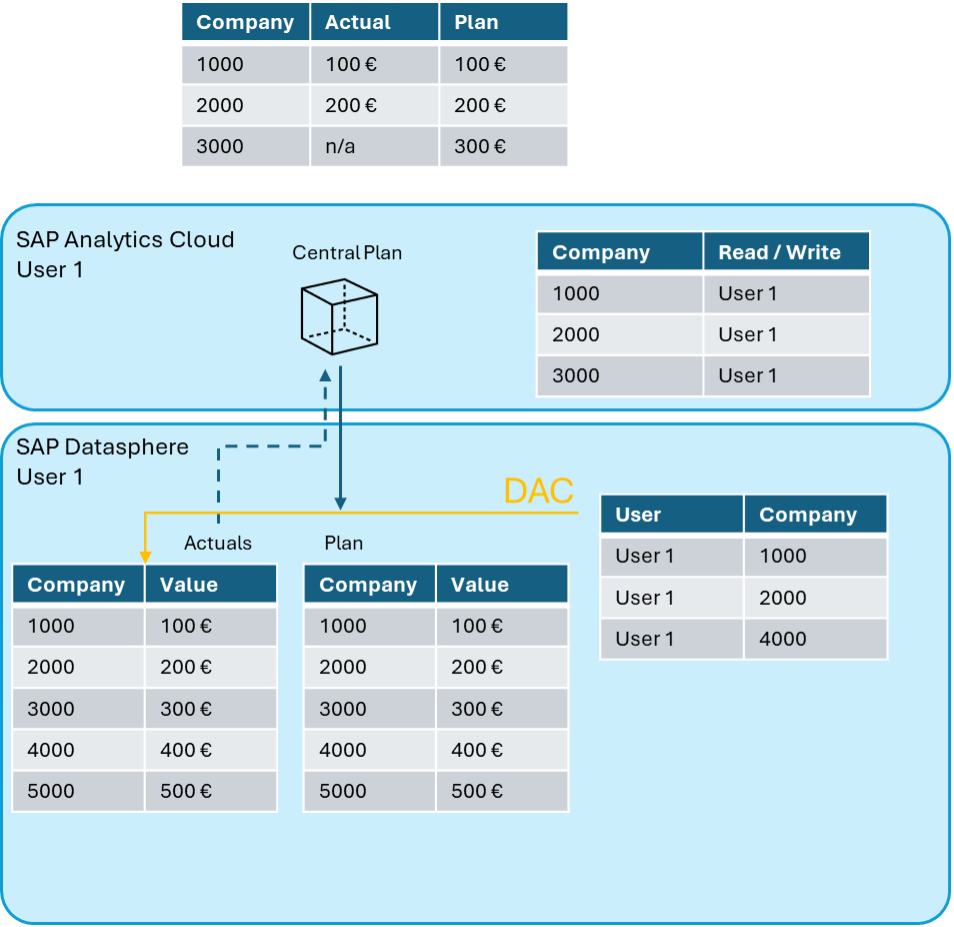
Abbildung 6: DAC – Berechtigung in der Datasphere und Einschränkung in der SAC
-> beides gilt für die Live-Daten, Plandaten verwenden nur die SAC-Einschränkung

Ist eine Selbstreferenz zu den Plandaten möglich?
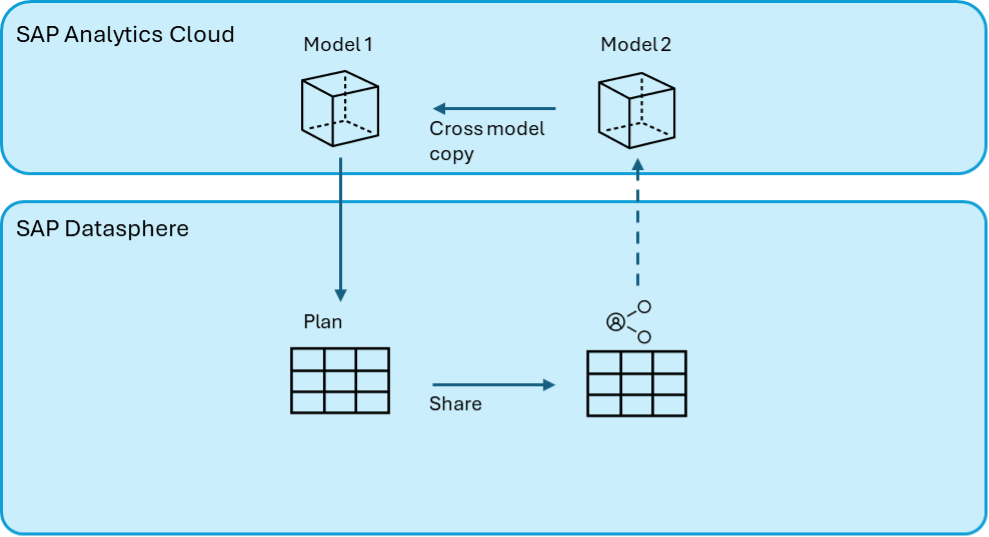
Die Plandaten bei Seamless Planning werden ja in der Datasphere gespeichert und stehen dort für die Einbindung in andere Datenmodelle zur Verfügung. Nun könnte man auf die Idee kommen, diese Daten über einen View zu konsumieren, weitere Verarbeitungen dort zu implementieren und dann wieder über eine Live-Verbindung mit dem eigenen Datenmodell verknüpfen (Selbstreferenz)

Dies hat bei mir leider nicht funktioniert. Ich konnte zwar eine Live-Verbindung definieren und in der Datenvorschau waren die Daten auch wie erwartet zu sehen. Sobald man aber das Modell gespeichert hat, ist dies mit einem SQL-Fehler abgebrochen ☹.

Was hingegen möglich ist, die Daten in ein anderes Modell zu integrieren und anschließend über eine Cross-Model-Kopie die so berechneten Daten in das ursprüngliche Datenmodell zu übertragen.

Damit besteht also prinzipiell die Möglichkeit, Berechnungen, die nicht in SAC-Datenaktionen möglich sind, aber über einen Datasphere View oder HANA-SQL-View implementiert werden können, in der Planung zu verwenden.

Abbildung 7: Selbst referenzierendes virtuelles Datenmodell über zweites SAC-Modell möglich

Fazit

Die neuen Funktion von Live-Connection in „Seamless Planning“ in SAC eröffnet viele Möglichkeiten in der SAC-Planung, die vorher nicht oder nur umständlich möglich waren:

  • Live-Einbindung von Ist-Daten ohne Datenkopie
  • Live-Einbindung von anderen Planungen ohne Datenkopie
  • Verwendung von SQL-Funktionen in der Datasphere

Dies ist definitiv eine Bereicherung und macht das Seamless Planning Modell zur bevorzugten Planungsumgebung in der SAC und weitere Funktionen sollen folgen.

Ein Umzug in eine BDC Umgebung sollte auch funktionieren, da ein Datasphere Tenant über „rewiring“ in die BDC überführt werden kann. Damit sollten auch bestehende Seamless Planungslösungen bei einem Umzug in die BDC kein Problem haben, solange SAC und Datasphere gleichzeitig umgezogen werden.

Data Products Setup

I’ll start with Data Products setup. If you’re new to the concept, this recent video is a great starting point, but here’s a short summary. A data product is a well-described, easily discoverable, and consumable collection of data sets.

Creating a Data Product in Datasphere

Note that in this article I create Data Products in the Data Sharing Cockpit in Datasphere. This functionality is expected to move into the Data Product Studio, but that had not taken place at the time writing.

Before creating a Data Product in Datasphere, I need to set up a Data Provider profile, collecting descriptive metadata like contact and address details, industry, regional coverage, and importantly define Data Product Visibility. Enabling Formations allows me to share the Data Product with systems across your BDC Formation – Databricks, in this case.

With the Data Provider set up, I can go ahead and create a Data Product. As with the Data Provider, I’ll need to add metadata about the product and define its artifacts – the datasets it contains. Only datasets from a space of SAP HANA Data Lake Files type can be selected. Since this Data Product is visible across the Formation, it is available free of charge.

For this demo, the artifact is a local table containing ten years of Ice Cream sales data. Since this is a File type space, importing a CSV file directly to create a local table isn’t an option (see documentation).

I used a Replication Flow to perform an initial load from a BW aDSO table into a local table.

Once Data Product is created and listed, it becomes available in the Catalog & Marketplace, from where it can be shared with Databricks by selecting the appropriate connection details.

Jump into Databricks

To use the shared object In Databricks, I need to mount it to the Catalog – either by creating a new Catalog or using an existing one.

Databricks appends a version number to the end of the schema – ‘:v1’ – to maintain versioning in case of any future changes to the Data Product.

Once the share is mounted, the schema is created automatically, and the Sales actual data table becomes available within it. From there, I can access the shared table directly in a Notebook.

Creating a Data Product in Databricks

To create a Data Product in Databricks, I first need to create a Share – which I can either do via the Delta Sharing settings in the Catalog:

Or directly out of the table which is going to become a part of the Share:

Since a single Share can contain multiple tables, I have the option to either add the table to an existing Share, or create a new one:

To publish the Share as a Data Product, I run a Python script where I define the target table for the forecast and describe the Share in CSN notation, setting the Primary Keys. Primary Keys are required for installing Data Products in Datasphere.

Jump back into Datasphere

Once the Databricks Data Product is available in Datasphere, I install it into a Space configured as a HANA Database space – since my intention is to build a view on top of the table and use it for planning in SAC.

There are two installation options: as a Remote table for live data access, or as a Replication Flow, in which case the data is physically copied into the object store in Datasphere.

Since I want live access, I install it as a Remote Table:

and build a Graphical view of type Fact on top:

Forecast calculation

With my Data Products set up and Sales actual data are available in Databricks, I create a Notebook to calculate the Sales Forecast.

The approach combines Sales and Weather data to train a Linear Regression model. I import the Weather data *https://zenodo.org/records/4770937 from an external server directly into Databricks, select the relevant features from the weather dataset, and combine them with the Sales actual data:

* Klein Tank, A.M.G. and Coauthors, 2002. Daily dataset of 20th-century surface
air temperature and precipitation series for the European Climate Assessment.
Int. J. of Climatol., 22, 1441-1453.
Data and metadata available at http://www.ecad.eu

Using the “sklearn” library, I build and train a Linear regression model:

Once trained, the model predicts the Sales forecast for Rome in June 2026 based on the weather forecast, and I save the results to my Catalog table:

Seamless planning data model

Seamless planning concept is built around physically storing planning data and public dimensions directly in Datasphere, keeping them alongside the actual data.

Since the QRC4 2025 SAC release, it has also been possible to use live versions and bring reference data into planning models without replication.

In this scenario, I build a seamless planning model on top of the Graphical view I created over the Remote table. This lets me use the forecast generated in Databricks as a reference for the final SAC Forecast version.


The model setup follows these steps:

Create a new model:

Start with data:

Select Datasphere as the data storage:

From there, I define the model structure and can review the data in the preview.

For a deeper dive into Seamless Planning, I recommend this biX blog.

Process Flow automation

Multi-action triggers Datasphere task chain

The final step is automating the entire forecast generation by using SAC Multi-actions and a Task-Chain in Datasphere – so that my user can trigger the calculation with a single button click from an SAC Story.

The model setup follows these steps:

Create a new model:

Triggering Task Chains from Multi-actions is a recent release. This blog post walks through how to set it up.

For details on how to trigger a Databricks Notebook from Datasphere, I recommend referring to this blog.

With everything in place, I create a Story, add my Seamless planning Model, and attach the Multi-action:

Running the Multi-action triggers the Task Chain, which in turn triggers the Databricks Notebook.

I can monitor the execution details in Datasphere:

and in Databricks:

Once the calculation completes, the updated forecast appears in the Story:

The end-to-end calculation took 2 minutes 45 seconds in total. The Task Chain in Datasphere is triggered almost instantly by the Multi-action, the Databricks Notebook execution itself took 1 minute 29 seconds, with the remaining time spent on Serverless Cluster startup.   


From here, I can copy the calculated forecast into a new private version:

adjust the numbers as needed, and publish it as a new public version to Datasphere:

Conclusion

With SAP Business Data Cloud, it is possible to build a forecasting workflow that feels seamless to the end user — even though it spans multiple systems under the hood.

Companies using BW as the main Data Warehouse and Databricks for ML calculations or Data Science tasks can benefit from using the platform, as the data no longer needs to be physically copied out of BW.

What this scenario demonstrates is that once wrapped as a Data Product, BW sales data can be shared with Databricks via the Delta Share protocol. Databricks, in turn, can then create its own Data Products on top of the calculation results and share them back with Datasphere as a Remote Table.

A Seamless Planning model in SAC sits on top of that Remote Table, giving planners live access to the generated forecast. A single Multi-action in an SAC Story ties it all together, triggering a Datasphere Task Chain that kicks off the Databricks Notebook — completing the full cycle in under three minutes.

As SAP Business Data Cloud continues to mature, scenarios like this one are becoming achievable – leaving the complexity in the architecture and not in the workflow.

Ansprech­partner

Ilya Kirzner
Consultant
biX Consulting
Datenschutz-Übersicht

Diese Website verwendet Cookies, damit wir dir die bestmögliche Benutzererfahrung bieten können. Cookie-Informationen werden in deinem Browser gespeichert und führen Funktionen aus, wie das Wiedererkennen von dir, wenn du auf unsere Website zurückkehrst, und hilft unserem Team zu verstehen, welche Abschnitte der Website für dich am interessantesten und nützlichsten sind.